1. What Washa is
1.1 In a nutshell
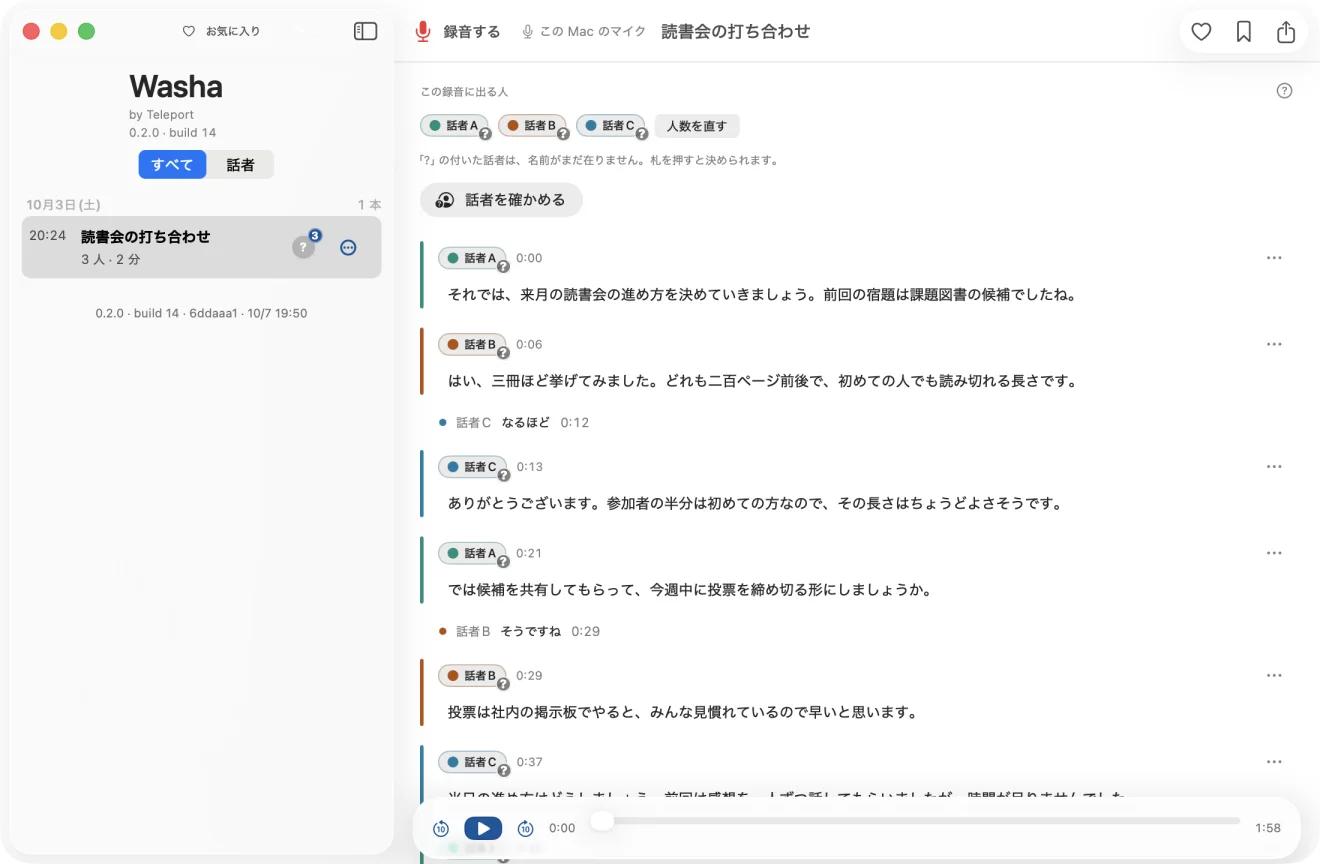
Washa (話者) is an app that turns audio or video recordings into text split into "who spoke, when, and what". Record a meeting, interview, class or discussion, or import an existing recording file, and it does the following entirely on the device:
- Transcription (turning spoken words into text)
- Voiceprint analysis (capturing the characteristics of each voice)
- Speaker identification (sorting out which utterance is whose voice)
The finished transcript can be read with a speaker and timestamp attached to each line. Once you give a speaker a name, Washa remembers that voice and, from the next recording on, suggests "Is this this person?"
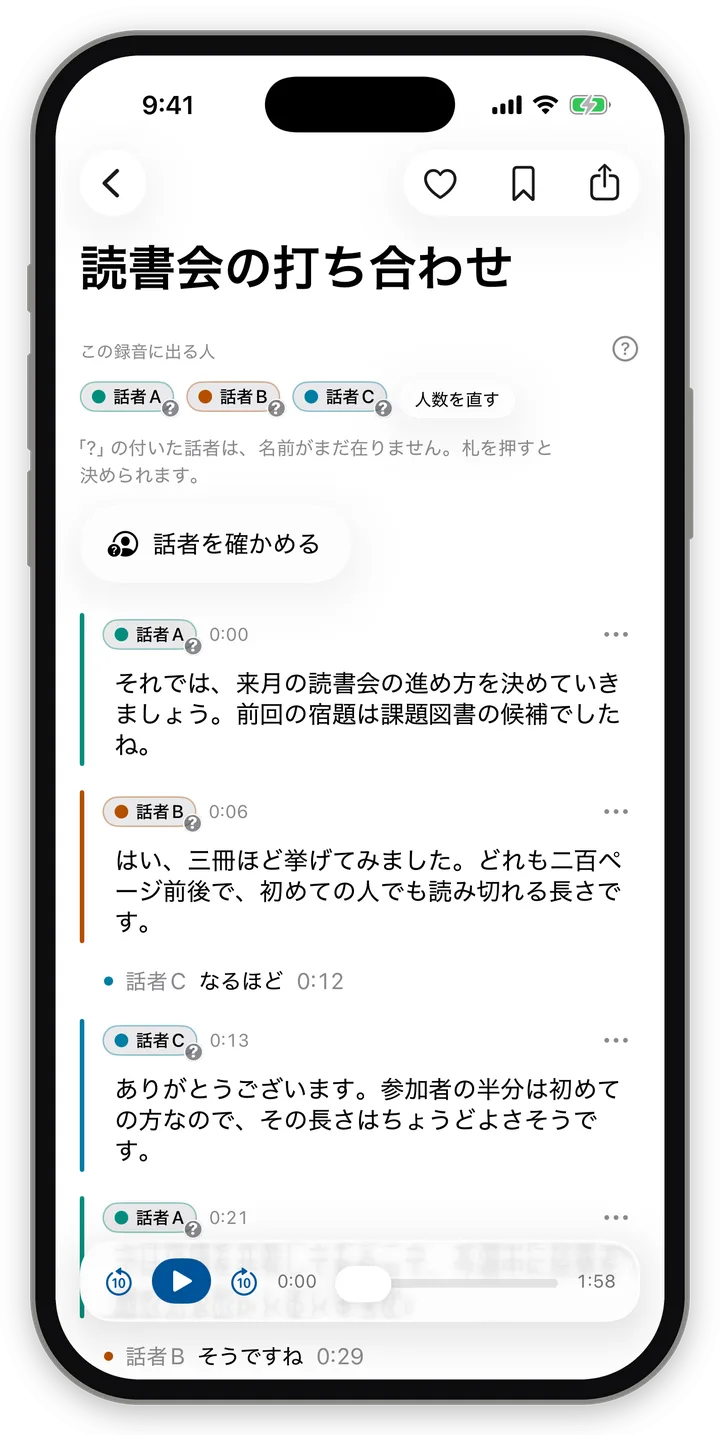
1.2 Key features
| Feature | Details |
|---|---|
| Processes on the device | Transcription, voiceprint analysis and speaker identification run inside the device you are using (iPhone, Mac, Android, Windows). Recordings are not sent to an AI company's servers. |
| Distinguishes up to 10 people | Distinguishes up to 10 speakers in a single recording. |
| Japanese and English mixed is fine | Choose "Auto (Japanese with some English)" and conversations in Japanese with English mixed in are transcribed as they are. |
| Multilingual | Supports Japanese, English, Chinese (Mandarin), Cantonese and Korean. On iPhone and Mac you can also choose German, French, Spanish, Portuguese (Brazil) and Italian. Apart from the Japanese–English combination, each recording is treated as one language. |
| Free and unlimited at its core | Recording, separating speakers, and using the text of who said what is free. There is no monthly fee and no cap on hours (Chapter 3). |
| Gets smarter with a word from a person | When a person tells it "how many people were talking" or "whose voice this is", the result improves accordingly. Voices you teach it stay in the Speaker library and help in the next recording. |
| 4 OSes | Usable on iPhone, Mac, Android and Windows with the same concepts and the same operations. |
1.3 About accuracy
Washa processes everything on the device without using cloud AI services. So it will naturally mishear words in transcription and sometimes assign the wrong speaker. That said, we believe it has reached a level that is fine for practical use.
Mistakes can be corrected within the app.
- If the number of speakers is wrong, re-split with "Change number of speakers" (Section 10.3).
- If a line has the wrong speaker, you can reassign just that line to another speaker (Section 10.1).
- Text errors can be fixed with "Edit" (Section 9.5).
More accurate proofreading is planned as a future paid feature (AI proofreading) (Chapter 3).
2. How Washa works and where it is heading (the public scope)
This chapter contains only what the provider makes public. Details of the workings not covered here are not public.
2.1 Washa is "the ears of AI agents"
Washa looks like a transcription app, but its real role is to be the "ears" through which AI agents perceive this world. This is the most important part of Washa's concept.
Teleport Inc. is developing Teleport's AI platform. On it live AI agents called Telepotch, which connect with a variety of services.
What Teleport's platform aims for is a world like this:
- Many humans and many AI agents work together as one team.
- Not limited to one place. It runs across many platforms and devices — LINE, Slack, Discord, Teleport's own communication platform still to come, and even places where you can talk in the car, like CarPlay (multi-agent, multi-platform, multi-device).
- Wherever you talk to an agent, it behaves as "one personality", and can play as a team not just on its own but together with many people.
For that, agents also need ears. Washa is what we built to be those ears.
Washa also has an AI agent (a Telepotch) called "Washa-kun" (話者くん). With the paid features, you will be able to do various kinds of work together with Washa-kun, and Washa-kun will be able to edit the content of the transcript further (Chapter 3).
2.2 The engine "WashaKit" (話者キット)
Inside Washa is an engine developed by Teleport called WashaKit (話者キット).
- WashaKit is an engine that performs transcription, voiceprint analysis and speaker separation.
- It supports 5 OSes: iOS, Mac, Android, Windows and Linux.
- The Washa app supports 4 of these, excluding Linux.
- Teleport intends to provide WashaKit to many places from now on and grow it. For example, in medical settings or within companies, it will enable uses such as transcribing huge amounts of audio in a closed environment without sending any data to an AI company.
2.3 Recording location, and sounds other than human voices
- Washa can tell where a recording is being made. It uses the device's location information (GPS, etc.) to attach the place where recording started to the recording (only if location use is permitted; Section 7.6).
- In the future, we will make it able to recognize voices other than human ones too — natural sounds such as birdsong, insect sounds and animal calls. We are growing Washa into the ears through which AI agents come to perceive this very world.
- To that end, the WashaKit engine includes a mechanism that can be extended with models that analyze sounds other than human voices.
Recognition of sounds other than human voices is a future vision. The current beta app has no such feature.
2.4 The document format "Washa Document" (話者ドキュメント)
- Washa has a document format called Washa Document (話者ドキュメント).
- Teleport would like to provide this format as open source.
- Washa Document is a format for laying out in time order what was happening on the spot so it can be analyzed later. What it lays out includes not only audio but also smartphone sensor information and various data that can be recognized from it.
In the current app, "Help improve Washa" on the export screen creates a Washa Document for one recording (one file containing the transcript, the record of speaker corrections, etc., plus one audio file) (Section 11.2).
2.5 What this chapter does not cover
The following are not public, so they are not covered in this document.
- Details of the AI models used inside WashaKit, or the processing steps
- Accuracy figures (what % is correct, etc.)
- When Washa-kun, Telepotch and Teleport's AI platform will be available, and their prices
- Terms for providing WashaKit to companies or medical institutions
- When Washa Document will be open-sourced, or details of its specification
3. Pricing approach
3.1 Free at its core — and unlimited
Washa is basically a free application. This is not just for the beta period.
Recording, separating speakers, and using as text who is speaking and how is free and unlimited.
- There is no monthly fee.
- There is no cap such as "up to N hours". You may use it for hundreds or thousands of hours. Processing runs on the device, so there is no charge based on usage.
- Up to 10 people can be distinguished per recording.
- All features in the current beta are provided free of charge.
Because processing happens on the device, there is also the safety of the recording's contents not leaving it.
Fully usable even for free — that is Washa's key point.
3.2 Paid features (to be added step by step)
On top of that, optional paid features will be added step by step. With the paid features, not only does the quality of the results improve, but you can also use the transcript in many forms. Planned examples:
| Example paid feature | Details |
|---|---|
| AI proofreading | AI thoroughly proofreads and corrects transcription errors, including technical terms and proper nouns. |
| Turn into a presentation | Creates a presentation from the transcribed content. |
| Turn into meeting minutes | Creates meeting minutes, including figures. |
| Turn into an infographic | Structures what is being talked about and turns it into an infographic. |
| Working with Washa-kun | Work together with the AI agent Washa-kun (a Telepotch), and have Washa-kun edit the content further. |
- Paid features are not yet in the current beta app.
- Prices, timing and target OSes are not yet at a stage where they can be written in this document.
- The term "AI proofreading" appears in part of the app's screens (the explanation for "Exclude" a speaker), but this wording anticipates the future paid feature. AI proofreading is not available in the current version.
4. System requirements and how to get the app
Version checked: app 0.2.0 (as of build 14).
4.1 Overview
| iPhone | Mac | Android | Windows | |
|---|---|---|---|---|
| Required OS | iOS 26.0 or later | macOS 26.0 or later | Android 13 or later | Windows 11 (64-bit) |
| CPU | — | Apple silicon (M series) only. Intel Macs are not supported | 64-bit ARM (arm64) only | x64 only. ARM versions of Windows are not supported |
| How to get the beta | TestFlight | TestFlight | Install the APK file directly | Microsoft Store (planned) |
| Main devices tested | iPhone | Apple silicon Mac | Pixel 8a | Windows 11 PC |
| Internet | Needed the first time, to fetch data for processing. Not needed afterwards for recording or processing | Same as left | Needed the first time, to fetch data for processing (fetched only on Wi-Fi) | Data for processing is bundled with the app. Normally no internet is needed for processing (fetched at launch only if a component is missing) |
| Screen language | 日本語 / English | Same as left | Same as left | Same as left |
Notes:
- iPad: The iPhone version can be installed on an iPad. However, the screens are built the same as on iPhone; there are no dedicated iPad screens. The beta is mainly tested on iPhone.
- Windows 10: Not tested. Windows 11 is the supported target.
- Android devices: Cannot be installed on 32-bit devices, x86 devices (such as emulators), or Chromebooks.
- Memory: No minimum memory requirement has been set. When processing long recordings, if memory runs short, "Stopped because memory ran out" (メモリが足りず止まりました) may be shown.
4.2 Required permissions
| Permission | Purpose | iPhone | Mac | Android | Windows |
|---|---|---|---|---|---|
| Microphone | Recording | Required | Required | Required | Must be allowed in Windows Settings (see below) |
| Location (approximate) | Records the place where recording started, once | Optional | Optional | Optional | Not used |
| Speech recognition | On-device transcription | Required (asked at the entry to import/processing) | Not asked | Not asked | Not asked |
| Notifications | Showing recording/processing in progress, alerts when recording stops | Not used (lock screen display uses "Live Activities") | Not used | Required (recommended) | Not used |
Explanations shown on the permission prompts (iPhone, Mac):
| Permission | Japanese | English |
|---|---|---|
| Microphone | 録音と、録音の取り込みに使います。 | Used to record audio and to import recordings. |
| Location | 録音を始めた場所(おおよその位置)を 1 回だけ取り、録音に添えます。 | Gets your approximate location once when you start recording and adds it to the recording. |
| Speech recognition | 録音を端末の中で文字に起こすために使います。 | Used to transcribe recordings on this device. |
- You can record without allowing location. In that case the recording simply has no place attached.
- On Android, the first time you start recording, it asks for 3 permissions together: microphone, notifications and approximate location. Choosing photos uses Android's photo picker, so no photo permission is needed.
- On iPhone too, photos are chosen with the photo picker, so no photo library permission is needed.
About the microphone on Windows (important)
Windows has no screen that asks for microphone permission per app. If "Let desktop apps access your microphone" is turned off under Windows "Settings → Privacy & security → Microphone", Washa records silence without showing an error. If nothing is transcribed after recording, check this setting first.
4.3 Getting and installing the app
iPhone and Mac (TestFlight)
- From the invitation email or link, install Apple's TestFlight app.
- Install "Washa" from TestFlight.
- The "Washa" icon appears on the Home Screen (Applications on Mac).
- TestFlight builds may change features or display without notice (Terms of Use, Article 3).
Android (APK)
- Save the distributed APK file to the device.
- Open the file and install it. If the browser or file app asks you to "allow apps from this source", allow it (this is standard Android behavior).
- "Washa" appears in the launcher.
- On first use, it fetches the data used for processing (several hundred MB). It fetches only while connected to Wi-Fi. While fetching, "Fetching the data used for processing" (処理に使うデータを取り寄せています) and the progress ("Fetching N%" (取り寄せ N%)) are shown. When not connected to Wi-Fi, "The data used for processing will be fetched when you connect to Wi-Fi." (Wi-Fi につながると、処理に使うデータを取り寄せます。) is shown.
- On a device where the processing data is not all in place, "This device doesn't yet have the data for telling speakers apart, so recordings can't be processed." (この端末には話者を聞き分けるためのデータがまだ入っていないため、録音を処理できません。) is shown. If this keeps appearing, report it on the Washa Discord (Chapter 13).
Windows (Microsoft Store, planned)
- The Windows version is planned to be distributed through the Microsoft Store. The start of distribution and the steps will be added to this document once decided.
- The first launch takes about 1–2 minutes to prepare the bundled processing data. Meanwhile, "Preparing for first launch (getting the data for telling speakers apart ready)…" (初めての起動の準備をしています(話者を聞き分けるデータを用意しています)…) is shown.
- If Washa is already running, a second instance cannot be opened. "Washa is already open. Please use the open window." (Washa はもう開いています。開いている窓を使ってください。) is shown.
- Data is kept in a per-Windows-user location (local app data) and is not carried over to other PCs.
4.4 How the app's name is written
- The name is "話者" in Japanese, and "Washa" in Latin letters (capital W).
- Under the app icon and in the on-screen logo, it appears as "Washa". Under the logo, "by Teleport" appears.
- In some displays on the iPhone lock screen and Control Center, it appears in lowercase as "washa" (Chapter 13).
5. First launch
Version checked: app 0.2.0 (as of build 14). First-run guide screens (onboarding) are planned for the next build.
5.1 Agreeing to the Terms of Use and Privacy Policy
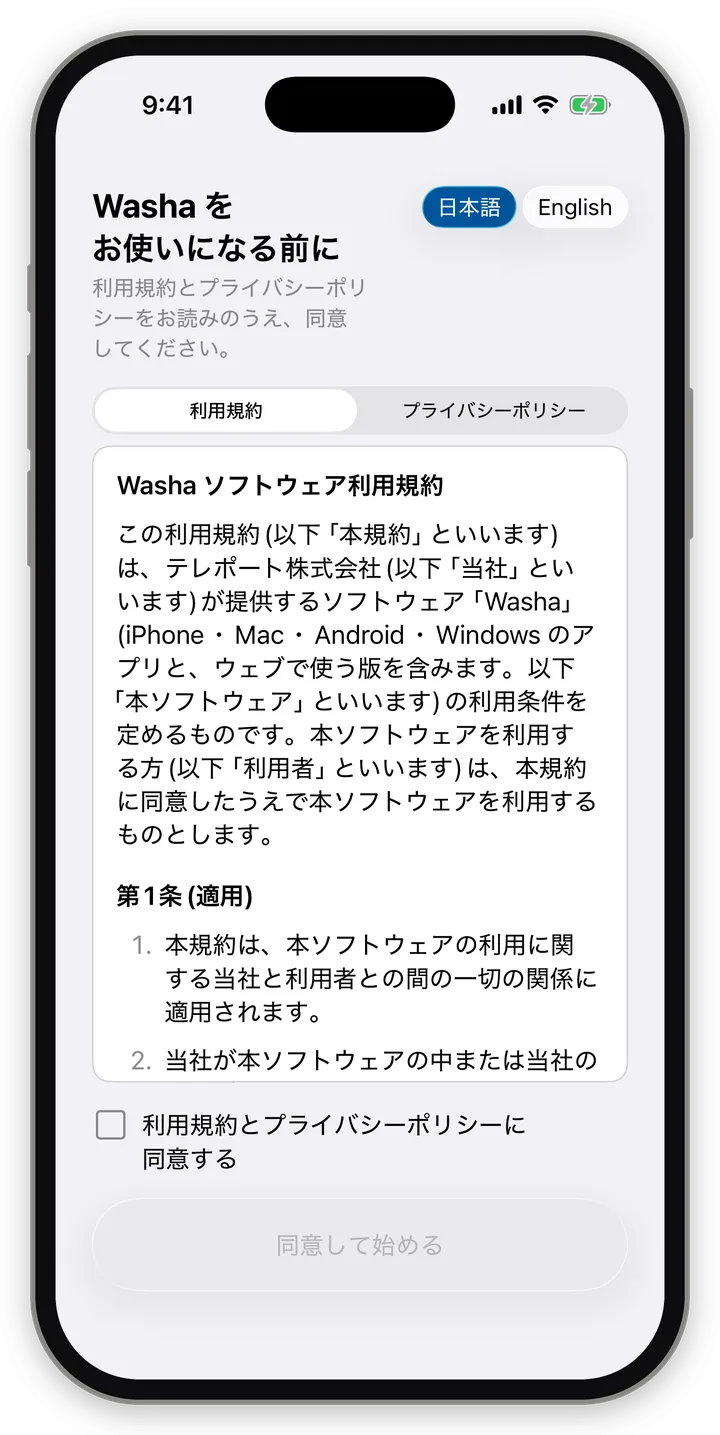
On first launch, an agreement panel appears full-screen. The app itself cannot be used until you agree.
| Part | Japanese | English |
|---|---|---|
| Title | Washa をお使いになる前に | Before you use Washa |
| Description | 利用規約とプライバシーポリシーをお読みのうえ、同意してください。 | Please read the Terms of Use and the Privacy Policy, and agree to them. |
| Language switch | 日本語 / English | Same as left |
| Document switch | 利用規約 / プライバシーポリシー | Terms of Use / Privacy Policy |
| Checkbox | 利用規約とプライバシーポリシーに同意する | I agree to the Terms of Use and the Privacy Policy |
| Button | 同意して始める | Agree and start |
| When the document can't be read | 文書を読み込めませんでした。 | Could not load the document. |
- You can scroll the body to read the full text.
- "Agree and start" cannot be pressed until the box is checked.
- The panel's language can be switched separately from the screen language setting. Initially it follows the screen language setting (Section 11.3). With "Match system", it appears in Japanese if the device's primary language is Japanese, and in English otherwise.
- The panel has no close button, and Android's "Back" does not close it either.
- When a new version of the Terms of Use or Privacy Policy comes out, this panel appears again the next time you open the app.
- The version agreed to and the date/time can be checked later under "About" in Settings.
5.2 The first screen shown
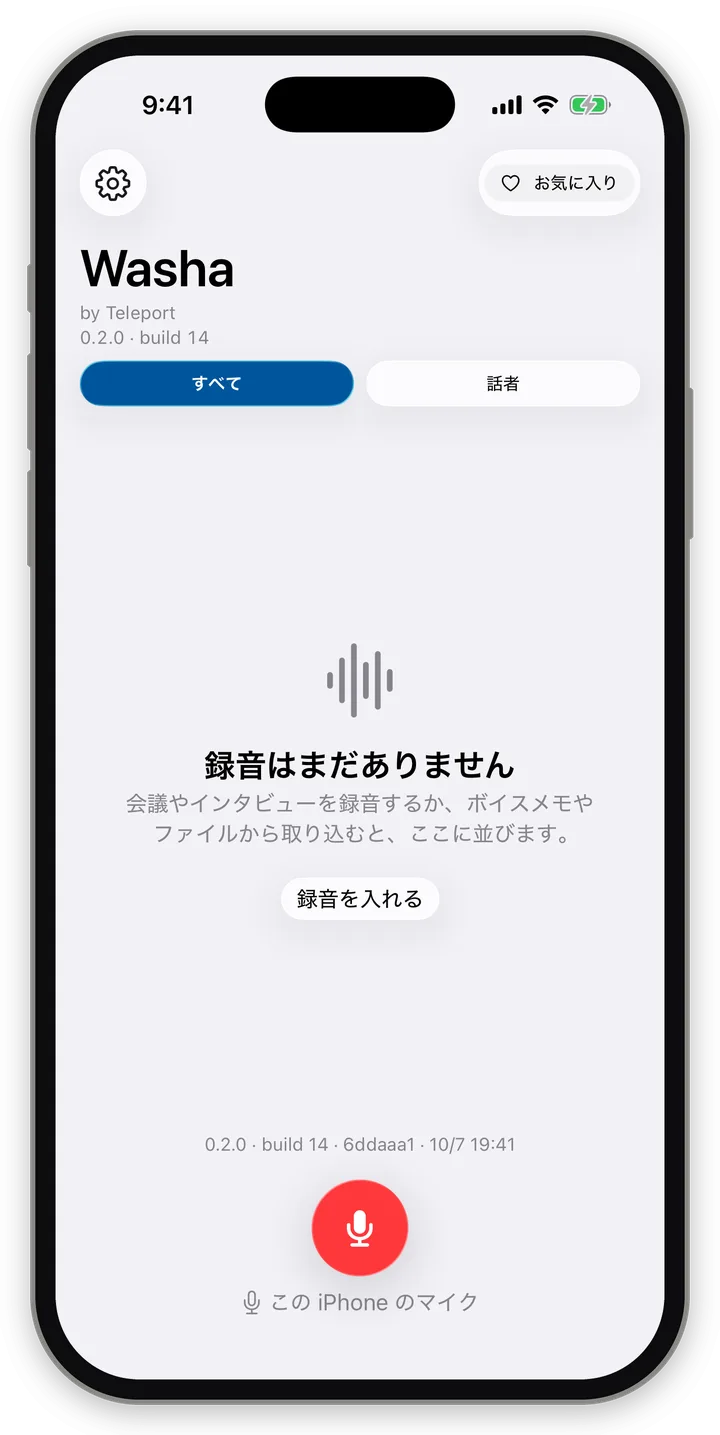
After you agree, the recordings list appears. When there are no recordings yet, it shows:
| Part | Japanese | English |
|---|---|---|
| Title | 録音はまだありません | No recordings yet |
| Description (iPhone, Mac) | 会議やインタビューを録音するか、ボイスメモやファイルから取り込むと、ここに並びます。 | Record a meeting or interview, or import one from Voice Memos or Files, and it’ll appear here. |
| Description (Android, Windows) | 会議やインタビューを録音するか、ほかのアプリやファイルから取り込むと、ここに並びます。 | Record a meeting or interview, or import one from another app or a file, and it’ll appear here. |
| Button | 録音を入れる | Import recording |
From here, start in one of two ways:
- Record: the red record button (Chapter 7)
- Import: "Import recording" or "+" (Chapter 8)
5.3 The first time you process
- On iPhone and Mac, the first time you process, it fetches and prepares the components used for processing. At this time, "Fetching the components used for processing" (処理に使う部品を取り寄せています) and "The first time, preparing the components takes a while (it will be faster from next time)" (初回は部品の準備に時間がかかります(次からは速くなります)) are shown. From the second time on, it is faster.
- These two sentences appear in Japanese even when the screen language is English (Chapter 13).
- On Android, as in Section 4.3, it fetches the processing data over Wi-Fi.
- On Windows, preparation is completed at first launch.
6. Overview of the screens
Version checked: app 0.2.0 (as of build 14).
6.1 Common screen structure
On every OS, these 3 screens are central:
| Screen | Role |
|---|---|
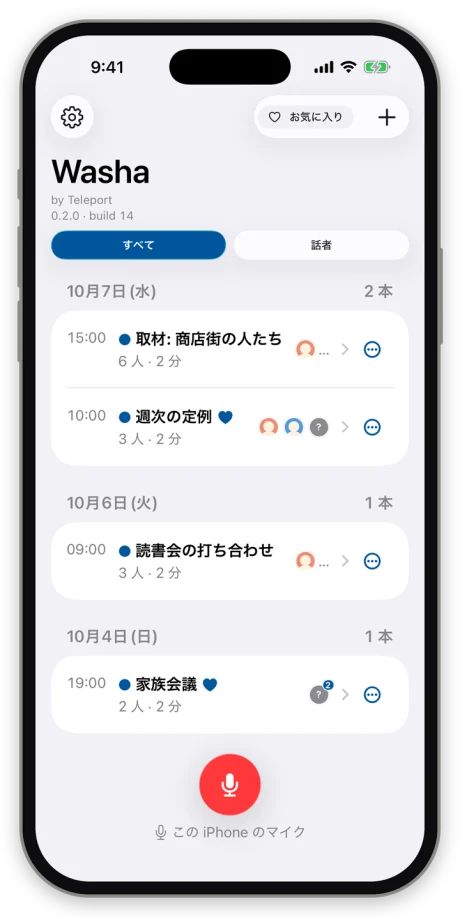
| List | Recordings are listed by date. Tabs switch between "All" and "Speakers" |
| Transcript screen | Read, listen to and correct the transcript of one recording |
| Settings | Appearance, text size, language, background, logs, Trash, About |
In addition, "sheets" (sheets that rise from the bottom of the screen, or panels in the center of the window) are layered on top when needed: the recording panel, the speaker-count sheet, the processing sheet, the speaker panel, the export sheet, and so on.
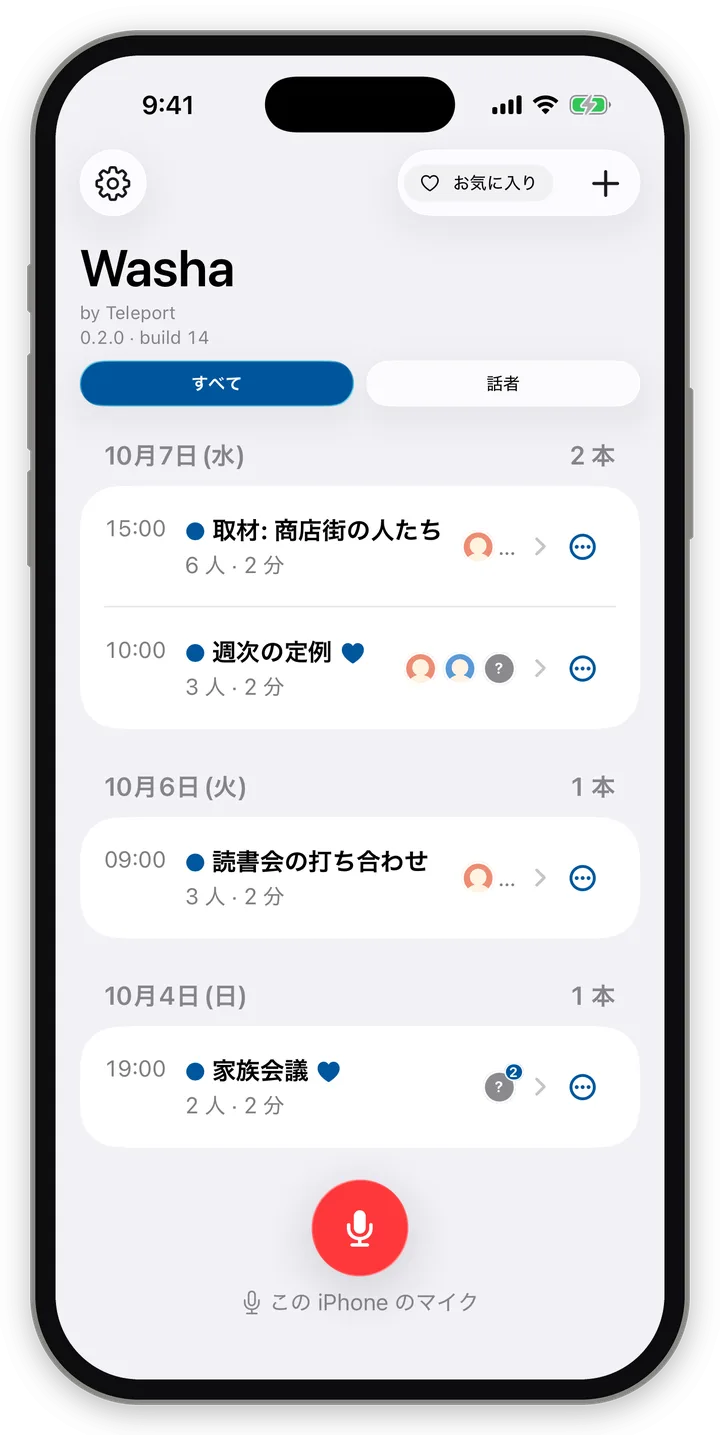
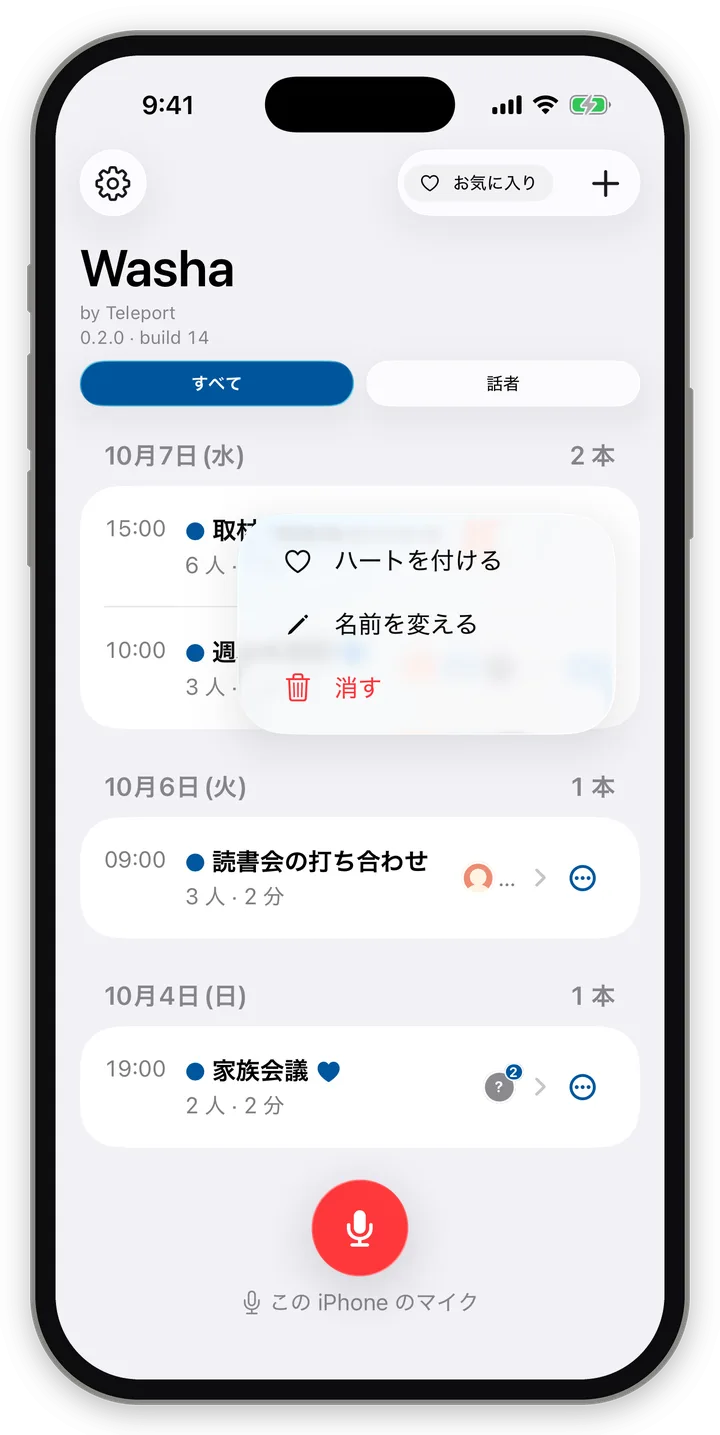
6.2 The list screen
Header
- In the center, the logo "Washa" and "by Teleport", with the version line beneath (e.g. "0.2.0 · build 14")
- Tabs "All / Speakers"
- Favorites toggle (heart button). Pressing it sorts favorite recordings to the top (non-favorite recordings are not hidden; they follow below under the heading "Not favorites" (お気に入りではない録音)).
- "+" (Import recording). Not shown when there are no recordings (use "Import recording" on the empty screen instead).
- Entry to Settings: the gear at the top left on iPhone and Android. On Mac and Windows, open it from the menu (Section 11.3).
Date headings
- "Wed, Sep 24" (9月24日(水)), and the number of recordings that day, "N recordings" (N 本).
Recording rows
- Time on the left (e.g. "14:00")
- Title (up to 2 lines). A heart mark if it's a favorite
- An unread dot on recordings not yet opened
- A line in small text: place name, number of people ("N people" (N 人)), length ("N min" (N 分)). If the recording date is unknown, "Import date" (取り込んだ日); if the import was on a different day, "Imported 9/24" (取り込み 9/24)
- On the right, the faces of the speakers who appear (photo or colored circle; "?" for unnamed speakers)
- A status tag, only when processing has not finished normally (Section 9.1)
Row operations
| Operation | iPhone | Mac | Android | Windows |
|---|---|---|---|---|
| Open | Tap | Click | Tap | Click |
| Favorite | Swipe left to right | Right-click, "…" | Swipe right | Right-click, "…" |
| Rename / delete | Swipe right to left, long-press, "…" | Right-click, "…" | Long-press, "…" (delete also by swiping left) | Right-click, "…" |
| Delete (key) | — | Delete key | — | Delete key |
Row menu items: "Add to favorites / Remove from favorites", "Rename", "Delete", "Export logs". On iPhone and Mac, for a row being processed, "Stop processing" appears instead of "Delete".
6.3 The "Speakers" tab
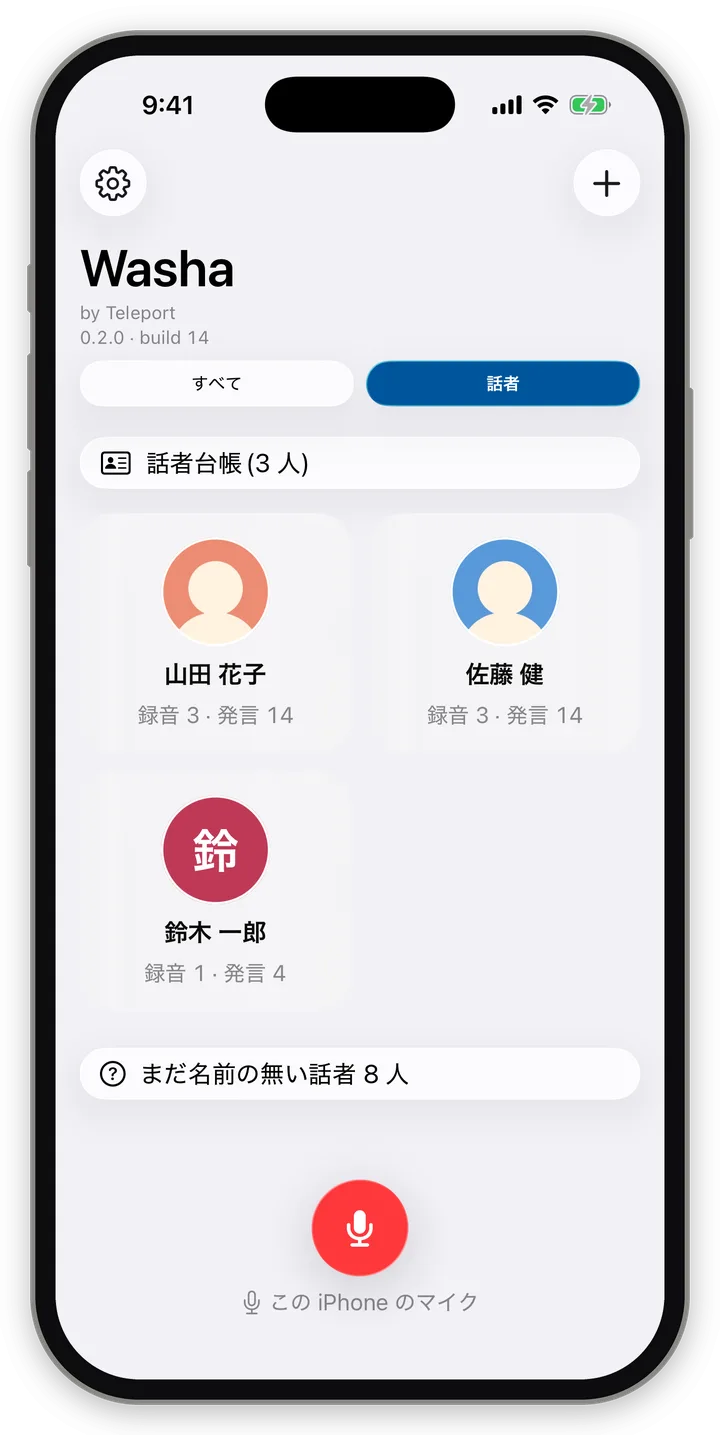
A list by confirmed person (speakers in the Speaker library).
- At the top, a row "Speaker library (N people)" (話者台帳(N 人)). Tapping it opens the full Speaker library (Section 10.4).
- Cards for confirmed people: photo or color, name, "N recordings · M lines" (録音 N · 発言 M). Tapping a card opens the list of recordings that person appears in.
- An entry "N speakers without names yet" (まだ名前の無い話者 N 人): the list of recordings that have unnamed speakers.
- When empty: "No speakers yet" and "Open a recording, tap a speaker tag, and choose a speaker from the Speaker library under 'Who is this speaker?' — they'll be listed here." (録音を開いて話者の札を押し、「この話者は誰ですか?」で話者台帳の話者に決めると、ここに並びます。)
6.4 Screen differences by OS
| iPhone | Mac | Android | Windows | |
|---|---|---|---|---|
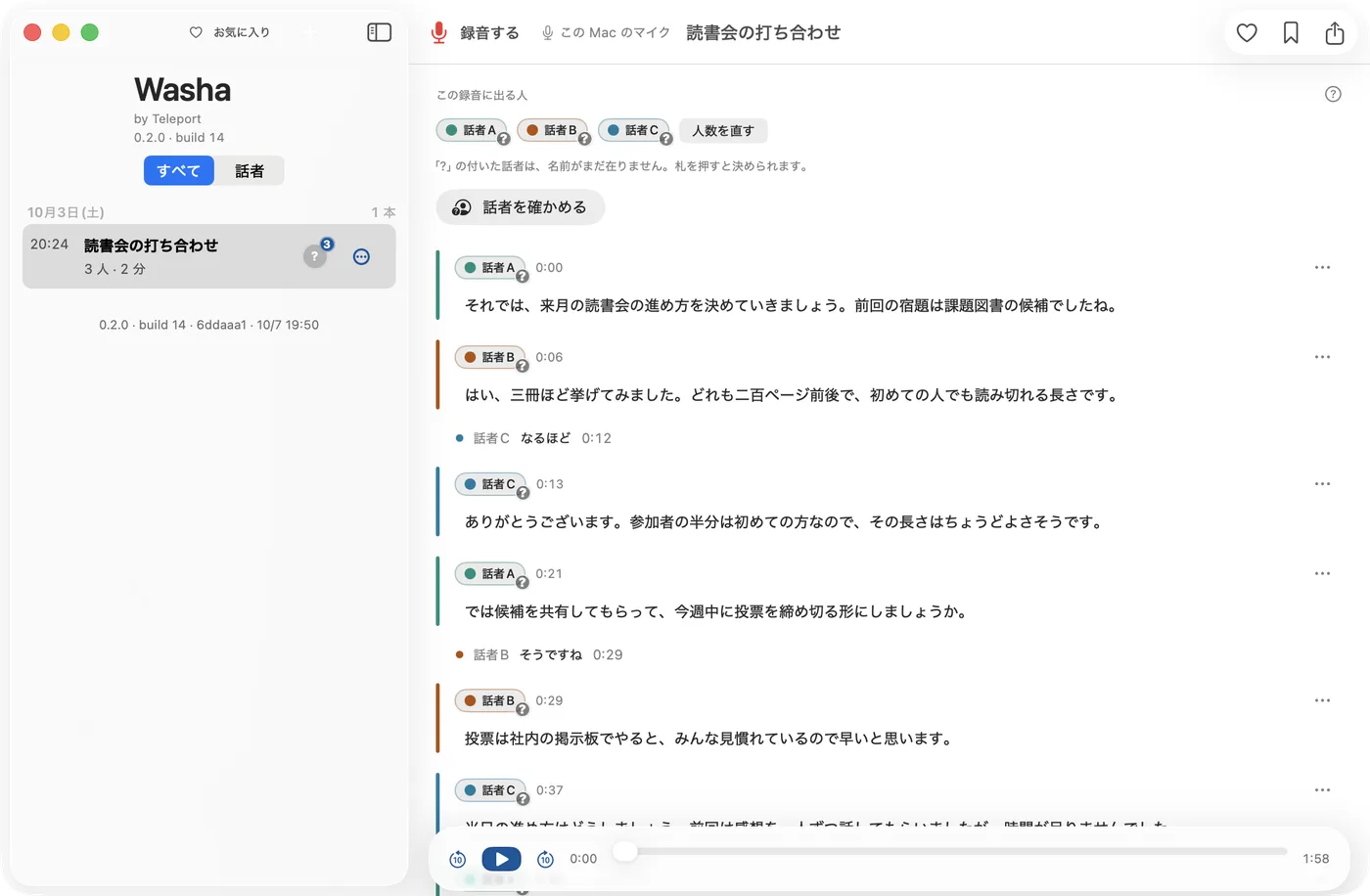
| Layout | One screen at a time, stacked | Two-pane (list on the left, Transcript screen on the right) | One screen at a time; two-pane on wide tablets | Two-pane (list on the left, Transcript screen on the right) |
| Window size | — | Minimum 900×600 | — | Minimum 900×600 (default 1200×800) |
| How to open Settings | Gear on the list | Menu "Washa → Settings…" (⌘,), separate window | Gear on the list | Menu "File → Settings…" (Ctrl+,), separate window |
| Menu bar | None | Yes (Section 6.5) | None | Yes (Section 6.5) |
| How the speaker panel etc. appears | Sheet rising from the bottom | Popover from the tag | Sheet rising from the bottom | Panel in the center of the window |
In two-pane layout, when nothing is selected, the right side shows "Transcript" and "Select a recording from the list on the left to read it here." (左の一覧から録音を選ぶと、ここで読めます。)
6.5 Mac and Windows menus and keyboard operations
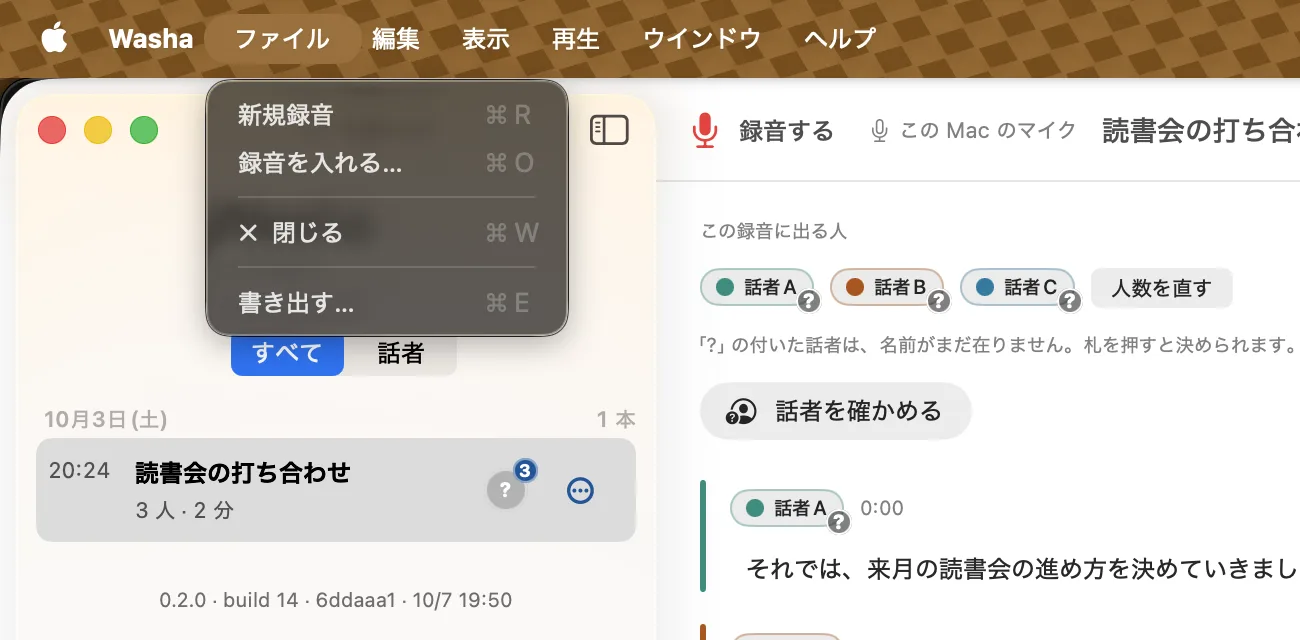
Mac
| Menu | Item | Key |
|---|---|---|
| Washa | Licenses (under "About Washa") | — |
| File | New Recording | ⌘R |
| File | Import Recording… | ⌘O |
| File | Export… | ⌘E |
| Edit | Bookmark (toggle on the line currently playing) | ⌘D |
| View | Favorites First | ⌘⇧F |
| View | Larger Text / Smaller Text / Reset Text Size | ⌘+ / ⌘− / ⌘0 |
| Playback | Play/Pause / Back 10 Seconds / Forward 10 Seconds | Space / ← / → |
(Japanese menu labels: 新規録音 / 録音を入れる… / 書き出す… / ブックマーク / お気に入りを先頭に / 文字を大きく / 文字を小さく / 標準の大きさに戻す / 再生・一時停止 / 10秒戻る / 10秒進む / ライセンス)
- Settings opens with ⌘,.
- A recording selected in the list can be deleted with the Delete key (a confirmation appears).
- Panels close with Esc, and the main button of a confirmation panel can be pressed with Return.
- In the Identify speakers flow, ⌘Z performs "Undo".
Windows
| Menu | Item | Key |
|---|---|---|
| File | New Recording / Import Recording… / Export… / Settings… / Exit | Ctrl+R / Ctrl+O / Ctrl+E / Ctrl+, / — |
| Edit | Cut / Copy / Paste / Select All (when in a text field), Bookmark | — / Ctrl+D |
| View | Favorites First / Larger Text / Smaller Text / Reset Text Size | Ctrl+Shift+F / Ctrl++ / Ctrl+- / Ctrl+0 |
| Playback | Play/Pause / Back 10 Seconds / Forward 10 Seconds | Space / ← / → |
| Help | Licenses | — |
- Esc closes panels one at a time, starting from the topmost.
- The Delete key brings up the confirmation to delete the open recording.
7. Recording
Version checked: app 0.2.0 (as of build 14).
7.1 How to start recording
| OS | Entry points |
|---|---|
| iPhone | The red circle button at the bottom of the list ("Record" (録音する)) / "Record" in Control Center (Section 7.8) / "Start Recording in Washa" (Washa で録音を始める) in the Shortcuts app |
| Mac | "Record" in the toolbar of the left pane / menu "File → New Recording" (⌘R) |
| Android | The red circle "Record" at the bottom of the list / the Quick Settings tile "Record with Washa" (Washa で録音) / "Keep recording" (続きを録る) in the notification shown when a recording stopped |
| Windows | "● Record" in the header / menu "File → New Recording" (Ctrl+R) |
- The first time you press it, it asks for microphone permission, then for location permission (except on Windows).
- If microphone access is not allowed, the following appears: "Washa needs microphone access to record. Nothing has been recorded yet." and "Open Settings".
- On Windows, when no microphone is found: "No microphone was found on this PC. Connect a microphone and press again. Nothing has been recorded yet." (この PC でマイクが見つかりませんでした。マイクをつないでから、もう一度押してください。まだ何も録っていません。)
- Recording cannot be started in the background without opening the app ("Please open the app before starting." (アプリを開いてから始めてください。)).
- If, before recording starts, the device's free space is not enough for one hour of recording, recordings in the Trash are cleared, oldest first, to make room.
7.2 The recording screen
| Part | Details |
|---|---|
| Title | "Recording…" / "Paused" / "Microphone unavailable. Waiting…" / "Connecting the microphone" (マイクをつないでいます) |
| Elapsed time | e.g. "0:00:04" |
| Level bars | Lets you see whether voice is coming in |
| Spoken language | A small button. Tap to choose the language (Section 7.4) |
| Input tag | e.g. "Input: This iPhone's microphone" (入力: この iPhone のマイク). Tap to choose the microphone (Section 7.5) |
| Interruption count | "N interruptions" (途切れ N 回). Tap for the "Interruptions" list (Section 7.7) |
| Remaining capacity | Only when the device's free space drops below 30 minutes' worth: "N more minutes can be recorded" (あと N 分ぶん録れます) |
| Buttons | "Pause" and "Stop". While paused, "Resume" and "Stop" |
| Live text | Text flows in on the spot (Section 7.3). There are copy and share buttons |
How it appears on each OS:
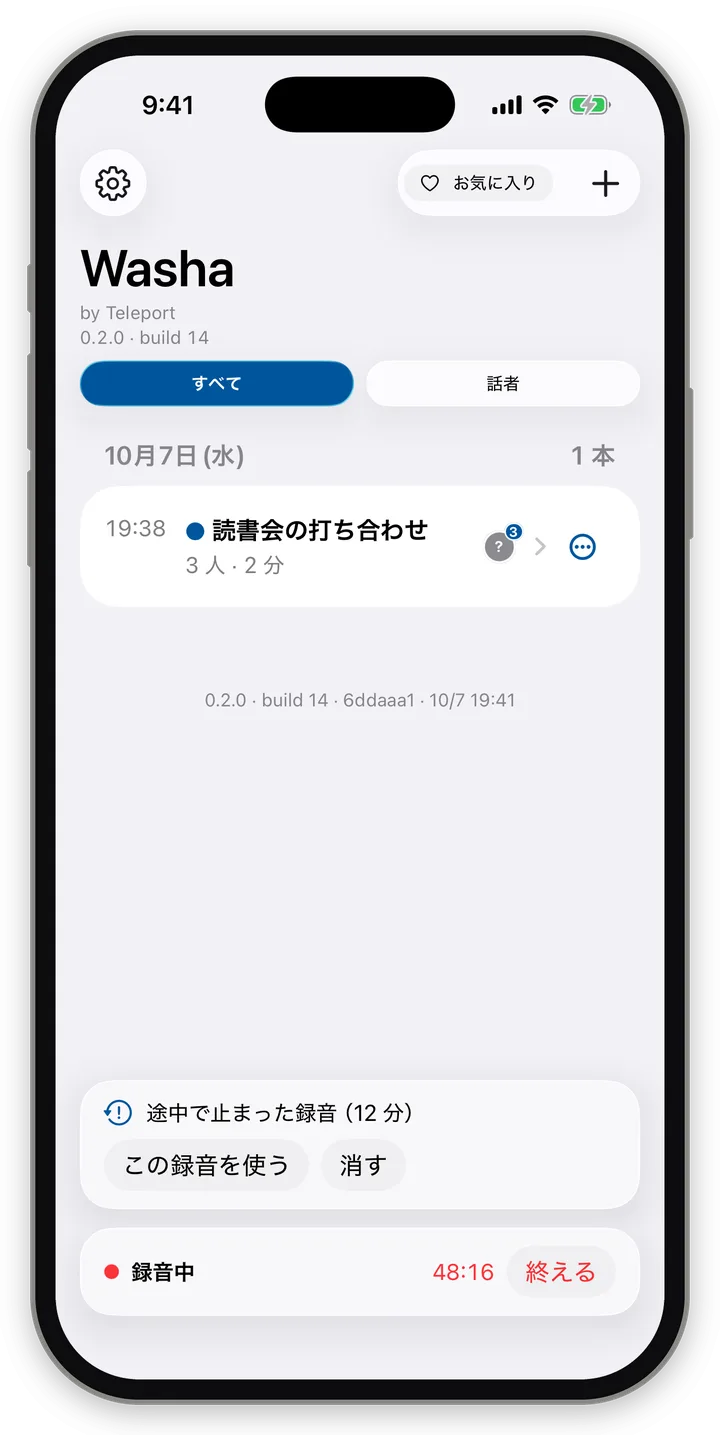
- iPhone: The recording panel appears at half height. Pull it up to enlarge it, and further to full screen. "Close" at the top left only closes the panel; recording continues. When closed, a red bar "● Recording elapsed time Stop" (● 録音中 経過時間 終える) appears at the bottom of the list; tap it to return to the panel.
- Mac: It is not a panel; a recording area appears below the list in the left pane. The live text shows 3 lines.
- Android: Tap the bar at the bottom of the list to open the recording panel (opens at half height; pull up for full screen). On wide screens it appears within the bar.
- Windows: Appears in a bar inside the window.
When you press "Stop", "Saving the recording…" (録音を保存しています…) appears, the recording is added to the list, and then the speaker-count sheet appears (Section 9.2).
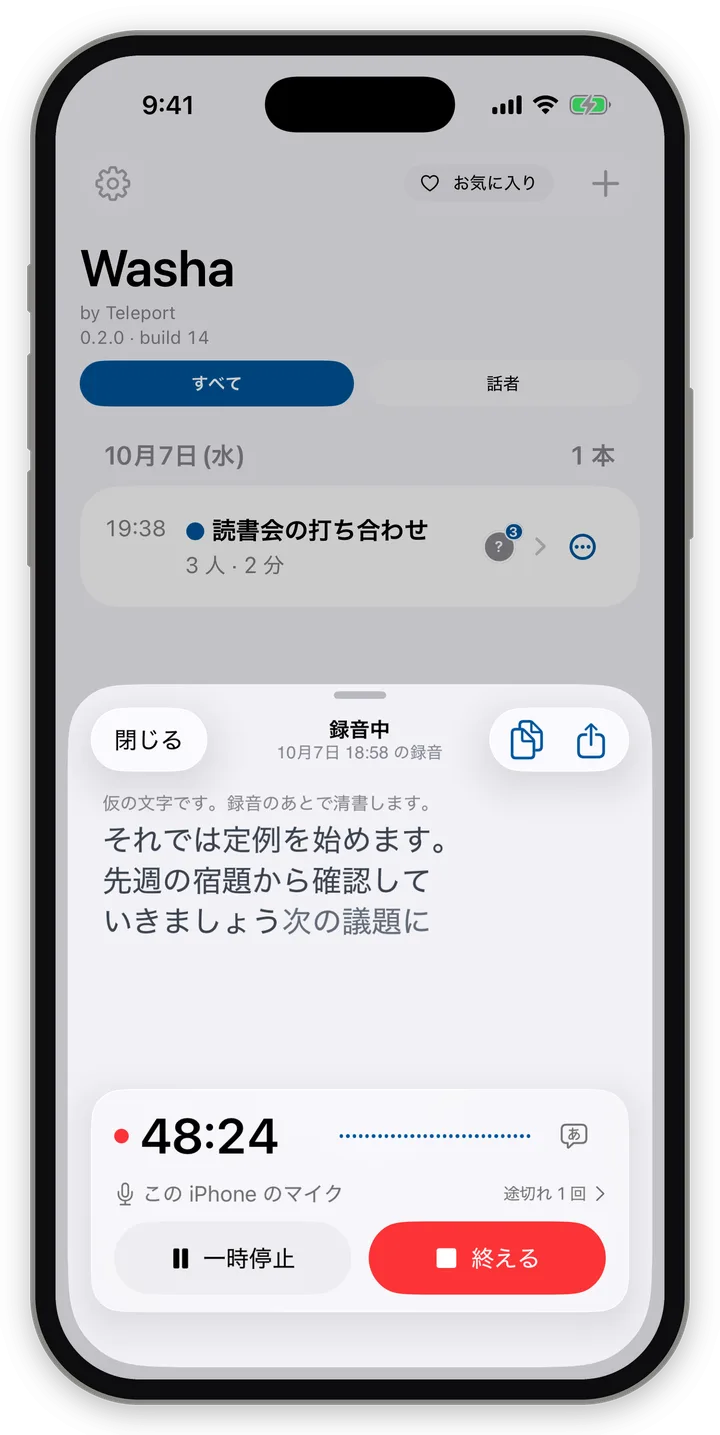
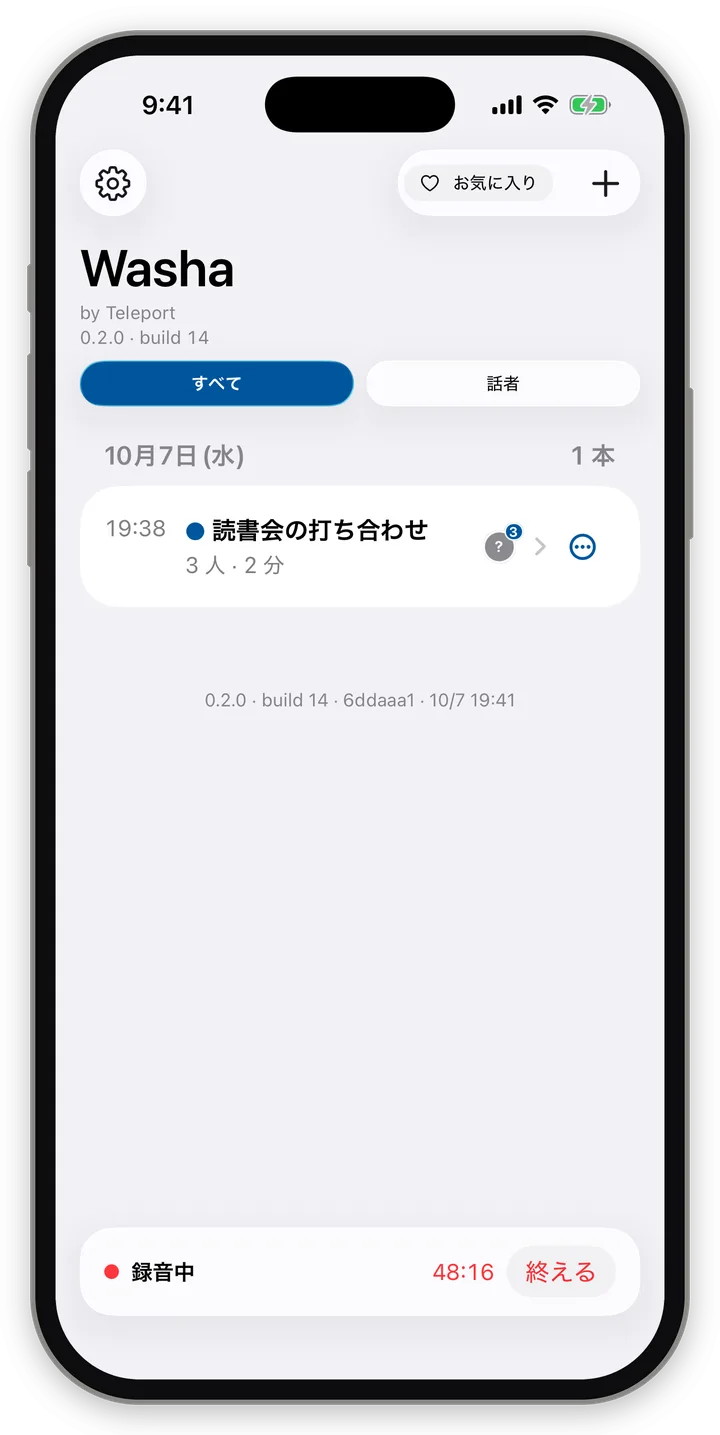
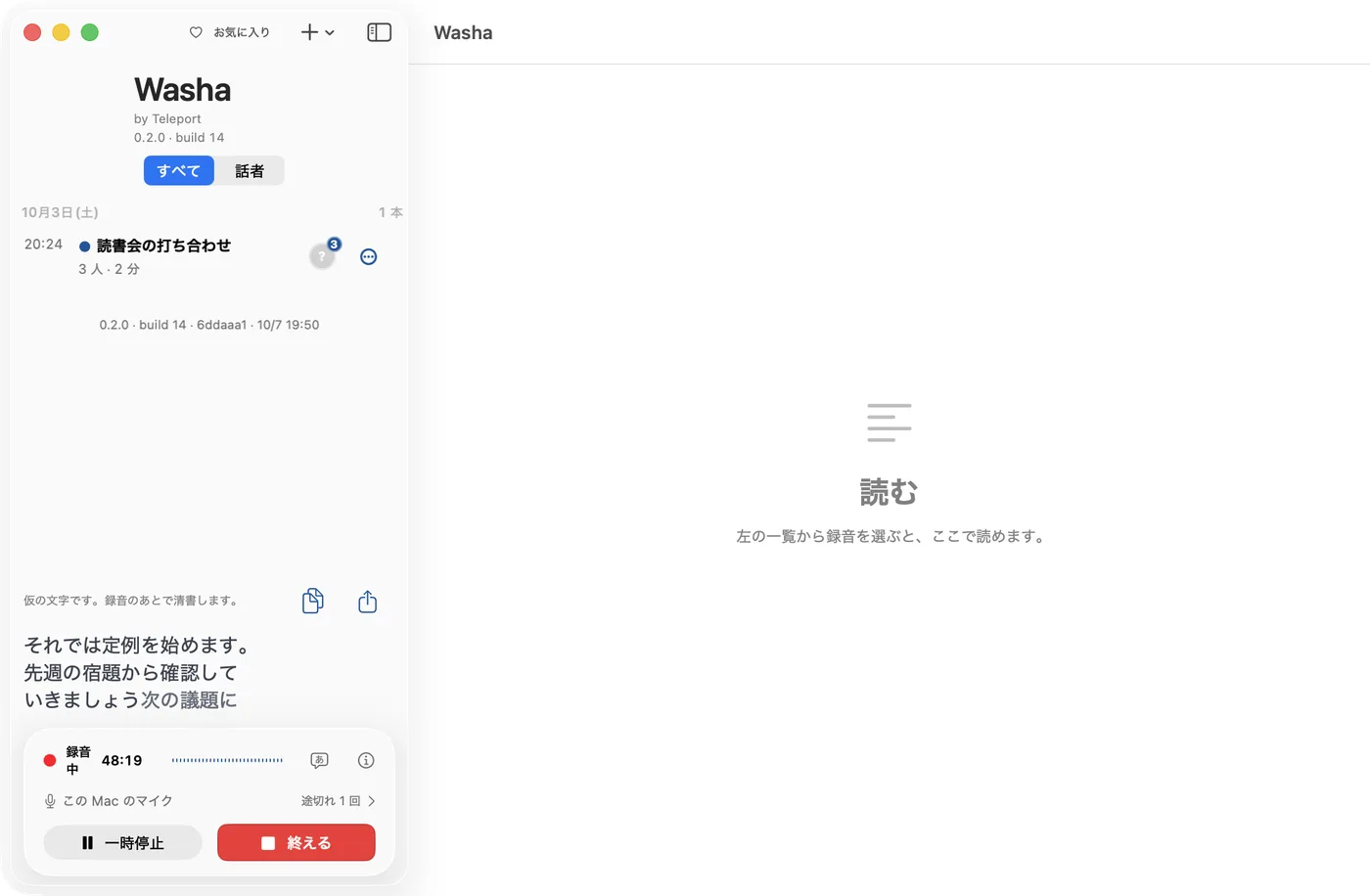
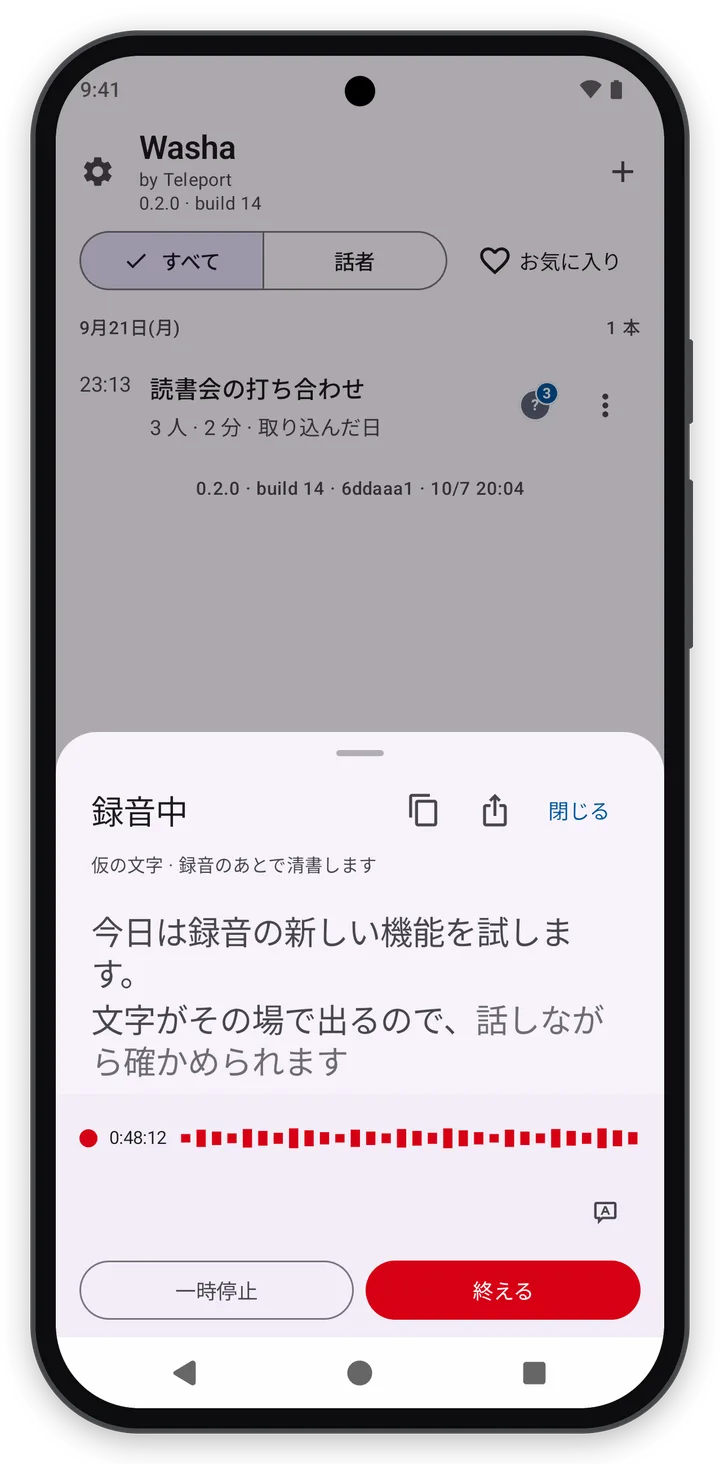
Recordings are initially named automatically, e.g. "Recording Oct 7, 1:05 PM" (10月7日 13:05 の録音). You can change it later (Section 9.7).
7.3 Live text during recording (provisional text)
While recording, what is said turns into text on the spot and flows in.
- This is provisional text; speakers are not separated. After you finish recording, processing creates the transcript with speakers separated (the final version).
- On iPhone and Mac, finalized text appears in dark gray and text that may still change appears in light gray. On Android and Windows, the heading shows "Draft · The final transcript is created after recording".
- With "Copy text so far" (ここまでの文字をコピー) and "Share text so far" (ここまでの文字を共有), you can take the text out even while recording.
- Until processing finishes, it remains on the Transcript screen as "Live text (no speakers)" (録音中の文字(話者なし)).
Messages shown when text doesn't appear (main ones):
| Situation | Message |
|---|---|
| Preparing | Preparing the text (文字の準備をしています) |
| Showing (iPhone, Mac) | This is provisional text. The final transcript is made after recording. (仮の文字です。録音のあとで清書します。) |
| Low Power Mode | Because of Low Power Mode, only text for finished sentences is shown. (省電力モードのため、言い終えた文の文字だけを出しています。) |
| Device is hot | The device is hot, so the text is paused. Recording continues. (端末が熱いので、文字を休んでいます。録音は続いています。) |
| Another recording is being processed | While another recording is being processed, the text is paused. Recording continues. (ほかの録音を処理しているあいだは、文字を休んでいます。録音は続いています。) |
| Device not supported | Live text isn't available on this device. It will be transcribed after recording. (この端末では、録音中の文字は出せません。録音のあとで文字にします。) |
| Language not supported | Live text isn't available for this language. It will be transcribed after recording. (この言語では、録音中の文字は出せません。録音のあとで文字にします。) |
| Stopped | Live text has stopped. Recording continues. (録音中の文字が止まりました。録音は続いています。) |
In every case, the recording itself continues. Even if live text does not appear, the post-recording processing will produce the transcript.
7.4 Choosing the spoken language
Choose the spoken language with the small language button on the recording screen (or on the speaker-count sheet before processing). On Mac and Windows (and wide Android), a language button is shown next to the record button even before you start recording. The default is "Auto (Japanese with some English)", and the last language chosen is remembered.
| Option | Japanese | Supported OSes |
|---|---|---|
| Auto (Japanese with some English) | おまかせ(日本語・英語まじり) | All OSes |
| Japanese | 日本語 | All OSes |
| English | 英語 | All OSes |
| Chinese (Mandarin) | 中国語(普通話) | All OSes |
| Cantonese | 広東語 | All OSes |
| Korean | 韓国語 | All OSes |
| German | ドイツ語 | iPhone, Mac |
| French | フランス語 | iPhone, Mac |
| Spanish | スペイン語 | iPhone, Mac |
| Portuguese (Brazil) | ポルトガル語(ブラジル) | iPhone, Mac |
| Italian | イタリア語 | iPhone, Mac |
- For conversations in Japanese with English mixed in, choose "Auto".
- Other languages are treated as one language per recording. For example, a recording mixing Chinese and Korean cannot have both transcribed correctly.
- On iPhone and Mac, there is a divider below the 6 common languages, with the 5 iPhone/Mac-only languages below it. On the speaker-count sheet, the 6 are shown as chips, and the rest are chosen from "More languages".
7.5 Choosing the microphone
- Tap the input tag ("Input: …" (入力: ○○)) to see the list of available microphones. The built-in microphone is shown as "This iPhone's microphone" (この iPhone のマイク), "This Mac's microphone" (この Mac のマイク), "This device's microphone" (この端末のマイク) (Android), or "The PC's default microphone" (パソコンの既定のマイク) (Windows).
- When other microphones such as Bluetooth ones are available, "… is also available" (○○ も使えます) appears.
- A microphone chosen within Washa does not change the OS-wide default input.
- If the microphone in use is disconnected while recording, recording continues with another microphone. "The microphone was disconnected, so another microphone is recording" (マイクが外れたので、ほかのマイクで録っています) appears.
- On iPhone, when the OS's "Voice Isolation" is in use, the warning "Voice Isolation may remove the voices of people farther away" (声の分離は、離れた人の声を消すことがあります) appears. For meetings with several people, it is better not to use Voice Isolation.
7.6 Recording location
- If location use is permitted, when recording starts it gets the approximate location only once, converts it to a place name (down to the city/ward and neighborhood), and attaches it to the recording.
- The place name appears in the list row, at the top of the Transcript screen, on the recording screen, and in the first line of exports.
- The place can be corrected by hand on the "Name and date" sheet (Section 9.7). Clearing it removes it.
- Imported files have no place attached.
- Windows does not get location. The place can only be typed by hand.
7.7 Interruptions and automatic resume
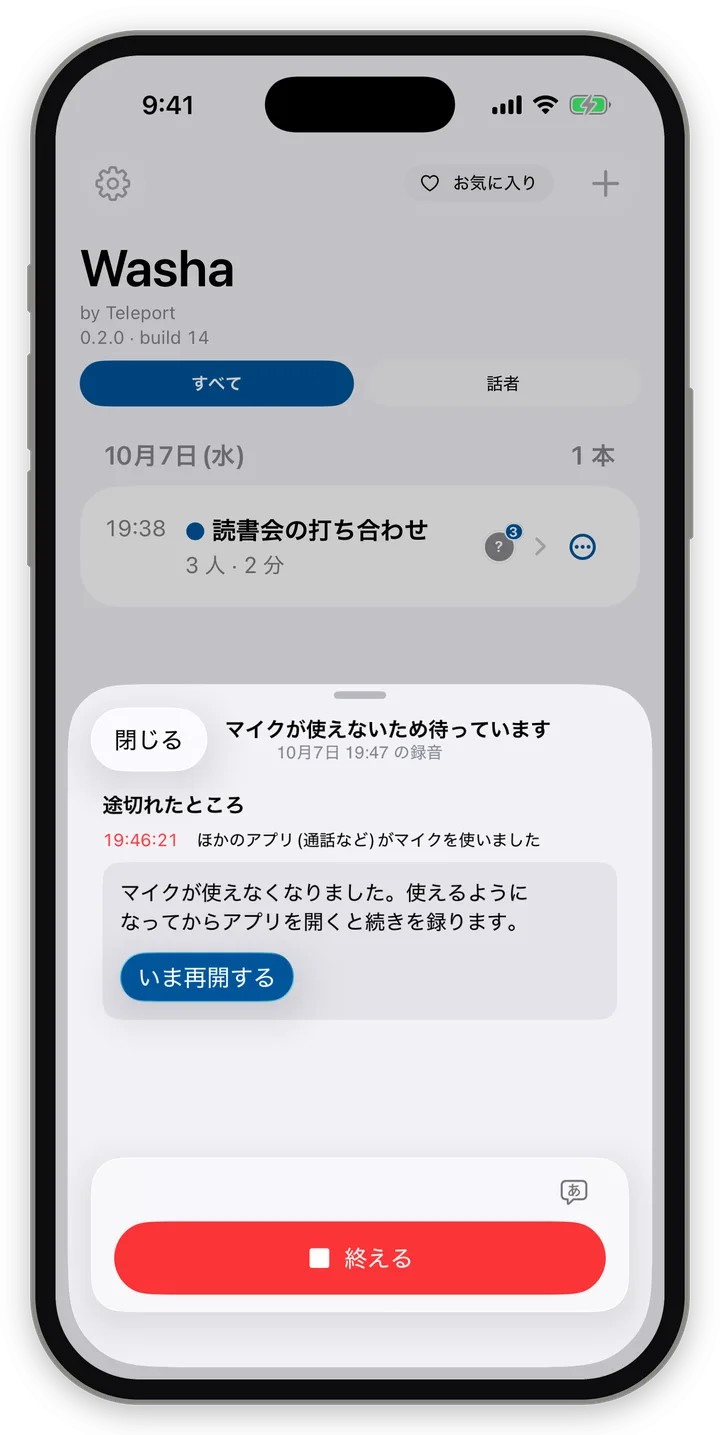
When the microphone becomes unavailable — a call comes in, earphones are unplugged, another app uses the microphone, etc. — recording does not stop but goes into a "waiting" state.
- The title changes to "Microphone unavailable. Waiting…", and when it becomes available again, recording automatically continues. You can also resume yourself with "Resume now".
- The number of interruptions appears as "N interruptions" (途切れ N 回); tap it to open the "Interruptions" list. Each row shows the time, the reason, and "Resumed" or "Waiting for the microphone to come back" (マイクが戻るのを待っています).
- Example reasons: "Another app (such as a call) used the microphone" (ほかのアプリ(通話など)がマイクを使いました), "The microphone or earphones were disconnected" (マイクやイヤホンが外れました), "The microphone was muted" (マイクが消音になりました).
Recordings are saved in chunks every few minutes, so even if the app crashes, everything up to that point is kept.
- A recording that could not be finished because the app crashed, etc., appears in the list the next time you open the app as "Interrupted recording (N min)" (途中で止まった録音(N 分)). It comes with the reason (e.g. "Stopped at 9:41 because the app crashed" (アプリが落ちたため 9:41 に止まりました)) and the buttons "Use this recording" and "Delete". It is not processed automatically.
- On Android, after the app crashes or the device restarts, the notification "Recording stopped" (録音が止まりました) appears. Tap it to continue recording.
7.8 OS-specific recording notes
iPhone
- Recording continues even if you turn off the screen or switch to another app.
- A recording indicator (Live Activity) appears on the lock screen and in the Dynamic Island: heading "Recording in washa" (washa で録音中), elapsed time, place name, "N interruptions" (途切れ N 件), and "Pause" and "Stop" buttons. After 8 hours, the lock screen display disappears per OS rules, but recording continues (the app shows "The lock screen display has ended. Recording continues." (ロック画面の表示が切れました。録音は続いています。)).
- You can place a "Record" control in Control Center or on the lock screen. Its name is "Record with washa" (washa で録音); pressing it opens Washa and starts recording.
- From the Shortcuts app, the actions "Start Recording in Washa" (Washa で録音を始める), "Pause Recording" (録音を一時停止), "Resume Recording" (録音を再開) and "Stop Recording" (録音を終える) are available. No fixed Siri phrases are provided.
- There is no Home Screen widget.
Mac
- Only the microphone can be recorded. Sound playing on the computer (system audio) cannot be recorded. To record the other party in an online meeting, the sound must come out of the speakers and be picked up by the microphone.
- Closing the lid puts the Mac to sleep and stops recording. The ⓘ in the recording area also says "Closing the lid puts the Mac to sleep and stops recording." (ふたを閉じるとスリープし、録音が止まります。) While recording, automatic sleep due to inactivity is prevented.
- There is no lock screen display, widget or shortcut.
Android
- Recording continues even if you turn off the screen or switch to another app. While recording, the notification shows "Recording" (録音中) with the elapsed time, plus "Pause" and "Stop" (also on the lock screen). On Android 16 and later, a recording chip appears in the status bar.
- You can place a "Record with Washa" (Washa で録音) tile in Quick Settings.
- If notifications are not allowed, "Notifications are off, so you can't be notified when recording stops." (通知がオフのため、録音が止まったときにお知らせできません。) appears.
- If battery usage is set to "Restricted", recording stops when you leave the screen. If "Battery usage is set to 'Restricted', so recording will stop when you leave the screen. Change it to 'Optimized' or 'Unrestricted' in Settings before starting." (電池の使用が「制限」になっているため、画面を離れると録音が止まってしまいます。設定で「最適化」か「制限なし」にしてから始めてください。) appears, change the app's battery usage in Android Settings.
Windows
- If you close the window while recording, it stops and saves the recording before closing ("Saving the recording before closing…" (録音を保存してから閉じます…)).
- There are no notifications or displays outside the window.
7.9 "Text only" recording (no speaker separation)
Choosing "Text only (no speakers)" from the "+" menu starts a recording whose transcript is built only from the text shown during recording, without separating speakers.
- Since there is no speaker-separation processing, it can be read right after you finish recording. The speaker-count sheet does not appear either.
- At the top of the Transcript screen, "Speakers not separated yet" and a "Separate speakers" button appear. Pressing it later runs the speaker-separation processing.
- On devices that cannot show live text, "This device can't show live text. After you finish, you can transcribe it with 'Separate speakers'." (この端末ではその場の文字が出せません。終えたあと「話者を分ける」で文字にできます。) appears.
- This feature is brand new as of build 14.
8. Importing recordings
Version checked: app 0.2.0 (as of build 14).
8.1 Importable formats
- Audio and video files can be imported. For video, only the audio part is used.
- Formats confirmed readable: m4a, mp3, wav. On Windows, the audio of mp4 files can also be read.
- If a format cannot be read, "Couldn't read this audio format (m4a, mp3 and wav can be read)." (この音源の形式を読み取れませんでした(m4a・mp3・wav は読めます)。) appears, along with "Choose another file".
- If files that are neither audio nor video are mixed in, "Files that aren't audio or video can't be imported, so they were removed." (音声・動画でないファイルは取り込めないので外しました。) appears.
- Any number of files can be imported at once. They can be added even while another recording is being processed (they join the queue).
8.2 Entry points by OS
iPhone
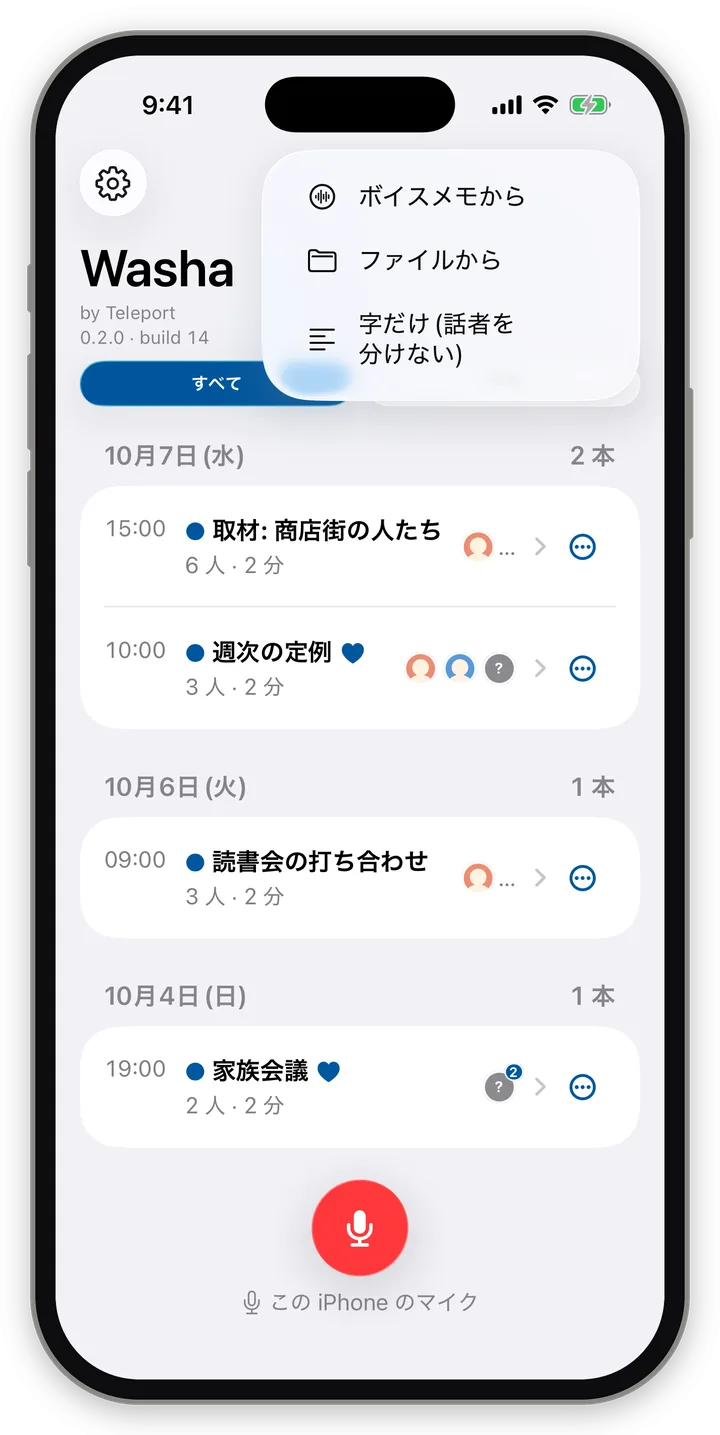
- "+" → "From Files": choose from the Files app.
- "+" → "From Voice Memos": a guide sheet appears.
- Title "Import from Voice Memos" (ボイスメモから入れる), description "Voice Memos recordings are handed to Washa from the Voice Memos side." (ボイスメモの録音は、ボイスメモの側から Washa へ渡します。)
- Steps "1. In Voice Memos, select the recording you want to import" (ボイスメモで、入れたい録音を選びます), "2. Choose Washa from Share" (共有から Washa を選びます), "3. Import starts, and when it's done the recording appears in the list" (取り込みが始まり、終わると一覧に並びます)
- Buttons "Open Voice Memos" (ボイスメモを開く) and "Close" (閉じる)
- Another app's Share button → "Washa": the "Send to Washa" (Washa に送る) screen appears (1–20 files at a time; audio and video only). Pressing "Send" (送る) shows "Sent N files. Import starts when you open Washa." (N 本を送りました。Washa を開くと取り込みが始まります。) Import starts when you open Washa.
Mac
- "+" → "From Files", or menu "File → Import Recording…" (⌘O).
- Drag and drop files onto the window. While dragging over it, "Drop here to import" (ここで離すと取り込みます) appears. Folders cannot be imported ("Folders can't be imported. Please drop audio files." (フォルダは取り込めません。音声のファイルを置いてください。)).
- "+" → "From Voice Memos": a guide sheet (same as iPhone; step 2 adds "On Mac, you can also drag the recording onto this list" (Mac では録音をこの一覧へ引いて落としても入ります)).
- Share from Finder or Voice Memos → "Washa": the moment you send, Washa comes to the front and import begins.
Android
- "+" → "From Files": choose with Android's file picker (multiple allowed).
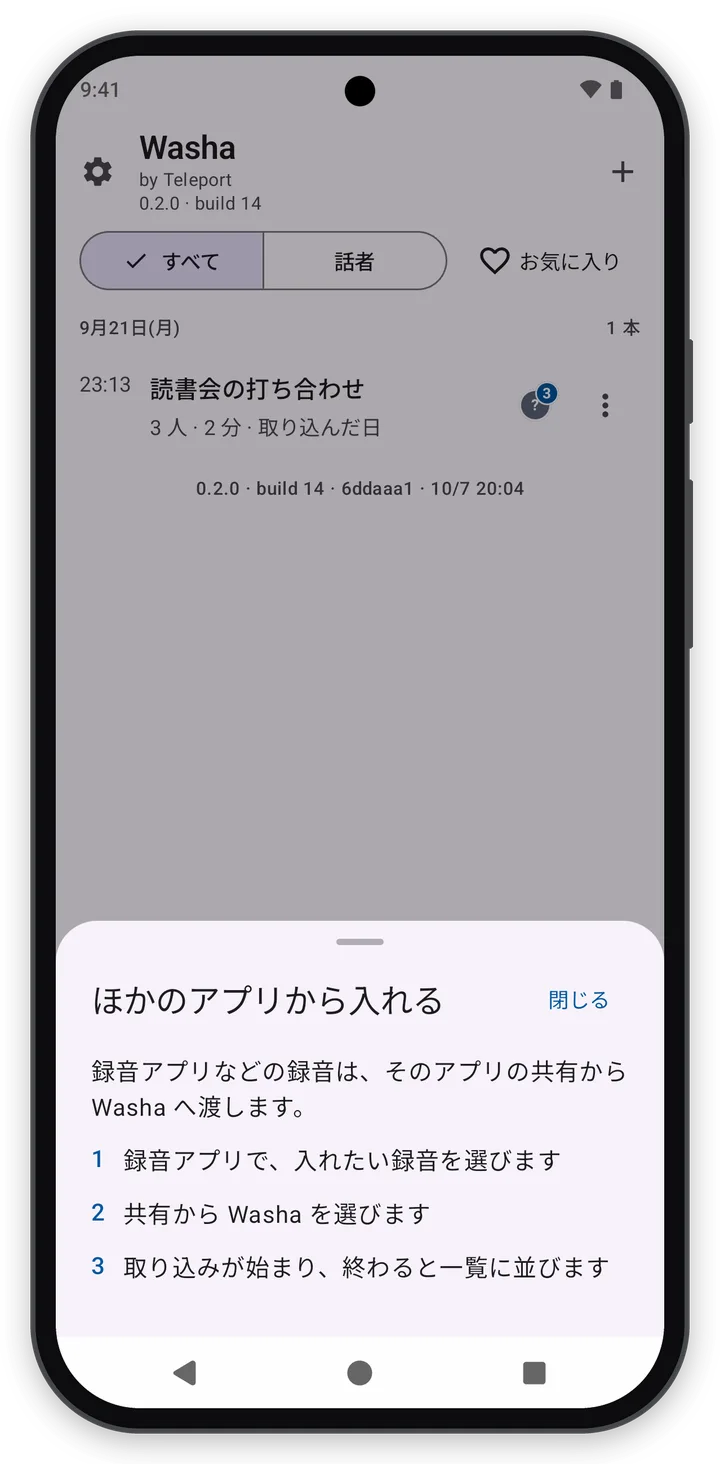
- "+" → "From other apps" (ほかのアプリから): a guide sheet appears. Title "Import from other apps" (ほかのアプリから入れる), steps "1. In your recording app, select the recording you want to import" (録音アプリで、入れたい録音を選びます), "2. Choose Washa from Share" (共有から Washa を選びます), "3. Import starts, and when it's done the recording appears in the list" (取り込みが始まり、終わると一覧に並びます).
- Share from another app → "Washa".
Windows
- "+" → "From Files", or menu "File → Import Recording…" (Ctrl+O).
- Drag and drop files onto the window ("Drop here to import" (ここで離すと取り込みます)).
- "+" → "From other apps" (ほかのアプリから): guidance on the drag-and-drop steps appears.
- You can also import by dropping files onto Washa.exe, or with "Open with" in File Explorer.
8.3 Recording date
The recordings list is ordered by "recording date". For the recording date, the first of the following that is known is used:
- The time recorded within Washa
- A date corrected by hand
- The date contained in a Washa Document
- The creation date of the original file
- The creation date written inside the file
- The import date (in this case the list row adds "Import date" (取り込んだ日))
- Dates are not inferred from file names.
- If the import was on a different day from the recording, the row adds e.g. "Imported 9/24" (取り込み 9/24).
- The recording date can be corrected on the "Name and date" sheet (Section 9.7).
9. Processing, and reading and correcting the transcript
Version checked: app 0.2.0 (as of build 14).
9.1 The processing flow and status tags in the list
After you finish recording or import, it proceeds in this order:
- On the speaker-count sheet, choose how many people were talking and the spoken language (Section 9.2)
- Processing (5 stages; Section 9.3)
- Ready to read (read the transcript on the Transcript screen; Section 9.4)
Processing proceeds one recording at a time, in order. While you are recording, processing is paused so recording takes priority, and when you finish recording, processing resumes where it left off.
A status tag appears on a list row only when processing has not finished normally.
| Status | Tag |
|---|---|
| Queued | Queued |
| Processing | Stage name and progress (iPhone/Mac e.g. "40% ・ about 3 min left" (40% ・ あと約 3 分), Android/Windows e.g. "2/5 · 40% · about 3 min left" (2/5 · 40% · あと約 3 分)) |
| Not yet processed | Pick speaker count to start (処理前 — 人数を選ぶと始まります) |
| Processing interrupted | Processing interrupted — (reason, e.g. "because you switched to another app" (別のアプリに移ったため)) (途中で止まった処理 — …) |
| Processing stopped | Processing stopped — you can resume |
| Failed | iPhone/Mac: Failed — Open to see why and how to try again. Android/Windows: Failed — (one sentence on what happened) (うまくいきませんでした — …) |
| No lines | No lines |
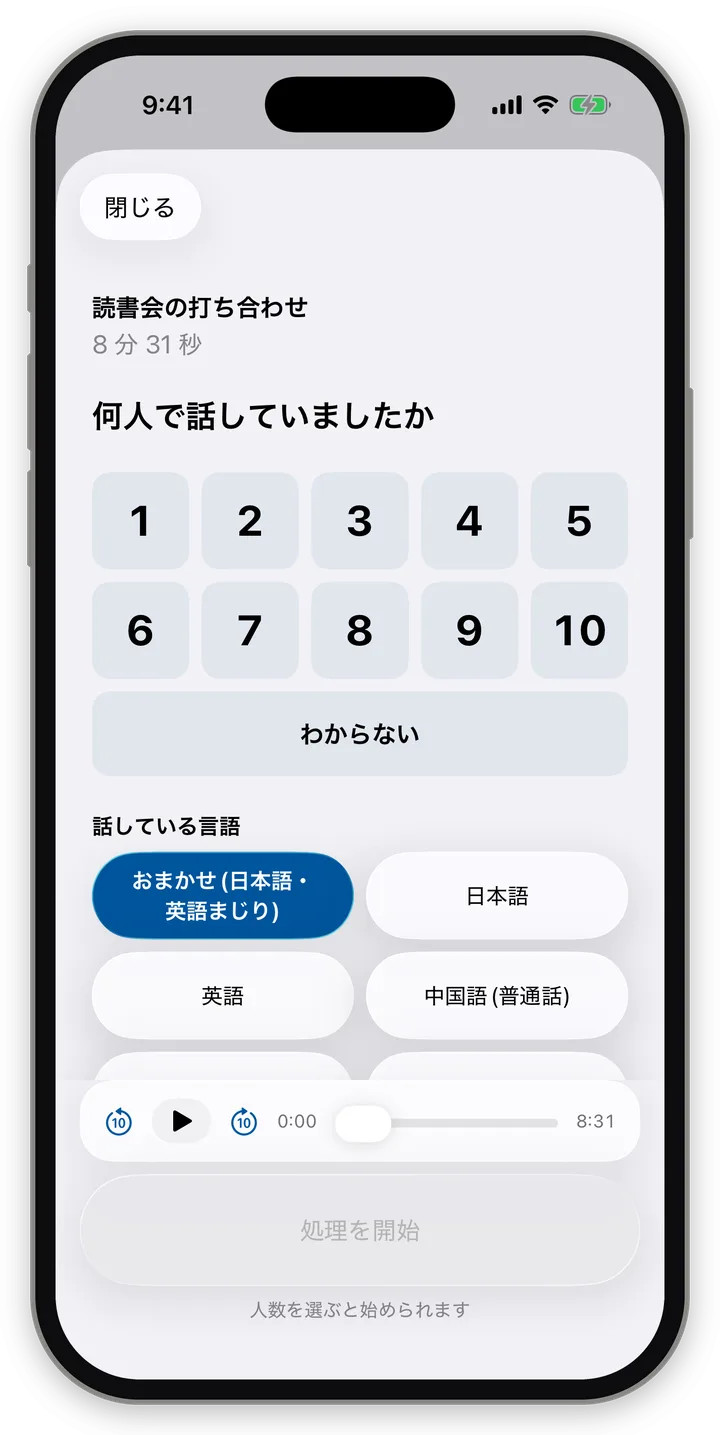
9.2 The speaker-count sheet (always shown before processing)
Appears after you finish recording or after importing (not for "Text only" recordings). However many files you import at once, there is only one sheet.
| Part | Details |
|---|---|
| Name tag | The recording's title and "8 min 31 sec · place name" (8 分 31 秒 · 地名). When several files are imported, "N recordings" (N 本の録音) |
| Question | How many people were talking? |
| Chips | 1–10 and "Not sure". "Not sure" leaves it to the app |
| Spoken language | The languages in Section 7.4 |
| Playback bar | Lets you listen to the recording to check |
| Button | Start processing. Cannot be pressed until a speaker count is chosen; "Choose the number of speakers to start" (人数を選ぶと始められます) appears |
- When you know the number of speakers, always choose it. The result will be better.
- If you close the sheet, processing does not start. The recording stays in the list as "not yet processed", and when you open it, "Choose speaker count and process" (人数を選んで処理する) takes you back to the sheet.
9.3 The processing screen
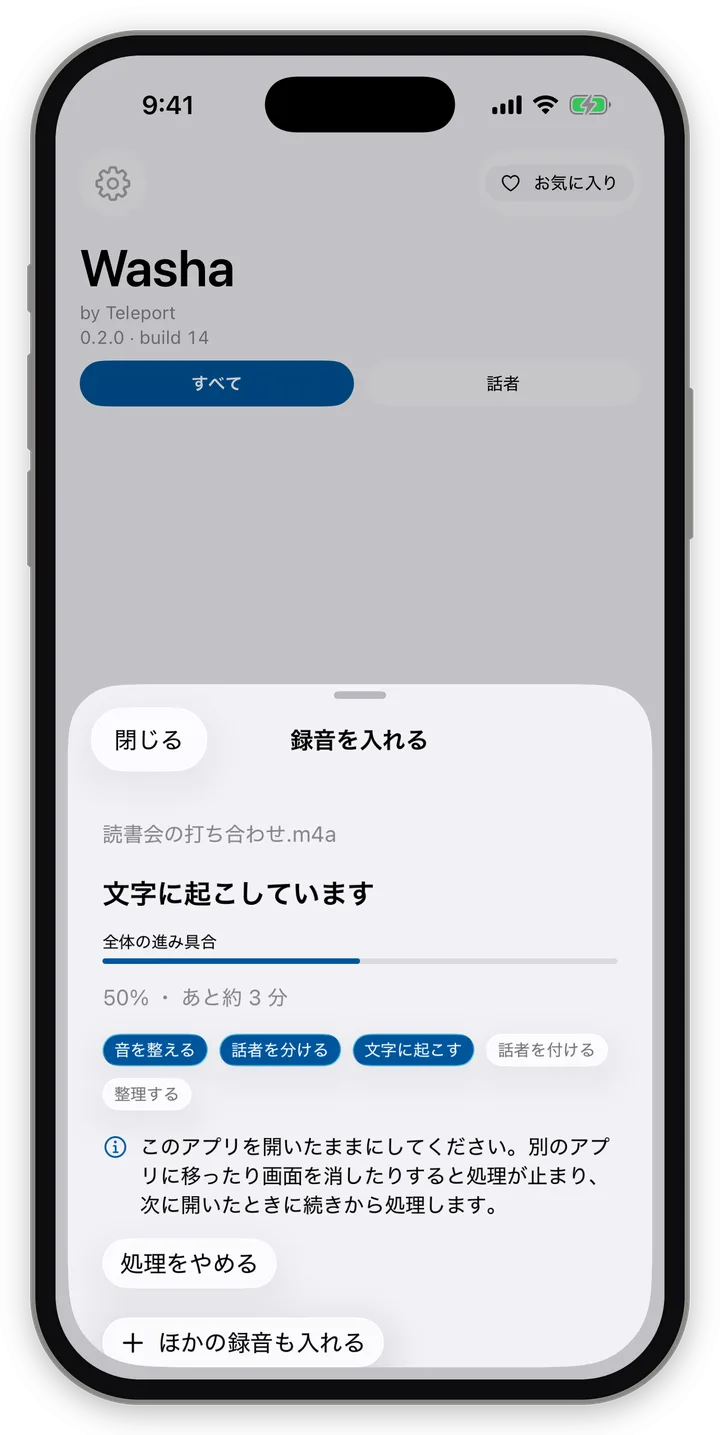
Processing proceeds in 5 stages.
| Stage | Display (in progress) | Japanese |
|---|---|---|
| 1 | Preparing audio… | 音を整えています |
| 2 | Separating speakers… | 話者を分けています |
| 3 | Transcribing… | 文字に起こしています |
| 4 | Assigning speakers to lines… | 発言に話者を付けています |
| 5 | Organizing… | 整理しています |
The processing sheet shows:
- Title "Import recording" (録音を入れる) (or "Resume processing" (続きから処理) when resuming), and the recording's name
- The stage name, a progress bar, progress and time remaining such as "50% · about 3 min left" (50% · あと約 3 分) (when it can't be estimated, iPhone/Mac show "Progress can't be estimated" (進み具合は見積もれていません) and Android/Windows show "We don't know yet how long it will take" (どのくらいかかるかは、まだ分かりません)). Time remaining appears as "Almost done" (まもなく終わります), "About N min left" (あと約 N 分), "N–M min left" (あと N〜M 分), etc.
- Chips for the 5 stages (how far it has progressed)
- If there is a queue, "N more recordings are waiting" (あと N 本が順番を待っています)
- "Add other recordings too" (ほかの録音も入れる) (you can add even during processing)
- "Stop processing"
Stopping processing
- A confirmation appears: "Processing will stop. The recording stays in the list, and you can resume processing later." (処理をやめます。録音は一覧に残り、あとで続きから処理できます。)
- The main button is "Keep processing". When there is a queue, you can choose between "Stop processing this one" (この 1 本の処理をやめる) and "Stop all remaining processing too" (残りの処理もすべてやめる).
- Stopped recordings stay in the list and can be resumed later.
When processing is finished
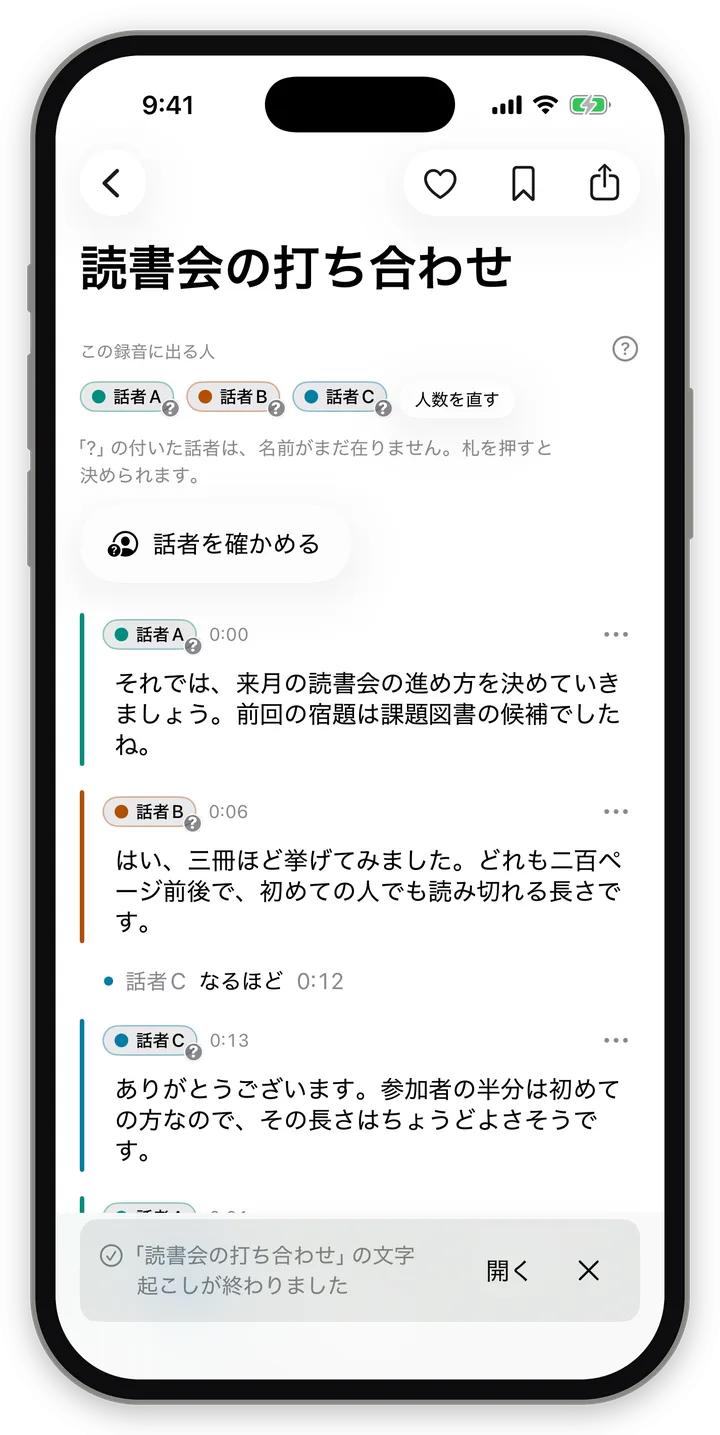
- The processing sheet shows "Transcript ready" with "Read" (読む) and "Back to list" (一覧へ戻る).
- When you are on another screen, a one-line notice "Transcription of '(title)' is finished" (「題」の文字起こしが終わりました) and "Open" (開く) appear at the bottom of the screen.
Processing when you leave the app
| OS | Behavior |
|---|---|
| iPhone | When processing could be handed over to iOS, it continues even if you switch to another app, and progress appears on the lock screen ("Processing continues even if you switch to another app. Progress appears on the lock screen." (別のアプリに移っても処理は続きます。ロック画面に進み具合が出ます。)). When it couldn't be handed over, "Please keep this app open. … Processing will resume next time you open it." (このアプリを開いたままにしてください。…次に開いたときに続きから処理します。) appears. Stopped processing automatically resumes from a checkpoint when you open the app. The OS may also advance it while charging and not in use, but that is up to the OS |
| Mac | Processing continues even if you close the processing sheet ("Processing continues even if you close this screen. It will appear in the list when finished." (この画面を閉じても処理は続きます。終わったら一覧に出ます。)) |
| Android | A processing notification (recording name, stage, time remaining, "Stop this one" (この 1 本をやめる)) appears, and processing continues in the background. However, the processing sheet shows the warning "Please keep this app open. …" (このアプリを開いたままにしてください。…) (as of build 14; this is precautionary wording, and it actually continues in the background) |
| Windows | Processing continues while the window is open |
The iPhone lock screen and Dynamic Island also show processing (stage name, %, time remaining, "N more" (あと N 本), "Stop this one" (この 1 本をやめる)).
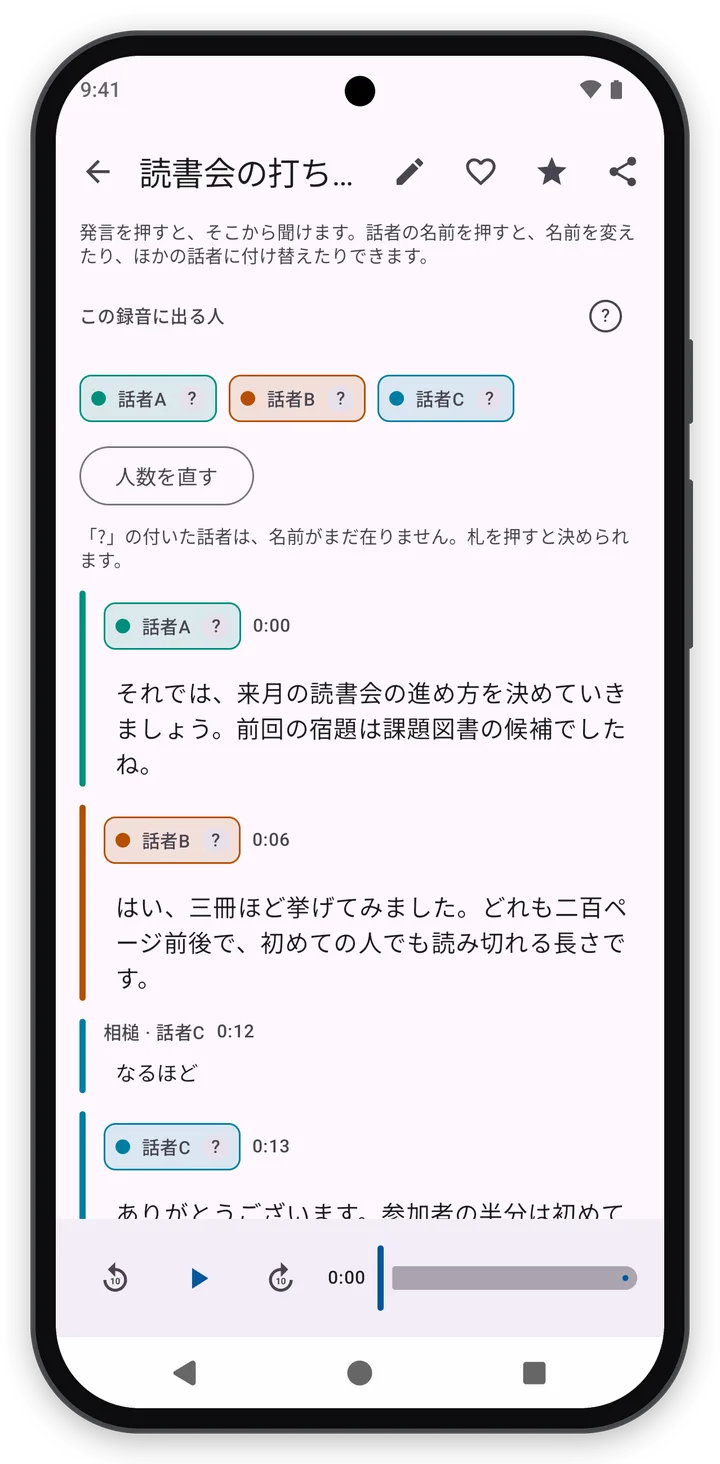
9.4 The Transcript screen
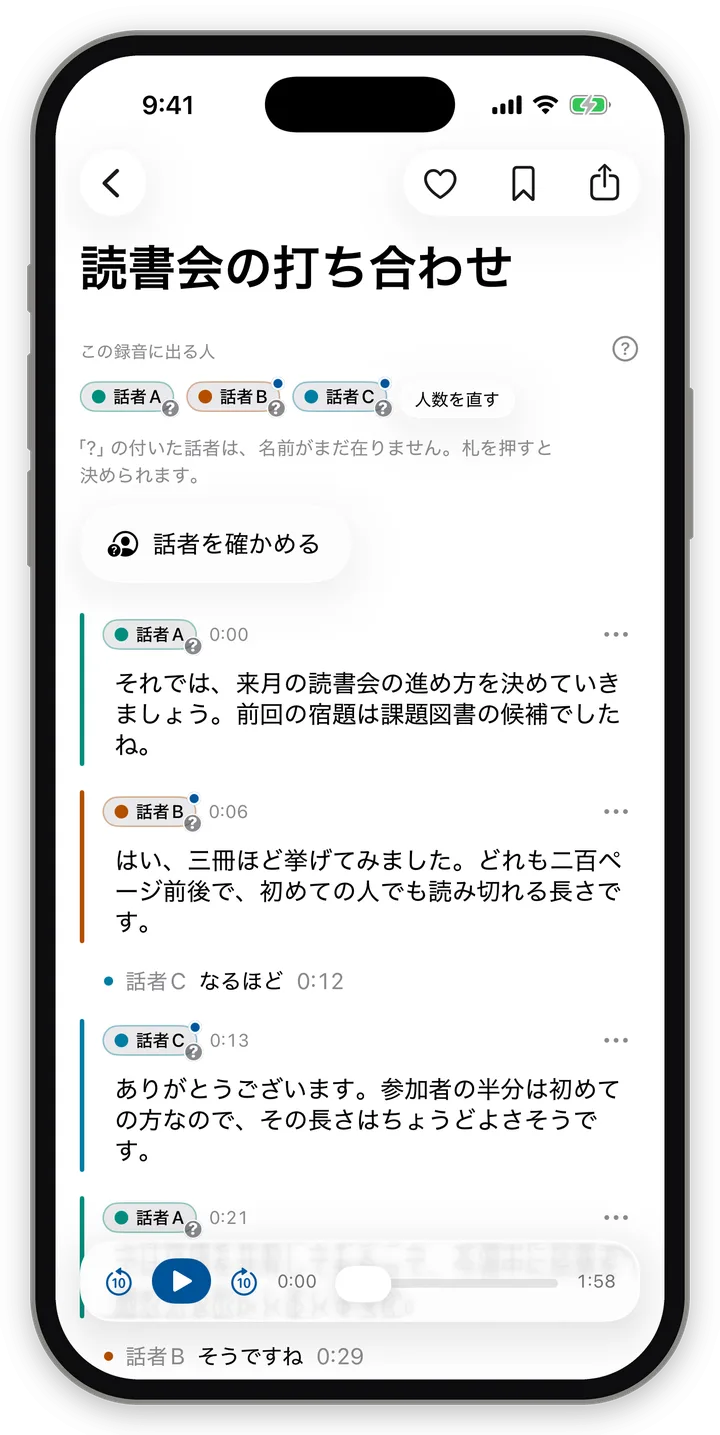
Header
- The recording's title
- Buttons at the top right: heart (favorite), bookmark, export. On Android and Windows, "Edit" (✎) is also here
- A line with the recording's place (e.g. "Mon, Sep 28, 10:31, near Jinnan, Shibuya." (9月28日(月)10:31、渋谷区神南の近くで。))
- Instructions shown only the first time it is opened: "Tap a line to listen from there. Tap a speaker's name to rename them or reassign to another speaker." (発言を押すと、そこから聞けます。話者の名前を押すと、名前を変えたり、ほかの話者に付け替えたりできます。) (can be shown any time with "?")
- "Speakers in this recording" and the row of speaker tags. Unnamed speakers have a "?" ("Speakers marked '?' don't have a name yet. Tap the tag to decide." (「?」の付いた話者は、名前がまだ在りません。札を押すと決められます。))
- "Change number of speakers"
- "Check speakers", or "Continue identifying speakers (n / N speakers decided)" (話者を決める(決めた話者 n / N)を続ける)
Body
- Each line shows the speaker tag, time and text.
- Backchannels (short responses like "uh-huh") appear as faint lines.
- Lines of a speaker set to "Excluded" are in light gray text, and the tag reads "Excluded" (Section 10.5).
- Bookmarked lines have a mark.
- Lines whose speaker was changed by hand have a ✎ mark ("✎ marks a line whose speaker was changed by hand." (✎ は、手で話者を変えた発言の印です。)).
Listening
- Tap a line to play from there.
- Playback bar at the bottom: back 10 seconds, play/pause, forward 10 seconds, playback position slider.
- During playback, the text follows the line currently playing. While you scroll by hand it doesn't follow, and returns when you stop. On Android and Windows, a "Go to current line" (いまの発言へ) button appears.
Line menu (each line's "…" or long-press)
- "Bookmark" ("Remove bookmark" (ブックマークを外す) if already bookmarked)
- "Change speaker"
- "Edit"
- "Play from here" (iPhone, Mac)
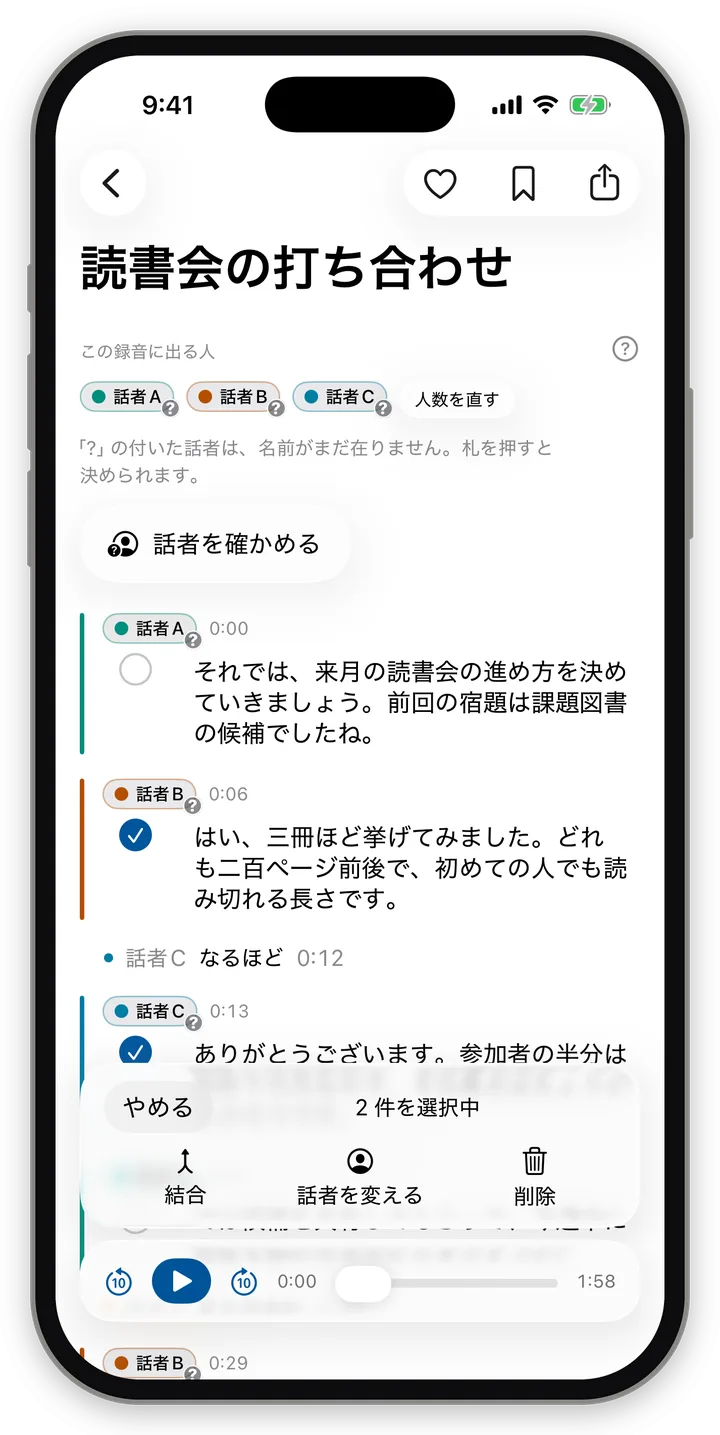
9.5 Correcting lines (Edit)
Pressing "Edit" puts you into line-selection mode, and a bar appears at the bottom of the screen.
- Bar: "Cancel", "N selected", "Select all"
- When 1 line is selected: "Edit text", "Split", "Change speaker", "Delete"
- When 2 or more lines are selected: "Merge", "Change speaker", "Delete"
- Lines that are not adjacent cannot be merged ("Only adjacent lines can be merged" (隣り合う発言だけ結合できます))
- When all lines are selected, they cannot be deleted ("You can't delete all lines" (すべての発言は削除できません))
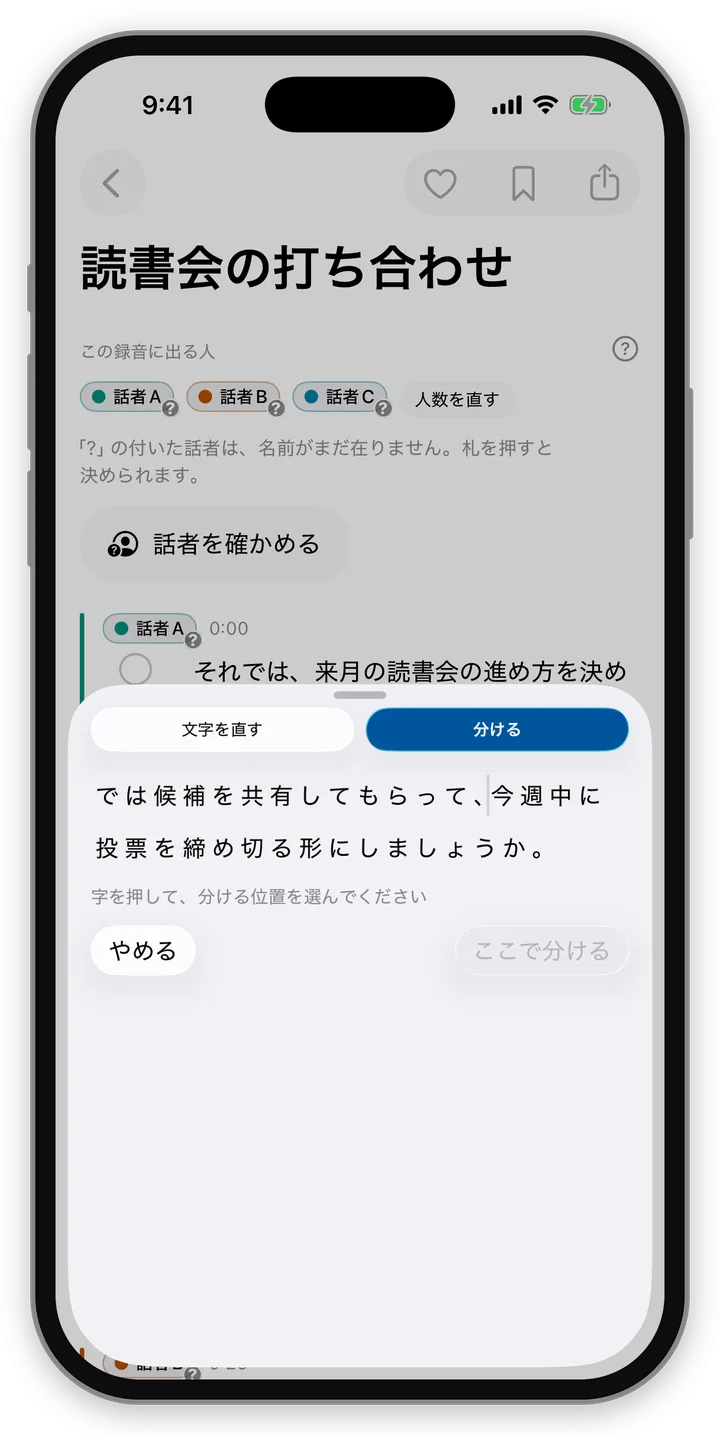
Edit text / Split
- Use the switch at the top of the sheet to choose "Edit text / Split".
- Edit text: correct the text in the field and press "Save" (保存).
- Split: tap the character where you want to split ("Tap a character to choose where to split" (字を押して、分ける位置を選んでください)) and press "Split here".
- When merging lines from different speakers, you are asked "Whose line should the merged line be?" (結合した発言を誰の発言にしますか?)
Results and undo
- After a correction, "Text corrected." (文字を直しました。), "Line split." (発言を分けました。), "Merged N lines." (N 件を結合しました。) or "Deleted N lines." (N 件を削除しました。) appears, each with "Undo".
- There is no confirmation screen for deletion. It disappears immediately, so if you made a mistake, press "Undo".
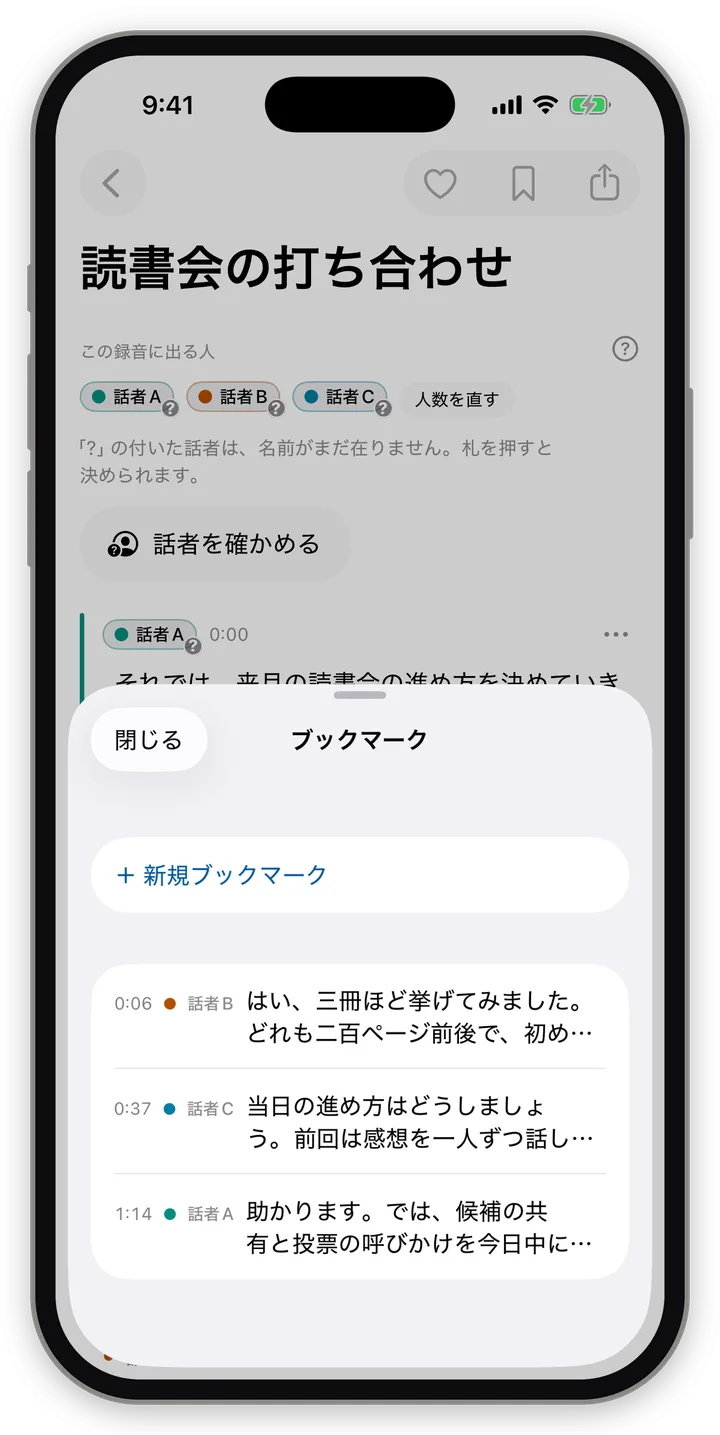
9.6 Bookmarks (栞)
- Add one with "Bookmark" in the line menu. On Mac ⌘D and on Windows Ctrl+D toggle a bookmark on the line currently playing.
- The bookmark button at the top right opens the list. Title "Bookmarks" (ブックマーク) and "+ New bookmark".
- Tap a row in the list to play from there. Swipe a row to delete it (on Android and Windows, with the delete control).
- When empty, "You can add one with '+ New bookmark' above, or from a line's '…'." (上の「+ 新規ブックマーク」か、発言の「…」から付けられます。) appears.
- Bookmarks are kept even if you re-split the number of speakers. However, if the line boundaries changed and they could not be reattached, "Re-splitting changed the line boundaries, and N bookmarks couldn't be reattached." (分け直しで発言の区切りが変わり、栞 N 件は当て直せませんでした。) appears.
- Bookmarks are not included in exported text.
9.7 Correcting the name, date and place
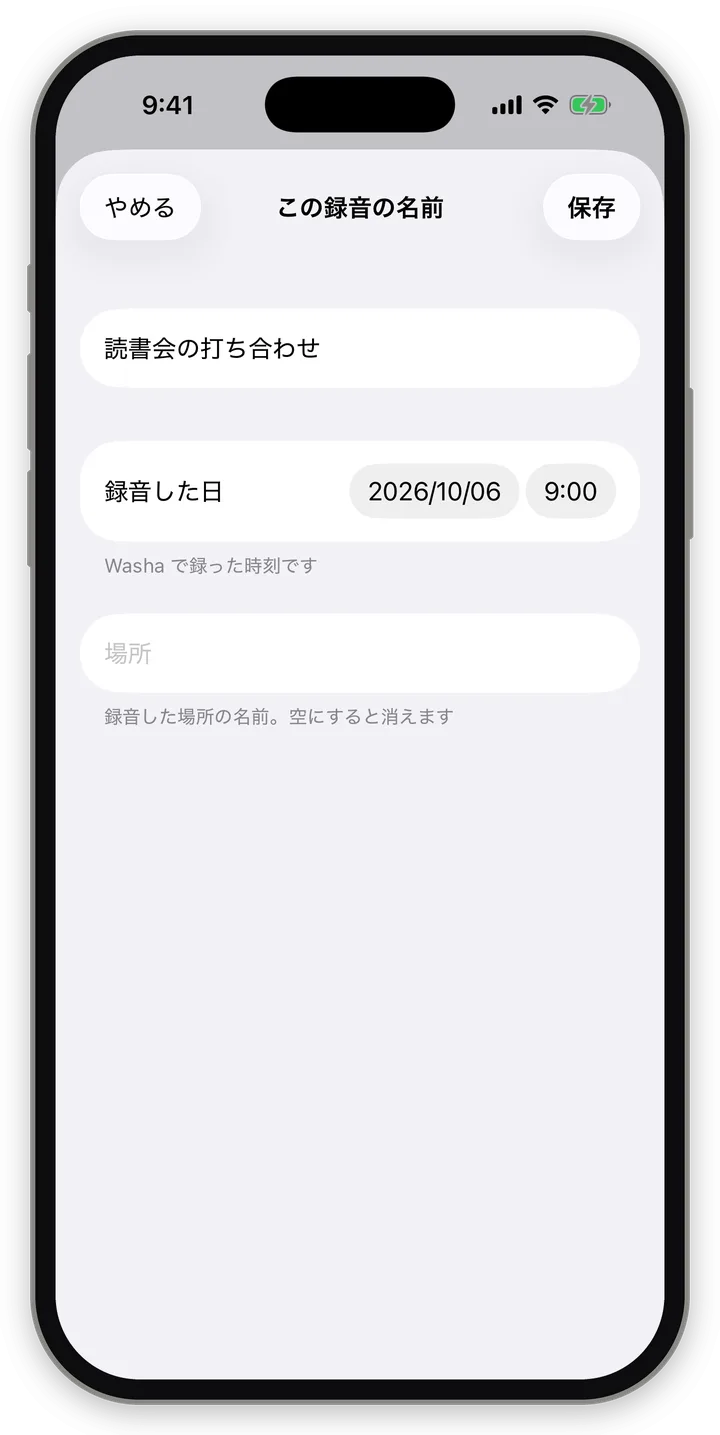
"Rename" in the row menu opens the "Name and date" (名前と日付) sheet.
| Field | Details |
|---|---|
| Recording name | The recording's title |
| Date recorded | Date and time. Cannot be set in the future ("Can't be set to a future date and time" (先の日時にはできません)) |
| Location | Place name. "The name of the place where it was recorded. Clear it to remove it." (録音した場所の名前。空にすると消えます) |
- Below the date field, it shows where the current date came from. Examples: "This is the time recorded in Washa" (Washa で録った時刻です), "This is a date corrected by hand" (手で直した日付です), "This is the original file's creation date" (元のファイルの作成日です), "The recording date is unknown, so the import date is used" (録音した日が分からないので、取り込んだ日にしています).
- The buttons are "Save" and "Cancel".
9.8 Deleting recordings and the Trash
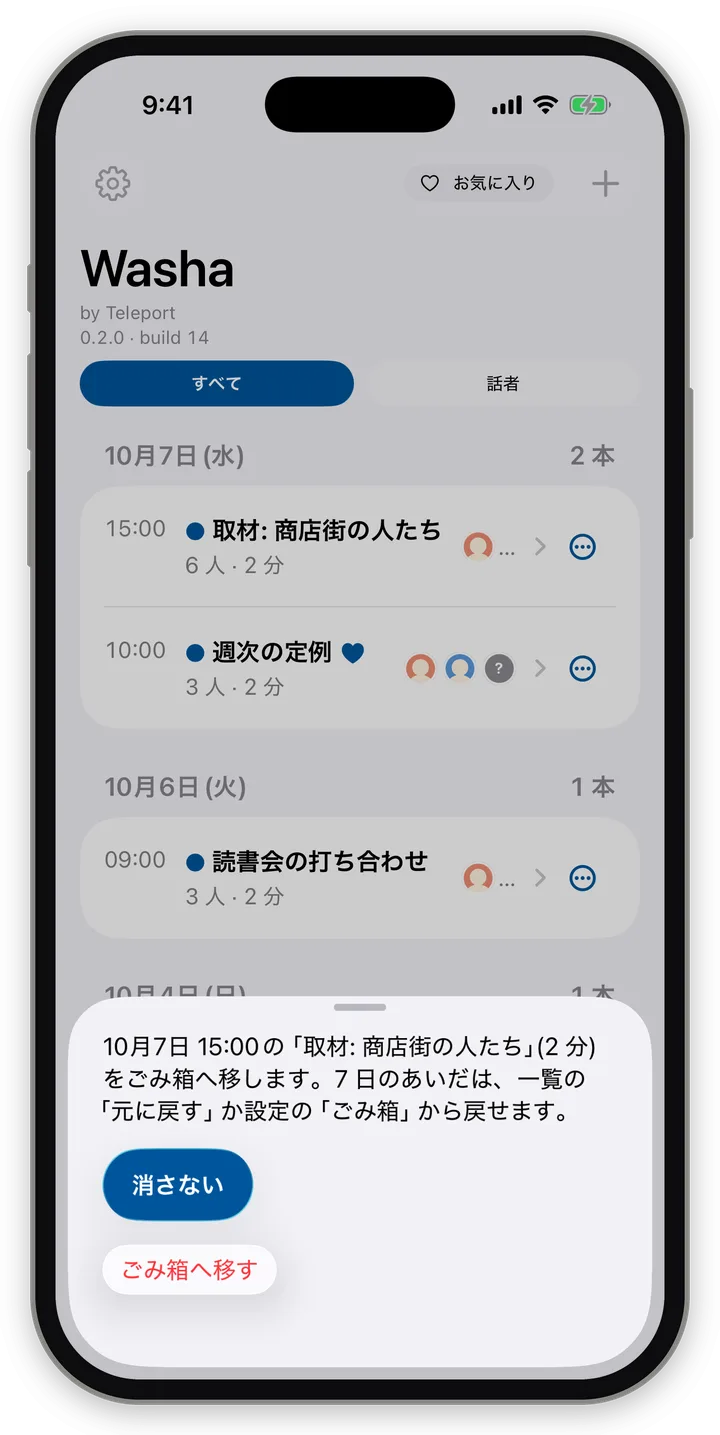
- Deleting a recording does not erase it immediately; it moves to the Trash. It can be restored for 7 days.
- Confirmation text: "'(title)' from (date/time) (N min) will be moved to the Trash. For 7 days you can restore it with 'Undo' in the list or from 'Trash' in Settings." ((日時)の「(題)」(N 分)をごみ箱へ移します。7 日のあいだは、一覧の「元に戻す」か設定の「ごみ箱」から戻せます。)
- The main button is "Keep", and the delete side is "Move to Trash".
- Right after deleting, the list shows "Moved '(title)' to the Trash." (「(題)」をごみ箱へ移しました。) and "Undo".
- The Trash is in Settings (Section 11.7). Recordings older than 7 days are cleared when the app launches.
9.9 When things go wrong
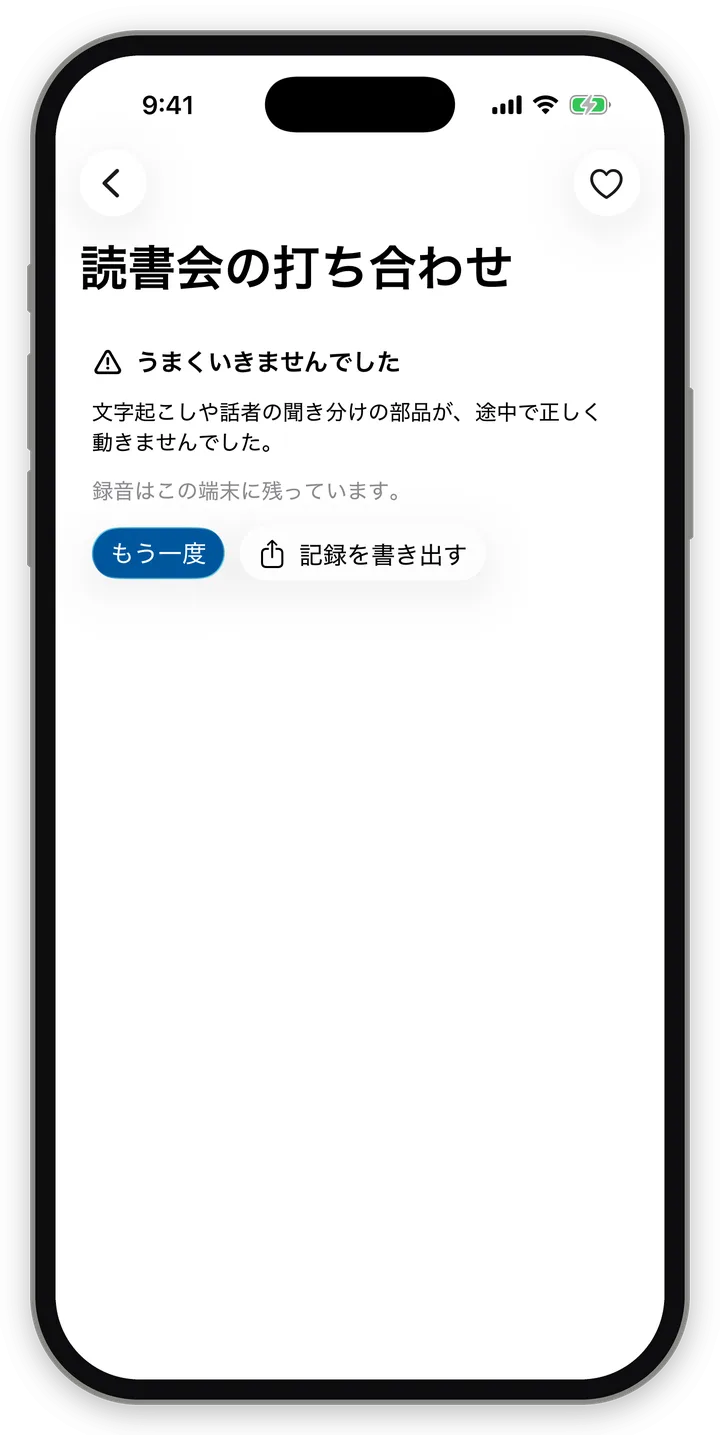
The failure screen
When something fails, it appears in this form:
- Heading "Something went wrong"
- What happened (1 sentence)
- Where the recording is (e.g. "The recording remains on this device." (録音はこの端末に残っています。))
- Buttons for what to do next: "Try again", "Open Settings", "Export logs", "Choose another file", "Back to list", etc.
Main "what happened" messages:
| Situation | Message |
|---|---|
| Format can't be read | Couldn't read this audio format (m4a, mp3 and wav can be read). (この音源の形式を読み取れませんでした(m4a・mp3・wav は読めます)。) |
| No speech recognition permission (iPhone) | Speech recognition permission is needed to transcribe this recording. Nothing has been processed yet. (この録音を文字に起こすには、音声認識の許可が要ります。まだ何も処理していません。) (→ turn on Speech Recognition for Washa in Settings, then try again) |
| Processing components can't be fetched (iPhone, Mac) | This device doesn't have the transcription components. Press "Try again" somewhere with a connection to fetch them. (この端末には文字起こしの部品がありません。通信できる場所で「もう一度」を押すと取り寄せます。) |
| No processing data (Android) | This device doesn't yet have the data for telling speakers apart, so recordings can't be processed. (この端末には話者を聞き分けるためのデータがまだ入っていないため、録音を処理できません。) |
| Language not supported | Transcription in this language isn't supported. (この言語での文字起こしに対応していません。) |
| Out of memory | Stopped because memory ran out (メモリが足りず止まりました) |
When no lines were found
- "No lines found" with "This happens with recordings whose sound is very quiet, or that contain no speech." (音が小さい録音や、話し声の入っていない録音で起きます。), and the button "Reprocess".
- If this appears on Windows, check the microphone privacy setting (Section 4.2).
When processing stopped partway
- "Processing interrupted", "Stopped partway through '(stage)'. The recording remains on this device." (「(段)」の途中で止まりました。録音はこの端末に残っています。)
- "Resume" continues from the saved checkpoint.
- On iPhone, if it stopped because you switched to another app, it automatically continues when you bring the app back to the front.
10. Naming speakers, changing the number of speakers, and the Speaker library
Version checked: app 0.2.0 (as of build 14).
When processing finishes, speakers have provisional names such as "Speaker A", "Speaker B"… (話者A, 話者B… on the Japanese screen). Once you name them, their voice is kept in the Speaker library, and from the next recording on, "Is this this person?" candidates appear.
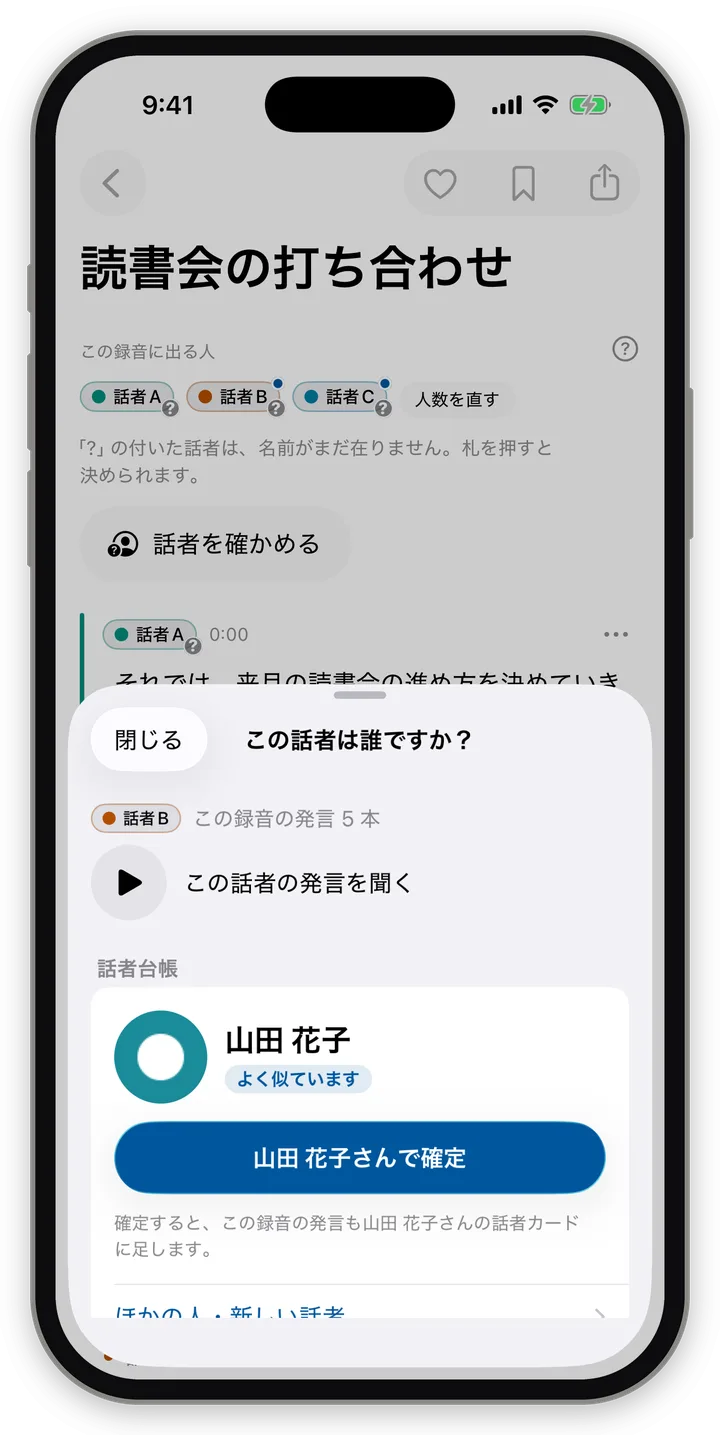
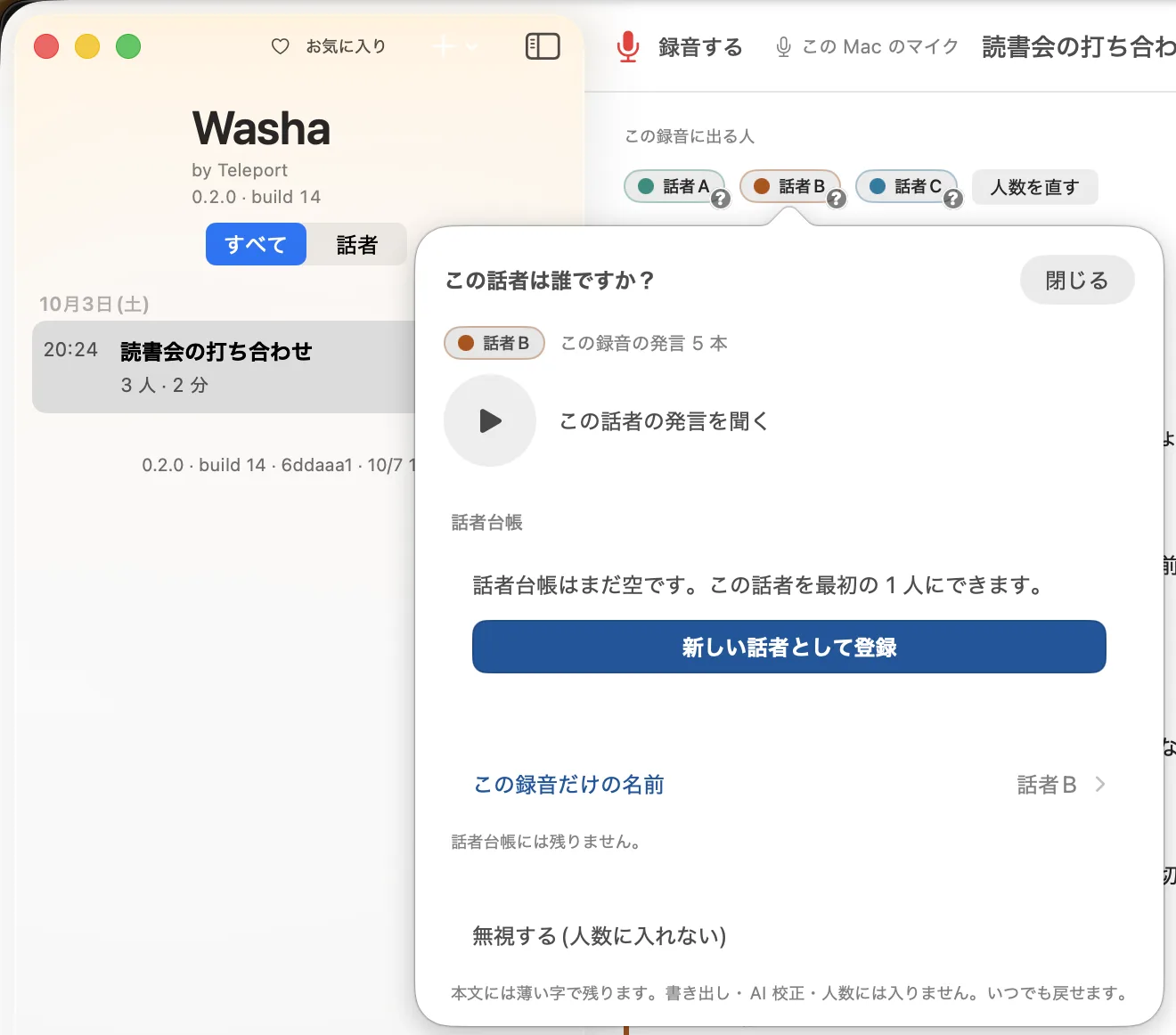
10.1 The speaker panel "Who is this speaker?"
Tapping a speaker tag on the Transcript screen opens the speaker panel (Who is this speaker?). On iPhone and Android it is a sheet rising from the bottom; on Mac, a popover from the tag; on Windows, a panel in the center of the window.
Top
- The speaker tag, "N lines in this recording" (この録音の発言 N 本), and ▶ (listen to this speaker's lines)
Speaker library candidates
| State | Display |
|---|---|
| A very similar person exists | Tag "Very similar" and "Confirm as (name)" |
| Similar people exist | Tag "Similar" (似ています). Up to 3 people, most similar first |
| No similar person | "None of the N people in the Speaker library sound similar." (話者台帳の N 人に、似ている人はいませんでした。) |
| Library is empty | "The Speaker library is still empty. You can make this speaker the first one." (話者台帳はまだ空です。この話者を最初の 1 人にできます。) |
| Comparing | "Comparing with the Speaker library n/N · about N seconds left" (話者台帳と比べています n/N · あと N 秒ほど) |
| Only short lines | "This speaker has only short lines, so they can't be compared with the Speaker library." (この話者は短い発言だけなので、話者台帳と比べられません。) |
| Already confirmed | "Confirmed as a speaker in the Speaker library" (話者台帳の話者として確定しています) with "Open speaker card" (話者カードを開く) and "Unconfirm" (確定を外す) |
Ways to choose
- "Choose from Speaker library" (話者台帳から選ぶ): choose from the list of people in the library ("Search by name" (名前で探す) is available).
- "Register as new speaker" (新しい話者として登録): register as a new person in the library (Section 10.4).
- "Assign just this line to another speaker" (この発言だけ別の話者にする): reassign only the line you are viewing to another speaker, "+ New speaker (Speaker C)" (+ 新しい話者(話者C)), or "Unknown" (誰かわからない). After reassigning, "Set this line to (speaker)." (この発言を(話者)にしました。) and "Undo" appear.
- "Name for this recording only" (この録音だけの名前): enter it in the name field and press "Save". It is not kept in the Speaker library ("Not kept in the Speaker library." (話者台帳には残りません。)). If the name you enter matches a person in the library, you are asked "Use (name) from the Speaker library?" (話者台帳の(名前)さんにしますか?)
- "Exclude (not counted)": Section 10.5.
- When two people's voices seem mixed, "There seem to be 2 people in this recording. Change the number of speakers?" (この録音には 2 人居るようです。人数を直しますか) appears, and you can proceed to "Change number of speakers".
When confirmed, "Confirmed Speaker A as (name)." (話者Aを(名前)さんに確定しました。) and "Undo" appear.
10.2 The speaker identification flow "Identify speakers"
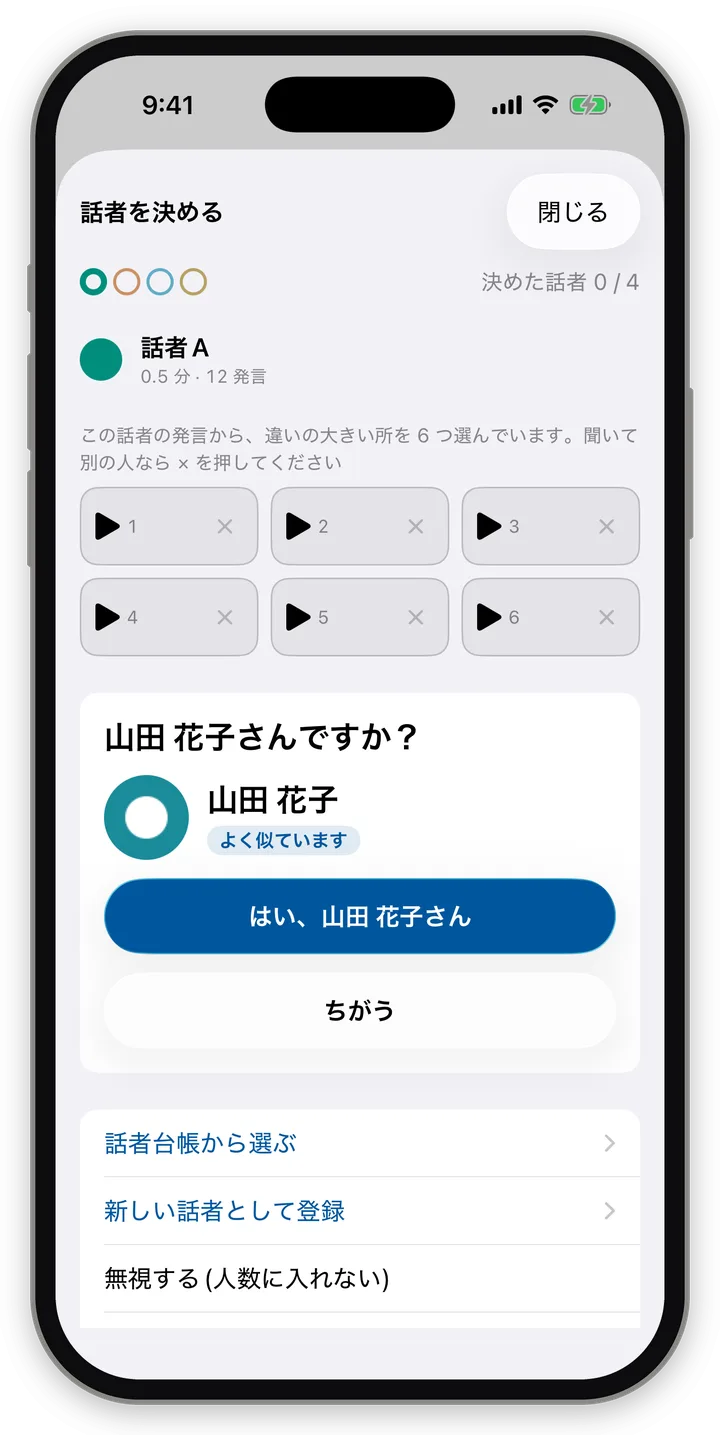
When you open a recording with speakers that have Speaker library candidates, or speakers that "might be the same person", the Identify speakers flow opens automatically. It can also be opened by hand from "Check speakers" on the Transcript screen.
- Progress "n / N speakers decided" (決めた話者 n / N)
- Question forms:
- "Is this (name)?" ((名前)さんですか?) → "Yes, (name)" (はい、(名前)さん) / "No" (ちがう) / "Later" (あとで)
- After "No": "Then who is it?" (では、だれですか?)
- No similar person in the library: "No one in the Speaker library sounds similar. Who is it?" (話者台帳に似ている人がいません。だれですか?)
- "Are these 2 the same person?" (この 2 つは同じ人ですか?) → "Same person ((name))" (同じ人((名前)さん)) / "Different people" (別の人)
- Listening chips: up to 6 of that speaker's lines that differ most are lined up. Listen, and if it's another person's voice, press × ("Listen, and press × if it's a different person" (聞いて別の人なら × を押してください)). Lines marked × are not used as that speaker. When another person is mixed in, it recommends "Change number of speakers" (人数を変える) or "Reassign in the transcript" (原稿で付け替える).
- Bottom bar: "Choose from Speaker library", "Register as new speaker", "Exclude", "Later"
- Even if you close it, it continues from where you left off ("Even if you close it, it continues from where you decided" (閉じても、決めた所から続きます)). You can return with "Continue identifying speakers (n / N speakers decided)" on the Transcript screen.
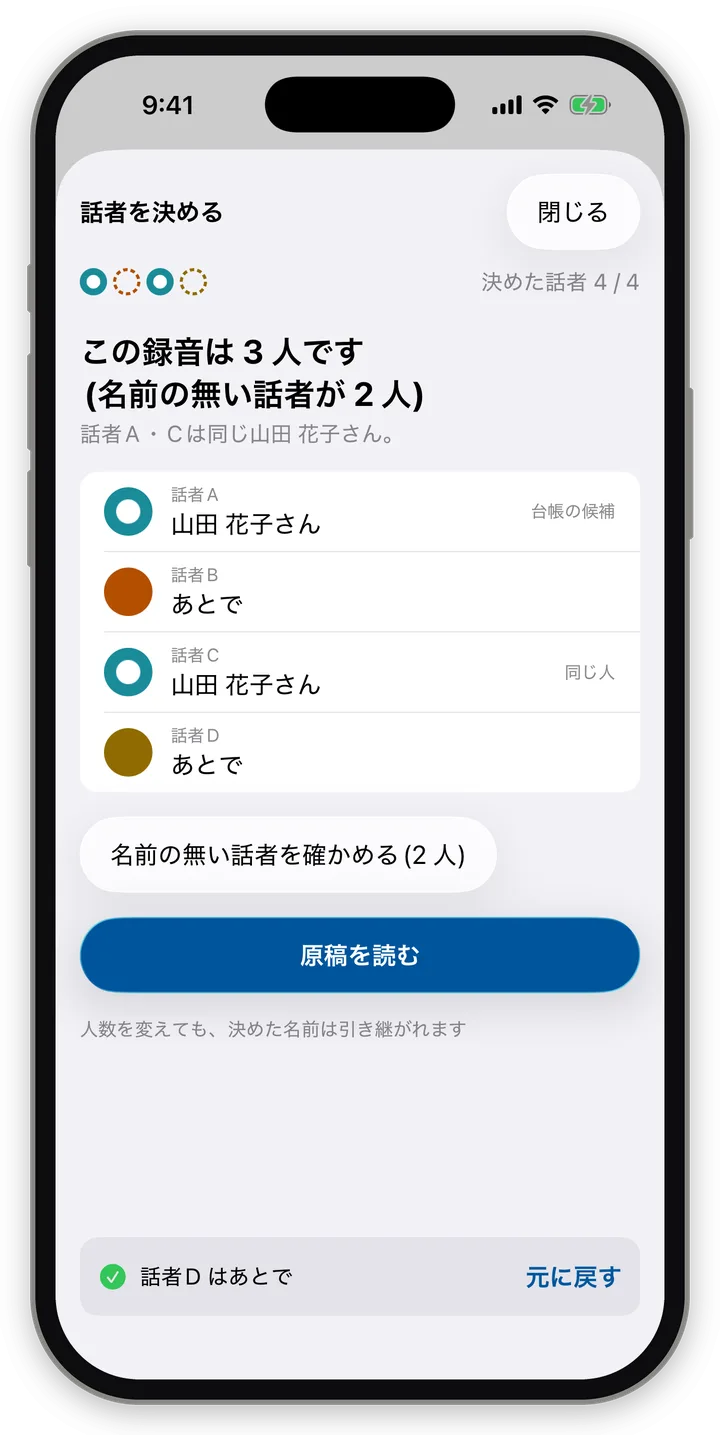
- At the end, a summary "This recording has N people" (この録音は N 人です) and "Read transcript" (原稿を読む) appear. If unnamed speakers remain, "Check unnamed speakers (N)" (名前の無い話者を確かめる(N 人)) also appears.
10.3 Changing the number of speakers
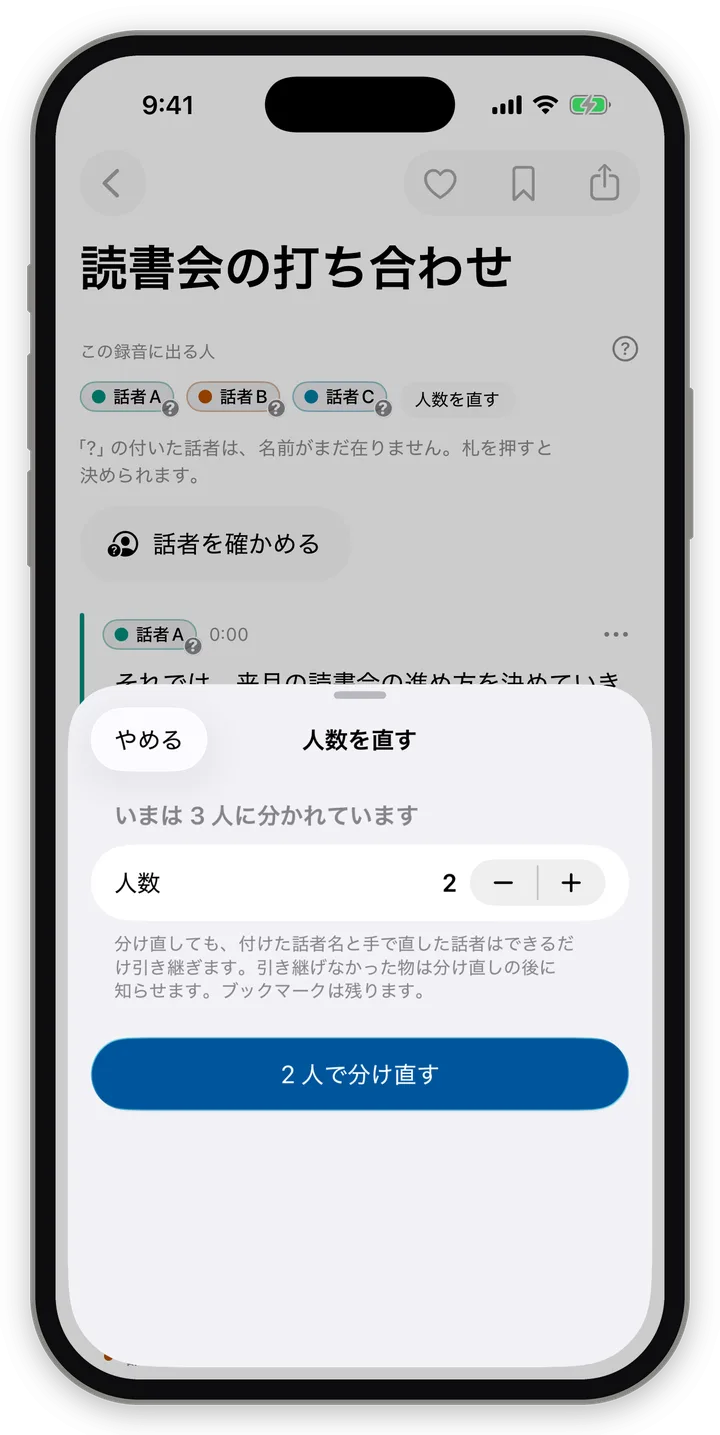
When the way speakers are split differs from the actual number of people (one person split into two, two people merged into one, etc.), re-split with "Change number of speakers" on the Transcript screen.
- Sheet title "Change number of speakers", "Currently split into N people" (いまは N 人に分かれています)
- Explanation: "Even after re-splitting, speaker names you assigned and speakers you changed by hand are carried over as much as possible. Anything that couldn't be carried over is reported after re-splitting. Bookmarks are kept." (分け直しても、付けた話者名と手で直した話者はできるだけ引き継ぎます。引き継げなかった物は分け直しの後に知らせます。ブックマークは残ります。)
- Chips 1–10 (the current number can't be pressed) and "Re-split into N people" (N 人で分け直す)
- While re-splitting, "Re-splitting into N people" (N 人で分け直しています) and progress appear.
- Results:
- "Split into N people." (N 人に分けました。)
- When the requested number couldn't be reached: "Couldn't split into N people; it remains M people. This is because there aren't enough lines long enough to capture voice characteristics. Tap a line's tag to reassign speakers one at a time." (N 人に分けられず、M 人のままです。声の特徴を取れる長さの発言が足りないためです。発言の札を押すと、1 つずつ話者を付け替えられます。)
- Carry-over report: "Carried over N names and M corrections" (名前 N 人・直し M 件を引き継ぎました), "N items couldn't be carried over" (N 件は引き継げませんでした), etc.
- Excluded-speaker settings are removed when you re-split ("Excluded-speaker settings will also be removed." (無視にしている話者の指定も外れます。)).
- Re-splitting can't be done during other processing or recording ("Re-splitting can't start until the other processing or recording is finished." (ほかの処理か録音が終わるまで、人数の分け直しは始められません。)).
10.4 The Speaker library and speaker cards
The Speaker library is a register that remembers the voices of people you have named. People registered in the library appear as candidates from the next recording on.
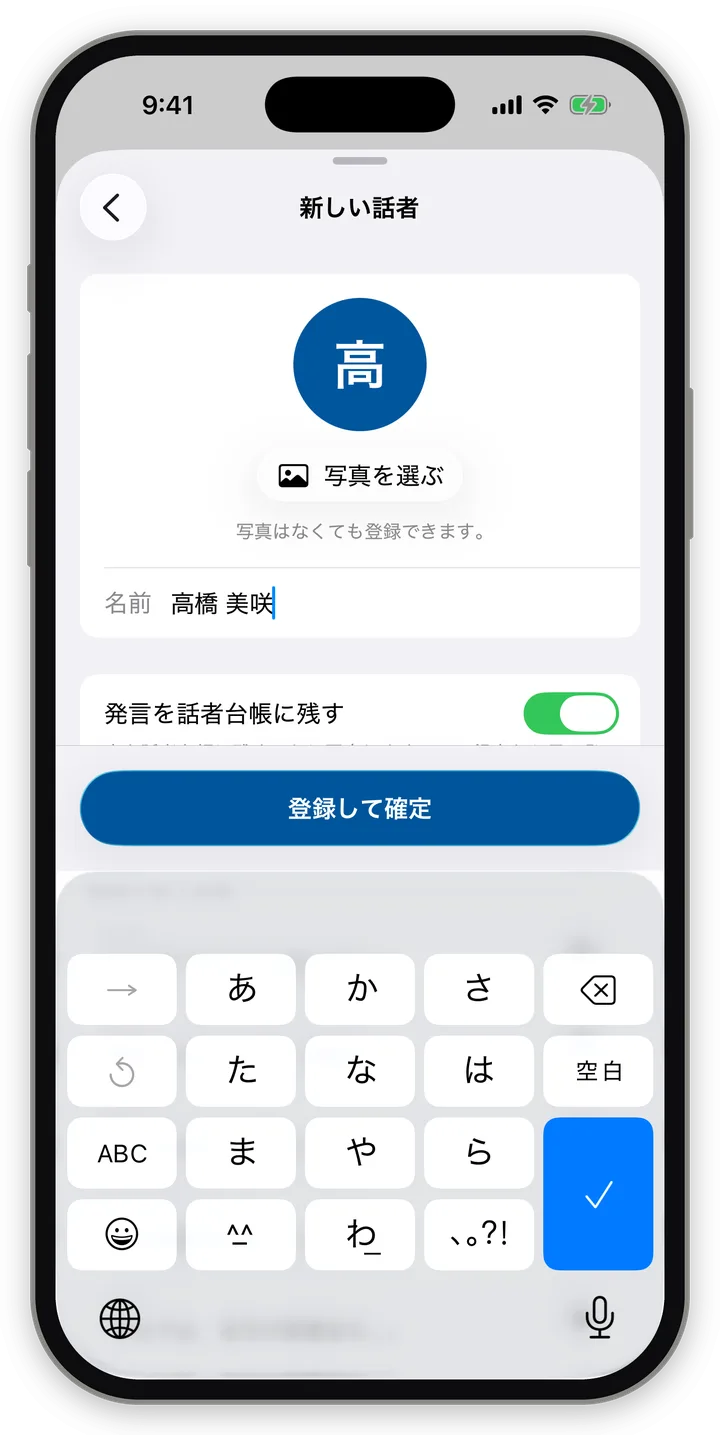
Registering as a new speaker
| Field | Details |
|---|---|
| Photo | Optional ("You can register without a photo." (写真はなくても登録できます。)). "Choose photo / Change photo / Remove photo" (写真を選ぶ / 写真を替える / 写真を外す) |
| Name | e.g. "Hanako Yamada" (山田 花子). If the same name exists in the library, "'(name)' is in the Speaker library." (話者台帳に「(名前)」がいます。) and "Confirm as that person" (その人で確定) appear |
| Lines used for registration | A list. You can listen with ▶. Lines from a different person can be removed with "This is a different person" (これは違う人) |
| Keep lines in the Speaker library | A toggle (on by default). Consent text: "I agree to keep this voice in the Speaker library. Up to 5 long lines from this recording will be kept and shown as candidates from the next recording on. They remain even if the original recording is deleted, and can be removed from the speaker card at any time." (声を話者台帳に残すことに同意します。この録音から長い発言を最大 5 本残し、次の録音から候補に出します。元の録音を消しても残り、話者カードからいつでも外せます。) (発言を話者台帳に残す) |
| Button | Register and confirm (登録して確定) |
- Up to 5 lines can be added to one person from one recording.
- The Terms of Use (Article 4) require that, when registering a voice in the Speaker library, you explain the purpose and obtain the consent of the person being registered.
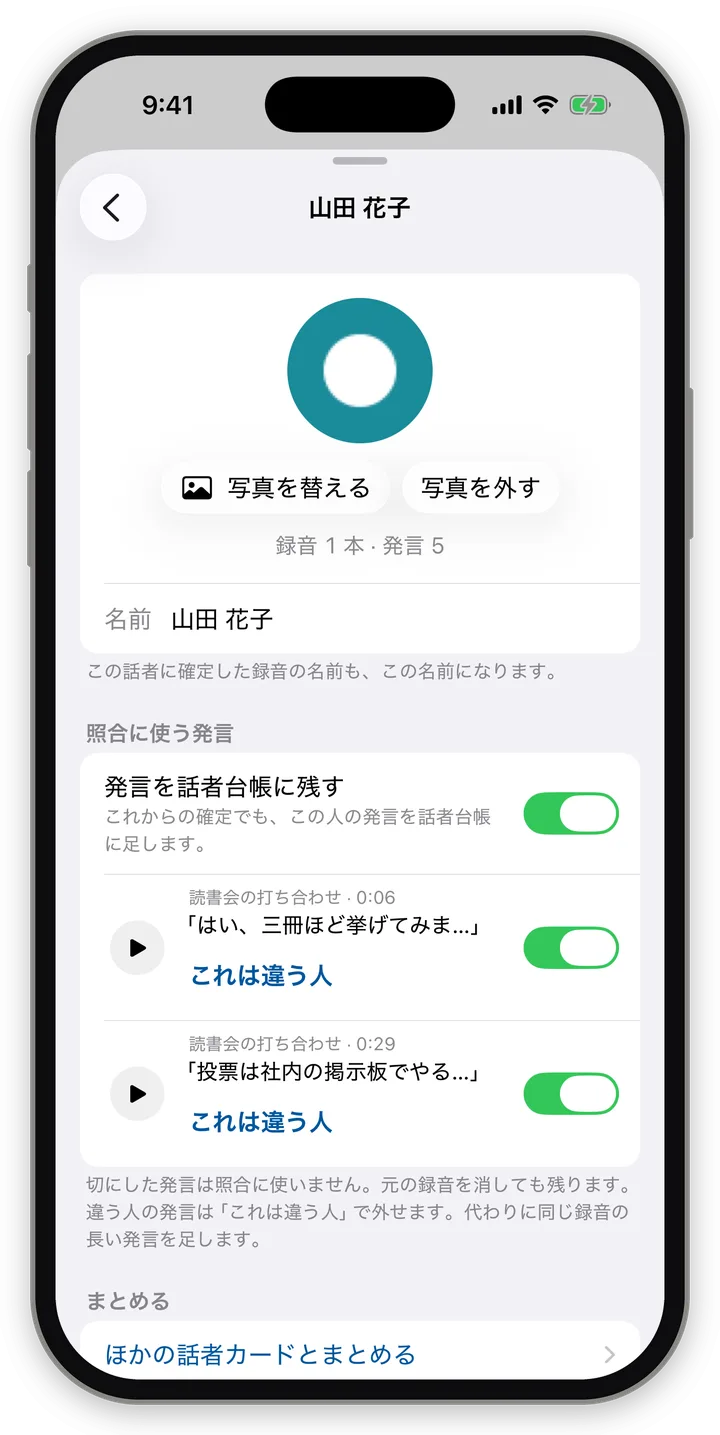
Speaker cards
A card for one person in the library. Open it from the Speakers tab or "Open speaker card" on the speaker panel.
- Name (changing it also changes the name in recordings confirmed as that person) and photo
- "Lines used for matching" (照合に使う発言): the list of lines used to produce candidates. If another person's voice is mixed in, remove it with "This is a different person" (a long line from the same recording takes its place)
- "Merge with another speaker card" (ほかの話者カードとまとめる): combines into one card when the same person has ended up split across two cards
- "Keep lines in the Speaker library" (発言を話者台帳に残す): a per-card toggle. Decides whether lines from recordings confirmed from now on are added to this person
- "Delete this speaker card" (この話者カードを消す): confirmation "Delete '(name)' from the Speaker library? It can be restored to the Speaker library for 7 days. After that, the lines used for matching and the photo will also be deleted. Names in already-confirmed recordings stay as they are." (「(名前)」を話者台帳から消しますか?7 日のあいだは話者台帳に戻せます。その後、照合に使う発言と写真も消えます。確定済みの録音の名前はそのまま残ります。) Buttons "Delete" (消す) and "Cancel" (やめておく). Deleted cards remain for 7 days under "Deleted speaker cards" (消した話者カード) in the Speaker library and can be restored with "Restore to Speaker library" (話者台帳に戻す)
Speaker colors
People confirmed in the Speaker library get their own color, the same in every recording (only when colors collide within the same recording does one move to a free color). Unnamed speakers get colors by their order within the recording (10 colors are used, repeating beyond that). Unnamed speakers have a "?".
10.5 "Other voices" and "Exclude"
Other voices (その他の声)
Lines with too little voice to be grouped into one person are gathered into "Other voices" (その他の声).
- "Other voices" is not counted in the number of speakers.
- They remain in the body text, and also appear in the "Speakers in this recording" row.
- It may appear in Japanese as 「その他の声」 even on the English screen (Chapter 13).
Exclude (not counted)
Speakers you don't want in the transcript, such as TV sound or the voices of people nearby, can be set to "Exclude (not counted)".
- They remain in the body in faint text, but are not included in exports or the speaker count.
- You can revert any time with "Include again".
- The on-screen explanation says "Not included in exports, AI proofreading or the speaker count." (書き出し・AI 校正・人数には入りません。), but AI proofreading is not in the current version (Section 3.2).
When the same person is confirmed for two speakers
Even if one person's voice is split into "Speaker A" and "Speaker C", confirming both as the same person makes them treated as one person in the speaker count, colors, names and exports.
11. Export and sharing, settings
Version checked: app 0.2.0 (as of build 14).
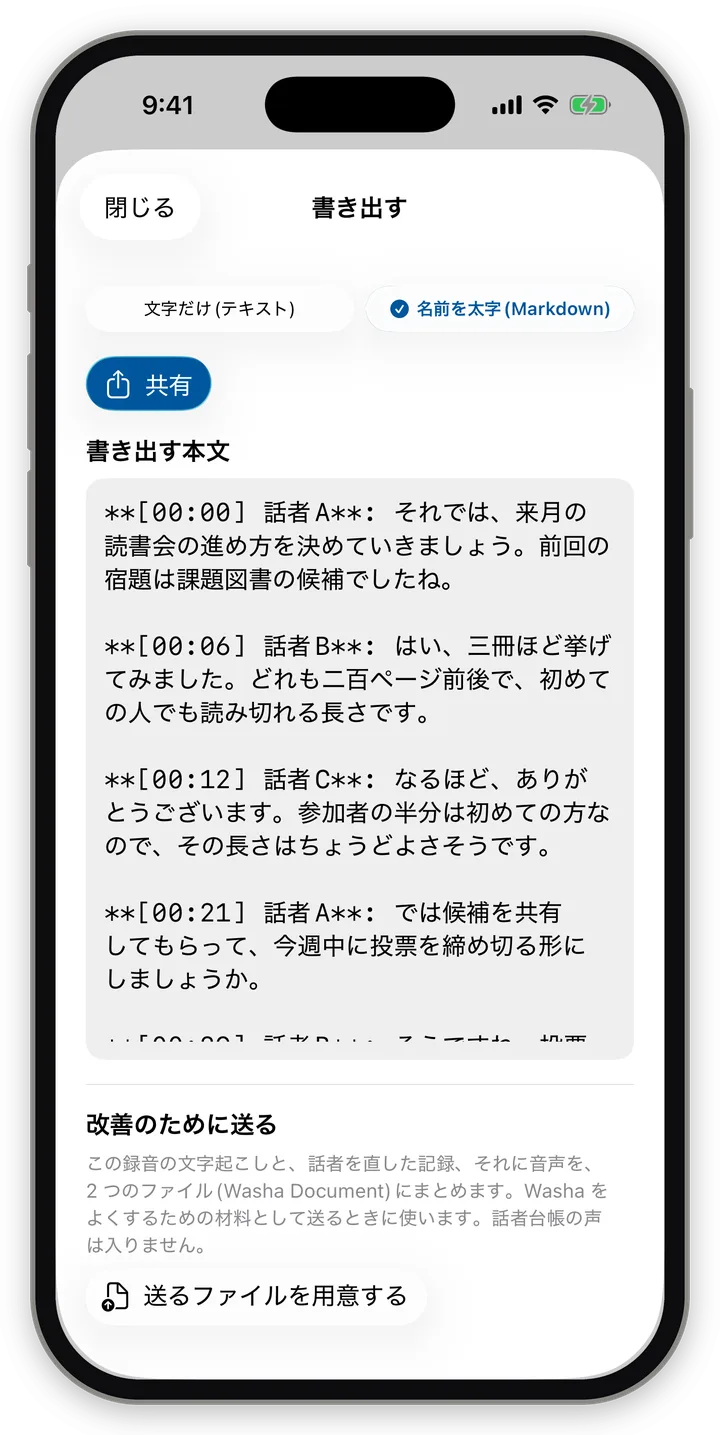
11.1 Export
"Export" at the top right of the Transcript screen opens the export sheet. It also opens with ⌘E on Mac and Ctrl+E on Windows.
Formats
| Format | Japanese | File |
|---|---|---|
| Plain text | 文字だけ(テキスト) | .txt |
| Bold names (Markdown) | 名前を太字(Markdown) | .md |
Contents
- Consecutive lines by the same person are combined into one paragraph, with
[min:sec] Name:at the head of the paragraph. In Markdown, names are bold. - Unnamed speakers are written like "Speaker A" (話者A).
- The first line contains a sentence with the recording date/time and place (e.g. "Mon, Sep 28, 10:31, near Jinnan, Shibuya." (9月28日(月)10:31、渋谷区神南の近くで。)). If the place is unknown, it is not included.
- Lines of "Excluded" speakers and lines with no text are not included.
- Bookmarks are not included.
- Exporting as Word (.docx), PDF or subtitle formats is not available in the current version.
How it is handed off
| OS | Pressing "Share" (共有) | Other options |
|---|---|---|
| iPhone | iOS share sheet | "Save to Files" in the share sheet also makes a file |
| Mac | macOS sharing | "Save to file" |
| Android | Android share sheet | — |
| Windows | Copies to the clipboard ("Copied to the clipboard. Paste it into another app." (クリップボードに写しました。ほかのアプリに貼り付けてください。)) | "Save to file". If a file with the same name exists, it does not save |
- A preview of "The text to export" (書き出す本文) appears at the bottom of the sheet. When long, only the beginning is shown, with "Showing the beginning only. The full text is included when you share or save" (先頭のみ表示しています。全文は共有・保存に入ります) (iPhone, Mac) / "Showing the beginning only. The full text is included when you share" (先頭のみ表示しています。全文は共有に入ります) (Android, Windows).
11.2 Help improve Washa (Washa Document)
At the very bottom of the export sheet there is a "Help improve Washa" section.
- Explanation: "Packs this recording's transcript, the record of speaker corrections, and the audio into 2 files (Washa Document). Use this when sending them as material to make Washa better. Voices from the Speaker library are not included." (この録音の文字起こしと、話者を直した記録、それに音声を、2 つのファイル(Washa Document)にまとめます。Washa をよくするための材料として送るときに使います。話者台帳の声は入りません。)
- Pressing "Prepare files to send" (送るファイルを用意する) creates 2 files (a file
….washa.jsoncontaining the transcript, the correction record, etc., and an audio file). - iPhone and Android offer "Share 2 files" (2 つのファイルを共有); Mac and Windows can also "Save to folder" (フォルダに保存).
- Contents: title, recording date, processing results, record of speaker corrections, live text (if any), recording location (if any). Voices or voice characteristics from the Speaker library are not included.
- It is not sent automatically. It leaves the device only when you share it yourself.
- After you report on Discord that "this recording didn't work well," the development team may ask you to create this and send it to us. It contains the audio itself, so send it only after obtaining the consent of the people recorded.
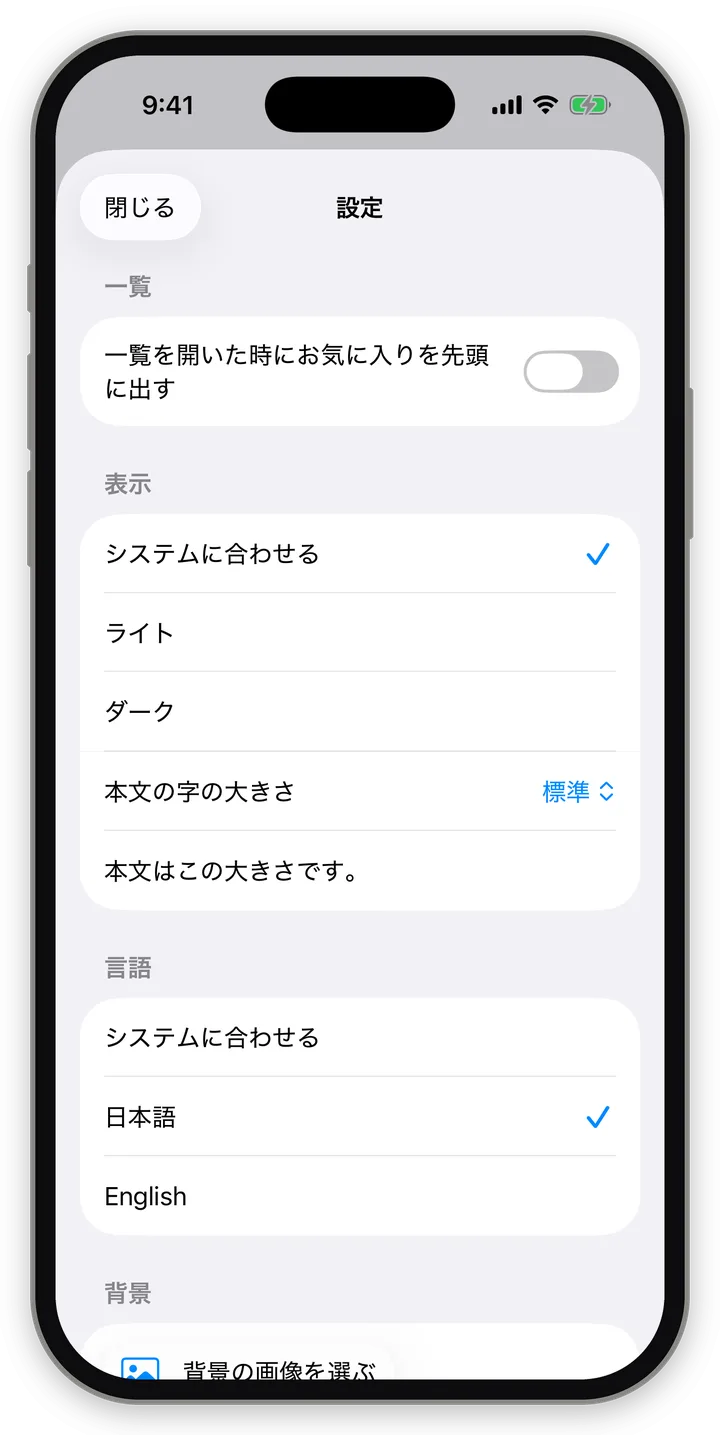
11.3 Settings
| OS | How to open | Form |
|---|---|---|
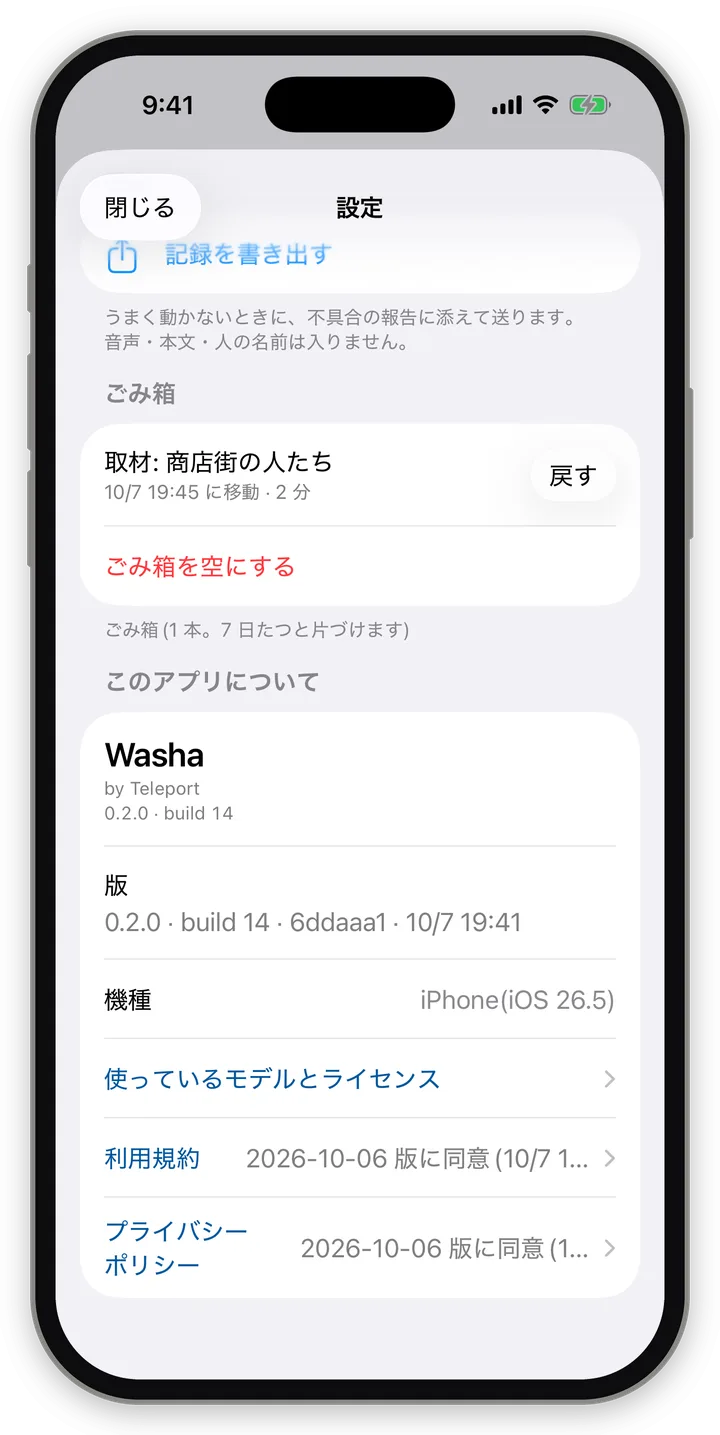
| iPhone | Gear at the top left of the list | Sheet (all sections on one page) |
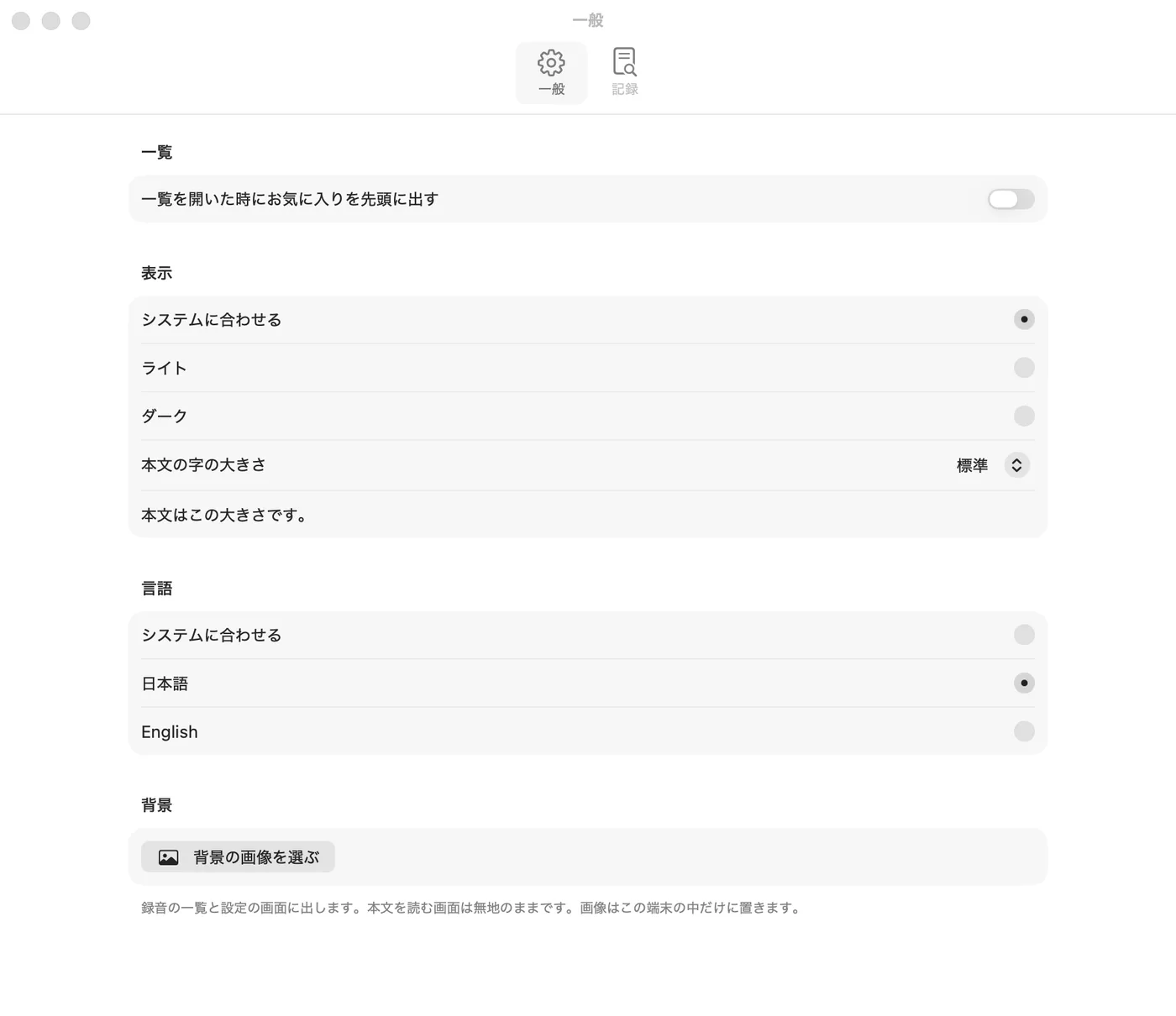
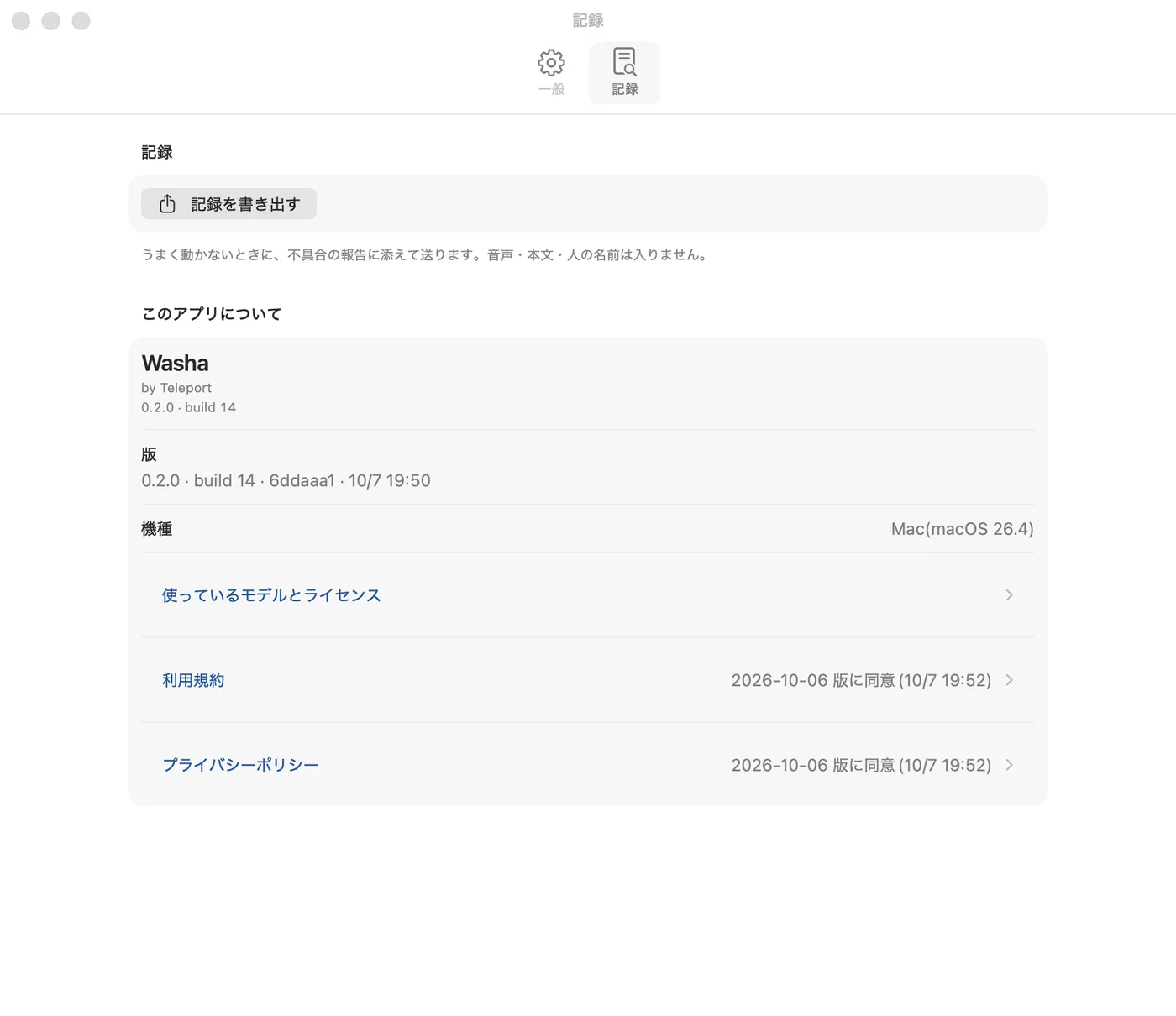
| Mac | ⌘, | Separate window. Tabs "General" (一般) (list, display, language, background) and "Logs" (記録) (Export logs, Trash, About) |
| Android | Gear at the top left of the list | Sheet |
| Windows | Menu "File → Settings…" (Ctrl+,) | Separate window. Tabs "General" and "Logs" |
Settings items
| Section | Item | Options | Default |
|---|---|---|---|
| List | Show favorites first by default | On / Off | Off |
| Display | Appearance (外観) | Match system / Light / Dark | Match system |
| Display | Transcript text size | Small / Default / Large / Extra large / Largest | Default |
| Language | Screen language (画面の言語) | Match system / 日本語 / English | Match system |
| Background | Choose / change / remove background image (背景の画像を選ぶ / 替える / 外す) | Photo | None |
| Logs | Export logs | — | — |
| Trash | Restore, Empty Trash (shown only when there is something in it) | — | — |
| Speaker library | Open Speaker library (Android, Windows) | — | — |
| About | Version, device model, models and licenses in use, Terms of Use, Privacy Policy | — | — |
- Transcript text size applies multiplied by the OS's text size setting. You can check it with the sample "Body text is this size." (本文はこの大きさです。)
- "Match system" for Screen language uses whichever of Japanese and English comes first in the device's language list. If neither is present, English.
- Background: "Shown on the recordings list and Settings screens. The screen for reading the transcript stays plain. The image is kept only on this device." (録音の一覧と設定の画面に出します。本文を読む画面は無地のままです。画像はこの端末の中だけに置きます。)
- Spoken language (Section 7.4) is not on the Settings screen; it is chosen on the recording screen and on the speaker-count sheet.
11.4 Export logs (for bug reports)
- "Export logs" in Settings, or "Export logs" in a recording row's menu (long-press / right-click), turns the activity log into a text file.
- Explanation: "Send this with a bug report when something isn't working. It contains no audio, transcript text or people's names." (うまく動かないときに、不具合の報告に添えて送ります。音声・本文・人の名前は入りません。)
- Contents: app version, OS, device model, free space, recording identifiers, processing status, etc. No audio, transcript text, people's names or titles.
- iPhone and Android hand it off via the share sheet. Mac saves it to a file via a save dialog. Windows copies it to the clipboard.
- It is not sent automatically.
- Please report bugs on the Washa Discord. Tell us which OS you are using, the app version ("0.2.0 · build N" under the logo; Section 11.6), and what you did and what happened, and attach this log if needed.
11.5 Models and licenses in use
In Settings, "About" → "Models and licenses" lets you read the names, authors, licenses and full license texts of the AI models and components the app uses. On Mac it can also be opened from the app menu "Licenses", and on Windows from the menu "Help → Licenses".
- The information shown here is public.
- Beyond that, how the models are used or combined is not public (Section 2.5).
11.6 How to check the version
- A version line appears under the logo at the top of the list. e.g. "0.2.0 · build 14".
- "0.2.0" is the app version, and "build 14" is the serial number shared by all OSes.
- At the very bottom of the list, and in "Version" (版) under "About" in Settings, a detailed line including symbols appears. When reporting a bug, attaching this line as-is is the surest way (the "Version" in Settings can be selected and copied).
- If it shows "build dev", it may not be a version distributed as a beta. Please let us know on the Washa Discord.
- "Device model" (機種) in Settings shows the device and OS version (e.g. "iPhone (iOS 26.5)", "Mac (macOS 26.x)", "Pixel 8a (Android 16)", "Windows 11").
11.7 Trash
- In Settings, a "Trash" section appears only when there are recordings in the Trash.
- "Trash (N recordings. Cleared after 7 days)" (ごみ箱(N 本。7 日たつと片づけます)), and for each row the title, "Moved on (date/time) · N min" ((日時) に移動 · N 分) and "Restore".
- "Empty Trash": confirmation "This will delete the N recordings in the Trash from this device. Once deleted, they can't be restored." (ごみ箱の N 本をこの端末から消します。消すと戻せません。) The main button is "Keep" (消さない), and the other is a red "Delete all" (すべて消す).
- Recordings older than 7 days are cleared automatically at launch. They are also cleared oldest first when free space is short before recording starts (Section 7.1).
12. Data handling, Terms of Use, Privacy Policy
Terms of Use and Privacy Policy version: 2026-10-06 edition (enacted October 6, 2026). The authoritative texts can be read on the in-app agreement panel and under "About" in Settings. This chapter summarizes the key points; if they differ, the authoritative in-app texts prevail.
The Terms of Use and Privacy Policy also contain provisions about a "web version" of Washa in addition to the apps. The beta test covers the apps on the 4 OSes.
12.1 Where data is kept (summary)
| Data | Location | Does it leave the device? |
|---|---|---|
| Recordings (audio) | On the device | No (only when you share or export it yourself) |
| Transcripts (transcription, speakers, title, date, processing record) | On the device | Same as above |
| Recording location (place name and approximate position) | On the device (only if location is permitted) | Same as above. When converting to a place name, the approximate position is sent once to the OS's service (see below) |
| Speaker library (names, photos, voice characteristics, audio of up to 5 registered lines) | On the device | No |
| Settings (appearance, text size, list ordering, agreement record) | On the device | No |
| Activity logs (processing stages and failure reasons; no audio, transcript text, names or titles are written) | On the device | Only when you share them via "Export logs" |
- There is no syncing between devices. Recordings or the Speaker library made on iPhone do not automatically appear on Mac.
- iPhone and Mac do not sync via iCloud Drive. However, data may be included in iCloud backups or Time Machine through the OS's mechanisms.
- On Android, the data is excluded from backups and device transfer. It is not carried over when you change devices.
- On Windows, data is kept in the per-user local app data location (locations that roam to other PCs are not used).
- Deleting the app erases the data on the device. Please keep your own copies (Terms of Use, Article 5).
- There are no advertising, behavioral analytics or automatic crash reporting mechanisms.
- Data that is sent is not used for machine-learning training unless the person separately consents (Privacy Policy, item 6).
12.2 When the app communicates outside the device
| Situation | What is sent | To whom |
|---|---|---|
| Fetching models used for processing | Only an ordinary download request (IP address, etc.) | iPhone/Mac: Hugging Face for speaker separation, Apple for speech recognition. Android/Windows: Hugging Face and GitHub |
| Converting to a place name (if location is permitted) | The approximate position, once when recording starts | iPhone/Mac: Apple. Android: the device's location service (Google Play services) |
| When you send something yourself | What you chose (exports, Washa Document, logs) | The recipient you chose |
- The apps on the 4 OSes do not send recordings or transcripts to external services for AI proofreading (Privacy Policy, item 5).
- Teleport receives recordings only when you perform a sending action yourself (Terms of Use, Article 5).
12.3 Key points of the Terms of Use (2026-10-06 edition)
| Article | Key points |
|---|---|
| Article 1 Application | The Terms apply to the entire relationship between the provider and the user. Individual notices within the app are also part of the Terms |
| Article 2 Definitions | Defines recording data, processing results (transcription, speaker segmentation, names, voice characteristics, glossary, etc.), user data, and external services |
| Article 3 License to use | Grants a non-transferable, non-exclusive right to use the app on your own device. Third-party models and components follow their respective licenses. Test versions (TestFlight, etc.) may change features or display without notice |
| Article 4 Consideration for people being recorded | Before recording or processing, obtain the person's consent in accordance with law. Do not infringe on honor or privacy. When registering a voice in the Speaker library, explain the purpose and obtain the consent of the person being registered |
| Article 5 User data | Rights remain with the user; the provider takes no rights. Processing is in principle done on the device. Users keep their data themselves. Data may be lost due to defects, device failure or deleting the app |
| Article 6 Prohibited acts | Acts contrary to law or public order and morals, recording or processing without consent, analysis by decompiling, etc. (except to the extent permitted by law), copying, modification, redistribution or sale, impersonation, etc. |
| Article 7 Intellectual property | Rights to the app belong to the provider or the rightful holders |
| Article 8 Changes, suspension, termination | May be done without notice. When there is a significant impact, advance notice will be given to the extent possible |
| Article 9 Disclaimer of warranties | Provided as is; the accuracy of transcription, speaker segmentation and identification of people is not guaranteed. Processing results are machine estimates, so users should verify them before important uses |
| Article 10 Limitation of liability | No liability except for the provider's intent or gross negligence. Where an exemption is not permitted under the Consumer Contract Act, etc., liability is limited to ordinary and direct damages, capped at the amount paid in the 12 months before the damage (10,000 yen if nothing was paid) |
| Article 11 Suspension of use | Use may be suspended without notice in case of violation |
| Article 12 Changes to the Terms | May be changed in accordance with Article 548-4 of the Civil Code. Consent is requested again the first time the app is used after a change |
| Article 13 Language | There are Japanese and English versions; if they differ, the Japanese version prevails |
| Article 14 Governing law and court | Japanese law. The Tokyo District Court has exclusive agreed jurisdiction as the court of first instance |
| Article 15 Contact | Teleport Inc. (Bunkyo-ku, Tokyo) |
- There is no clause about age.
12.4 Key points of the Privacy Policy (2026-10-06 edition)
| Item | Key points |
|---|---|
| 1. Basic approach | Recording, transcription, speaker segmentation and computation of voice characteristics are in principle done on the device. Data is not sent to the provider unless the user performs a sending action. There are no advertising, behavioral analytics or automatic crash reporting mechanisms |
| 2. What is stored on the device | Recordings, transcripts, place (if permitted), Speaker library, settings, activity logs. Sync and backup handling as in Section 12.1. The Trash is cleared after 7 days |
| 3. When the app communicates outside the device | Fetching models, converting to place names, and when the user sends something themselves (Section 12.2). A Washa Document may contain the location. Activity logs contain version, OS, device model, free space, recording identifiers and processing status, and no audio, transcript text, names or titles |
| 4. Web version | Handling when using the web version (outside the scope of the beta) |
| 5. External services | The apps on the 4 OSes do not send data outside for AI proofreading |
| 6. Purposes of use | Providing features, investigating bugs and responding to inquiries (including logs that are sent), etc. Not used for machine-learning training unless separately consented to |
| 7. Provision to third parties | Not provided without consent, except as required by law |
| 8. Security measures | Measures such as encrypted communication are taken |
| 9. Disclosure, correction, deletion | Data on the device can be deleted within the app (recordings, Speaker library, Empty Trash) |
| 10. Changes | Important changes are announced and consent is requested again. The Japanese version prevails |
| 11. Contact | Teleport Inc. (Representative Director: Tomoyasu Hirano) |
12.5 Common questions about data
- "Are my recordings sent anywhere?" → No. Processing is done on the device, and data leaves only when you share it yourself.
- "Where are voiceprints kept?" → Only on the device, as the Speaker library. They are not synced with other devices either. If you delete a speaker card, the voice characteristics and registered lines are also deleted after 7 days.
- "May I record other people's voices?" → The Terms of Use require obtaining the person's consent in accordance with law before recording or processing. When registering a voice in the Speaker library, also explain the purpose and obtain consent.
13. Known issues and limitations
Each item in this chapter is written together with which version it was confirmed on. If your version is newer, it may have been fixed.
| # | OS | Description | Workaround | Version confirmed |
|---|---|---|---|---|
| K-1 | Android, Windows | In short recordings or recordings of one person speaking, speakers may be split into more than there actually are | Choose the correct number on the speaker-count sheet before processing. After processing, re-split to the correct number with "Change number of speakers" | Confirmed on the version just before build 14 (2026-10-05). Not re-confirmed on build 14 |
| K-2 | Android | Part of the processing data may not be in place, so "This device doesn't yet have the data for telling speakers apart, so recordings can't be processed." (この端末には話者を聞き分けるためのデータがまだ入っていないため、録音を処理できません。) appears and processing is not possible | Connect to Wi-Fi and wait a while. If it keeps appearing, report it on the Washa Discord | build 14 |
| K-3 | Windows | If Windows' microphone privacy setting is off, silence is recorded without an error | Turn on "Let desktop apps access your microphone" under "Settings → Privacy & security → Microphone" | build 14 |
| K-4 | Mac | Sound playing on the computer (system audio) cannot be recorded. Microphone only | For online meetings, pick up the speaker sound with the microphone | build 14 (limitation) |
| K-5 | All OSes | Even when the screen language is English, some parts appear in Japanese ("処理に使う部品を取り寄せています" (Fetching the components used for processing), "初回は部品の準備に時間がかかります(次からは速くなります)" (The first time, preparing the components takes a while (it will be faster from next time)), "その他の声" (Other voices)) | Not a bug but untranslated parts. The meaning is as in Sections 5.3 and 10.5 | build 14 |
| K-6 | iPhone | In parts of the lock screen, Dynamic Island and Control Center, the name appears in lowercase as "washa" | A spelling variation. It is the same app | build 14 |
| K-7 | All OSes | Even if you request a number of speakers, it may not be possible to split into that number ("Couldn't split into N people; it remains M people. This is because there aren't enough lines long enough to capture voice characteristics.") | Tap a line's tag and reassign speakers one at a time | build 14 (by design) |
| K-8 | Android | After changing the number of speakers, "Comparing with the Speaker library" may stay on screen for about 15 seconds | Wait a while | build 14 |
| K-9 | iPhone | There is no notification (in Notification Center) announcing that processing has finished. It is announced with the one-line notice at the bottom of the screen and the lock screen display | Allow the lock screen display (Live Activities) in the OS settings | build 14 (by design) |
| K-10 | iPhone | Operation on the iOS 27 beta has not been tested | Use iOS 26 | build 14 |
| K-11 | iPad | Same screens as iPhone. Not iPad-specific screens | — | build 14 (by design) |
| K-12 | Windows | Windows 10, ARM versions of Windows, USB microphones, and keyboard operation with a physical keyboard have not been tested on real hardware | Use Windows 11 (x64). Report any problems | build 14 |
| K-13 | Android, Windows | There was a report of English recordings being transcribed with each character separated by spaces | Choose "English" as the spoken language. If that doesn't fix it, report it | Reported before build 14. Not confirmed on build 14 |
| K-14 | All OSes | The number of speakers on the "Change number of speakers" panel and the number of tags in "Speakers in this recording" may differ by one | Because "Other voices" is not counted in the number of speakers. Not a bug | build 14 (by design) |
| K-15 | Mac | Closing the lid stops recording | Keep the lid open while recording | build 14 (by design) |
14. Differences by OS (table)
Version checked: app 0.2.0 (as of build 14).
| Feature | iPhone | Mac | Android | Windows |
|---|---|---|---|---|
| Recording | ○ | ○ (microphone only) | ○ | ○ |
| Live text during recording | ○ | ○ | ○ | ○ |
| Keeps recording with the screen off | ○ | (stops on sleep) | ○ | — |
| Recording/processing display on the lock screen | ○ (Live Activity) | — | ○ (notification; plus a chip on Android 16 and later) | — |
| Control Center / Quick Settings | ○ | — | ○ (tile) | — |
| Shortcuts app | ○ | — | — | — |
| Recording location | ○ | ○ | ○ | Manual entry only |
| Import from files | ○ | ○ | ○ | ○ |
| From Voice Memos (guide) | ○ | ○ | — | — |
| From another app's Share | ○ | ○ | ○ | — |
| Drag and drop | — | ○ | — | ○ |
| Spoken languages | 11 | 11 | 6 | 6 |
| Speaker-count sheet (before processing) | ○ | ○ | ○ | ○ |
| Speaker library and Identify speakers flow | ○ | ○ | ○ | ○ |
| Change number of speakers (1–10) | ○ | ○ | ○ | ○ |
| Editing lines (text, split, merge, delete, change speaker) | ○ | ○ | ○ | ○ |
| Bookmarks | ○ | ○ (⌘D) | ○ | ○ (Ctrl+D) |
| Export (text, Markdown) | Share | Share, Save to file | Share | Clipboard, Save to file |
| Menu bar and keyboard operations | — | ○ | — | ○ |
| Settings form | Sheet | Separate window | Sheet | Separate window |
| Appearance, text size, screen language, background | ○ | ○ | ○ | ○ |
| Processing notifications | In-app notice + lock screen | In-app notice | Notification | In-app notice |
15. Frequently asked questions
Frequently asked questions and answers. The basis for each answer is in the relevant chapter.
Pricing and availability
- Q. Is it really free? Will it become paid after the beta ends? A. The basic features (recording, separating speakers, and using the text of who said what) remain free even after the beta ends. There is no monthly fee and no cap on hours. Paid features such as AI proofreading will be added in the future, but we place importance on it being fully usable even for free (Chapter 3).
- Q. When will the paid features come, and how much will they cost? A. Not decided yet.
- Q. How many hours can I use it? A. There is no cap. Processing is done on the device, so you can use it for hundreds or thousands of hours.
- Q. How many people can it tell apart? A. Up to 10 per recording.
Accuracy
- Q. The speakers are wrong. A. If the number of speakers is wrong, use "Change number of speakers"; if it's just one line, use "Assign just this line to another speaker" from the speaker tag. Choosing the correct number on the speaker-count sheet before processing improves the result (Section 9.2, Chapter 10).
- Q. Only one person spoke, but it was split into two or more. A. This is a known issue that tends to happen on Android and Windows (K-1). Choose 1 with "Change number of speakers".
- Q. It gets technical terms and names wrong. A. You can fix them with "Edit" → "Edit text". Automatic proofreading of technical terms and proper nouns is planned as a future paid feature (AI proofreading).
- Q. How accurate is it? A. Because it processes on the device without using cloud AI, there will be mishearings and speaker mistakes. Still, we believe it is at a level that is fine for practical use. Accuracy figures are not public.
Languages
- Q. What about meetings mixing Japanese and English? A. Choose "Auto (Japanese with some English)" as the spoken language.
- Q. What about meetings mixing Chinese and English? A. Apart from the Japanese–English combination, each recording is treated as one language. Choose the language mainly spoken.
- Q. Can I use French? A. Yes on iPhone and Mac. Not on Android and Windows (Section 7.4).
Data and privacy
- Q. Are recordings sent to the cloud? A. No. Processing is done on the device (Chapter 12).
- Q. Can I view a recording made on iPhone on my Mac? A. There is no syncing between devices. Share the text exported on iPhone, or send the recording file to the Mac and import it in Washa on the Mac. The Speaker library is separate on each device.
- Q. Will my data carry over when I change devices? A. On Android, no. On iPhone and Mac, it may be included in the OS's backups, but Washa itself provides no carry-over feature. Export and keep any transcripts you need.
- Q. I want to delete a voiceprint (Speaker library entry). A. You can delete it with "Delete this speaker card" on the speaker card. It can be restored for 7 days; after that, the voice characteristics and registered lines are also deleted.
- Q. What is location information used for? A. To get the place where recording started only once and attach a place name to the recording. You can record without allowing it. Windows does not get location.
Operation
- Q. Is it OK to turn off the screen while recording? A. iPhone and Android keep recording. On Mac, closing the lid stops it. On Windows, closing the window saves and ends it (Section 7.8).
- Q. Can I use another app while processing? A. On iPhone, it continues if processing could be handed over to the OS. Even if it stops, it resumes when you open the app. On Android, it continues in the background. On Mac, it continues even if you close the sheet (Section 9.3).
- Q. I want to restore a deleted recording. A. Within 7 days, you can restore it with "Restore" under "Trash" in Settings.
- Q. Can I export to Word or PDF? A. The current version supports only text (.txt) and Markdown (.md).
- Q. I want to record the other party's voice in Zoom on my Mac. A. The computer's sound (system audio) cannot be recorded. Pick up the sound from the speakers with the microphone (K-4).
- Q. I recorded on Windows but no text appears. A. Check Windows' microphone privacy setting (K-3).
Concept
- Q. What is Washa aiming for? A. Washa is the "ears" through which AI agents (Telepotch) on Teleport's AI platform perceive this world (Chapter 2).
- Q. Who is Washa-kun? A. An AI agent (a Telepotch) who lives in Washa. With paid features, you will be able to work together with Washa-kun, and Washa-kun will be able to edit the content.
- Q. I'd like to bring WashaKit into my company. A. We intend to provide WashaKit to many places. The terms are not covered in this document.
- Q. Can it recognize animal or bird sounds? A. Not in the current version. The vision is to make it able to recognize natural sounds other than human voices in the future (Section 2.3).
16. How the beta test works
This chapter reflects the plan as of 2026-10-07. Dates may slip.
16.1 First beta and second beta
| First beta | Second beta | |
|---|---|---|
| Start | Around October 9–10, 2026 (may slip slightly) | One to two weeks after the first beta, or later |
| Suited for | People used to beta testing who can send detailed reports | A broad audience; anyone who wants to try it normally |
| Size | Up to about 100 people (10–20 is fine too) | No limit planned |
| What we ask | Create and send "answer key" files (Section 16.2) and detailed reports; ideally test on several devices/OSes | Use it normally and share opinions |
| Thanks | Your name in the credits (for the first beta we are considering, e.g., a larger font) | Your name in the credits |
- Washa ships on all four OSes (iPhone, Mac, Android, Windows), so in the first beta we especially welcome people who can test on multiple devices.
- Details of the credits (where they appear, how names are shown) are not decided yet.
16.2 What we ask in the first beta: make "answer keys"
The main request for first-beta participants is to create and send files that serve as "answer keys" for Washa.
- Record (or import) audio and let Washa transcribe it and separate the speakers.
- In the Washa app, correct the result until it is right:
- Assign speakers correctly (name them, reassign lines to the right speaker, change the number of speakers)
- Split or merge lines that are wrong
- Fix transcription errors
- When you are done, use "Help improve Washa" in the export sheet to create the Washa Document files (two files) (Section 11.2). These are the "answer key".
- Send those files to us.
- With these answer keys, the development team can keep improving Washa.
- Send only audio that may be used for improvement. The audio itself is included, so limit this to recordings where everyone recorded has given consent.
- We will explain how to send the files on the Washa Discord.
16.3 What we ask in the second beta
- Use Washa normally and tell us your impressions and opinions.
- Example questions: which OS and device you used; the situation (meeting, interview, etc.), recording length and number of people; whether the speaker separation was right; words that were often misheard; how long processing took; confusing operations; bugs; which paid features you would want.
16.4 How to join (Discord)
- In the Discord role-assignment channel, react with a stamp:
- To join the first beta: the hammer stamp → the first-beta channel becomes visible to you.
- To wait for the second beta: the beginner (wakaba) mark stamp → you will be notified by email and on Discord when the second beta starts.
17. Glossary
| Term | Japanese | Meaning |
|---|---|---|
| Washa | 話者 | This app. Provided by Teleport Inc. |
| WashaKit | 話者キット | The engine inside Washa for transcription, voiceprint analysis and speaker separation. Supports 5 OSes |
| Washa Document | 話者ドキュメント | A document format that lays out in time order what happened where the recording was made. In the app, it can be created with "Help improve Washa" |
| Telepotch | テレポッチ | The AI agents on Teleport's AI platform |
| Washa-kun | 話者くん | The AI agent (a Telepotch) who lives in Washa |
| List | 一覧 | The screen where recordings are listed by date |
| Transcript (screen) | 読む画面 | The screen for reading, listening to and correcting one recording's transcript |
| Speaker tag | 話者の札 | The tag with the speaker's name and color at the head of a line |
| Speaker library | 話者台帳 | The register that remembers the voices of people you have named |
| Speaker card | 話者カード | One person's entry in the Speaker library |
| Identify speakers | 話者を決める | The flow for confirming speakers one by one while looking at candidates |
| Speaker-count sheet | 人数の紙 | The sheet for choosing the number of speakers and the language before processing |
| Change number of speakers | 人数を直す | Re-splitting speakers by specifying the number of people |
| Other voices | その他の声 | Lines with too little voice to be grouped into one person. Not counted in the number of speakers |
| Exclude | 無視する | Removing a speaker from the speaker count and exports. They remain in the body in faint text |
| Live transcript | 録音中の文字 | Provisional text shown while recording, without speaker separation |
| Text only | 字だけ | A recording without speaker separation |
| Bookmark | ブックマーク(栞) | A mark attached to a line |
| Interruption | 途切れ | A point during recording where the microphone became unavailable |
| Interrupted recording | 途中で止まった録音 | A recording that could not be finished. You choose from the list whether to use it or delete it |
| Export logs | 記録を書き出す | Creating an activity log for bug reports |
| Trash | ごみ箱 | Where deleted recordings stay for 7 days |
| Version line | 版の 1 行 | The display under the logo such as "0.2.0 · build 14" |